Free Your PDF is not uploaded
Split PDF into separate files
Split PDF files here into single pages, into the page ranges you choose, or into equal parts of a few pages each. It runs in your browser, so the PDF is never uploaded. Free, with no account.
or drop it here. One PDF up to 500 MB. It is split on your device and never sent anywhere.
Split your PDF
Everything happens in this browser tab: the PDF is not sent to FileOpens or anywhere else, and nothing is kept when you close the page.
Split PDF in use
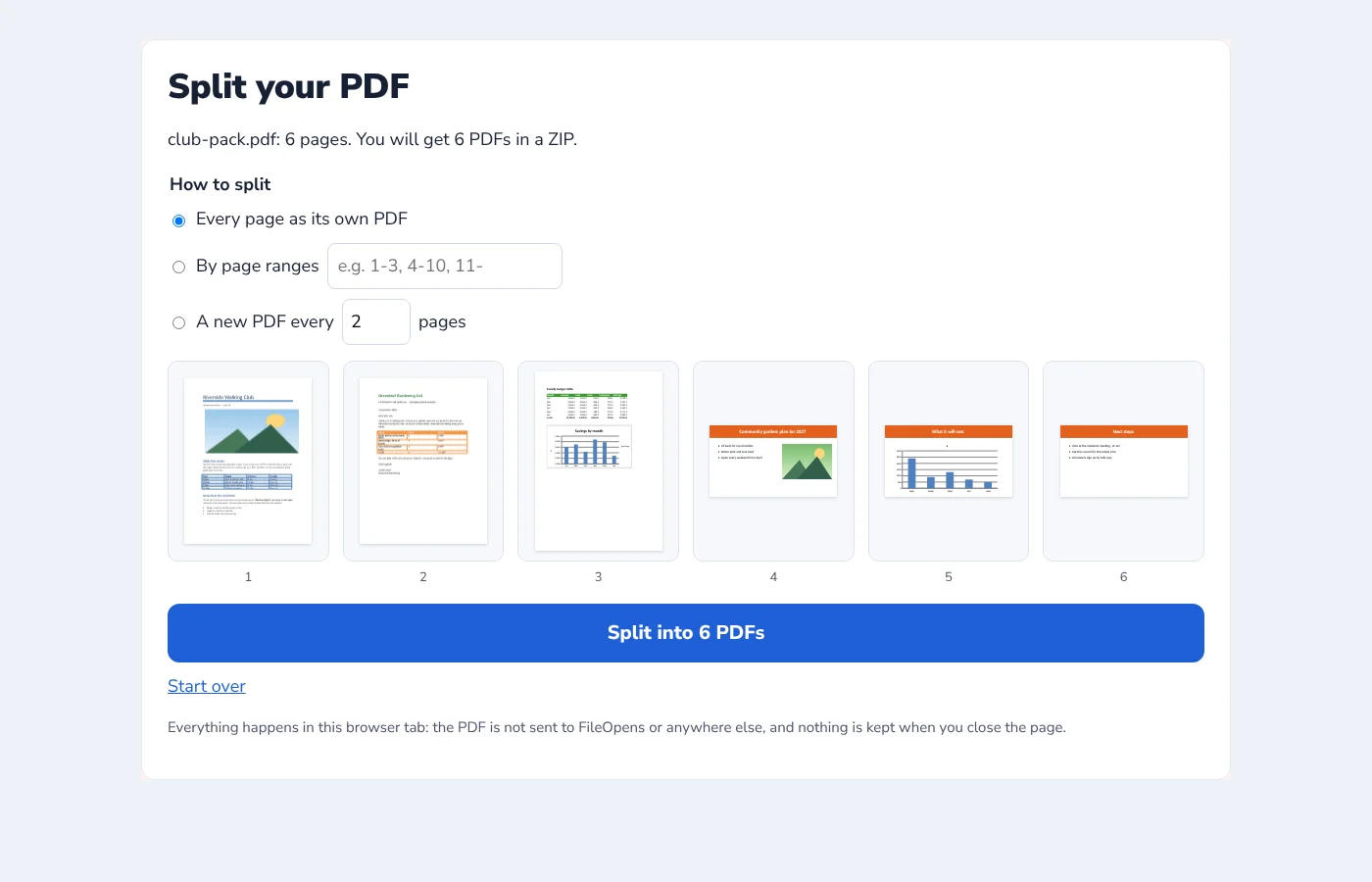
club-pack.pdfsix PDFs in a ZIP
A 6-page PDF split into pages
- Every page, page ranges or every N pages
- Thumbnails of every page
A sample PDF we made ourselves, with made-up names and data, opened in this tool and shown as it came out. Your own files stay on your device.
How to split a PDF in three steps
-
Step 1
Choose the PDF
Pick or drop the file. Every page is shown as a thumbnail.
-
Step 2
Pick how to split
Every page on its own, page ranges like 1-3, 4-10, or a new file every few pages.
-
Step 3
Download
One PDF comes straight down; several come together in a ZIP.
Three ways to split a PDF
Splitting means cutting one PDF into several smaller ones, and people need it for different reasons, so there are three ways. Every page as its own PDF is for a scan of many letters or invoices, one per page, that should become separate files. By page ranges is for picking parts out of a long document: type 1-3, 4-10, 11- and you get three PDFs, the last one running to the end. A single number such as 7 gives a one-page PDF. Every few pages cuts the file into equal parts, for example every 2 pages for double-sided forms or every 4 for booklets. The summary above the pages always says how many PDFs you will get before you click.
Split PDF files without uploading them
The splitting is done by your browser on your own device. Your PDF is read from your disk, the new files are made in memory and saved to your downloads, and nothing is sent to FileOpens or to anyone else. That matters for bank statements, payslips, medical results or contracts, which is what people usually split. It also means there is no upload to wait for, no daily limit and no account. Close the page and nothing is left behind.
What you get back
Each new PDF contains the original pages exactly as they were: text stays searchable and selectable, fonts and pictures are not recompressed, and page sizes and orientation are kept. Files are named after the original with the pages they contain, such as report-pages-04-10.pdf, and numbered so they sort in order. When there is more than one, they come in a single ZIP, which Windows, macOS, iPhone and Android all open with a tap. Bookmarks of the original are not copied into the parts, and links that jump to a page in another part stop working, because that page is now in a different file.
Extract pages or remove pages instead?
If you only want to keep a few pages and throw the rest away, split by ranges and keep the file you need, or use delete pages from PDF to remove the pages you do not want and keep everything else in one file. To join the parts back together, or with other PDFs, use merge PDF. Pages that come out sideways can be fixed with rotate PDF.
Protected PDFs and limits
A PDF protected with a password or with editing restrictions cannot be split; the tool says so instead of making broken files. Print it to a new PDF first ("Microsoft Print to PDF" on Windows, "Save as PDF" on a Mac) and split that copy. The file can be up to 500 MB. A long document split into hundreds of single pages takes a few seconds and the ZIP is about the size of the original.
More free PDF tools and converters
- Merge PDF
- Compress PDF
- Compress PDF to 100 KB
- Delete PDF pages
- Rotate PDF
- Extract PDF pages
- Reorder PDF pages
- Crop PDF
- Add page numbers
- Watermark PDF
- Sign PDF
- Protect PDF
- Unlock PDF
- OCR PDF
- Flatten PDF
- PDF to grayscale
- Invert PDF colors
- Remove PDF metadata
- PDF to Word
- Word to PDF
- PDF to Excel
- Excel to PDF
- PDF to PowerPoint
- PowerPoint to PDF
- JPG to PDF
- PNG to PDF
- Image to PDF
- PDF to JPG
- PDF to PNG
- PDF to text
- HTML to PDF
- PDF to EPUB
- PDF to PDF/A
- PDF to TIFF
- PDF to SVG
Questions about splitting PDFs
Is splitting PDFs free?
Yes, free with no account, no watermark and no limit.
Is my PDF uploaded?
No. It is split in your browser on your device and never sent anywhere.
How do I write page ranges?
Separate them with commas: 1-3, 4-10, 11- gives three PDFs, and 11- means page 11 to the end. A single number gives a one-page PDF.
Can I split a PDF into single pages?
Yes. Choose "Every page as its own PDF" and you get one file per page in a ZIP.
Does splitting reduce quality?
No. The pages are copied as they are, without recompressing text or pictures.
Why can my PDF not be split?
It is protected with a password or editing restrictions. Print it to a new PDF and split that copy.