Free Your PDF is not uploaded
Extract pages from a PDF
Extract pages from PDF files here: click the pages you need, or type their numbers, and save them as a new PDF. The original stays as it is, and nothing is uploaded. Free, with no account.
or drop it here. One PDF up to 500 MB. Pages are copied on your device; the file is never sent anywhere.
Choose the pages to extract
Everything happens in this browser tab: the PDF is not sent to FileOpens or anywhere else, and nothing is kept when you close the page.
Extract PDF pages in use
club-pack.pdfextracted.pdf
Pages 2 and 4 chosen
- Into one new PDF or each on its own
- Click pages or type their numbers
A sample PDF we made ourselves, with made-up names and data, opened in this tool and shown as it came out. Your own files stay on your device.
How to extract pages from a PDF
-
Step 1
Choose the PDF
Pick or drop the file and see every page as a thumbnail.
-
Step 2
Pick the pages
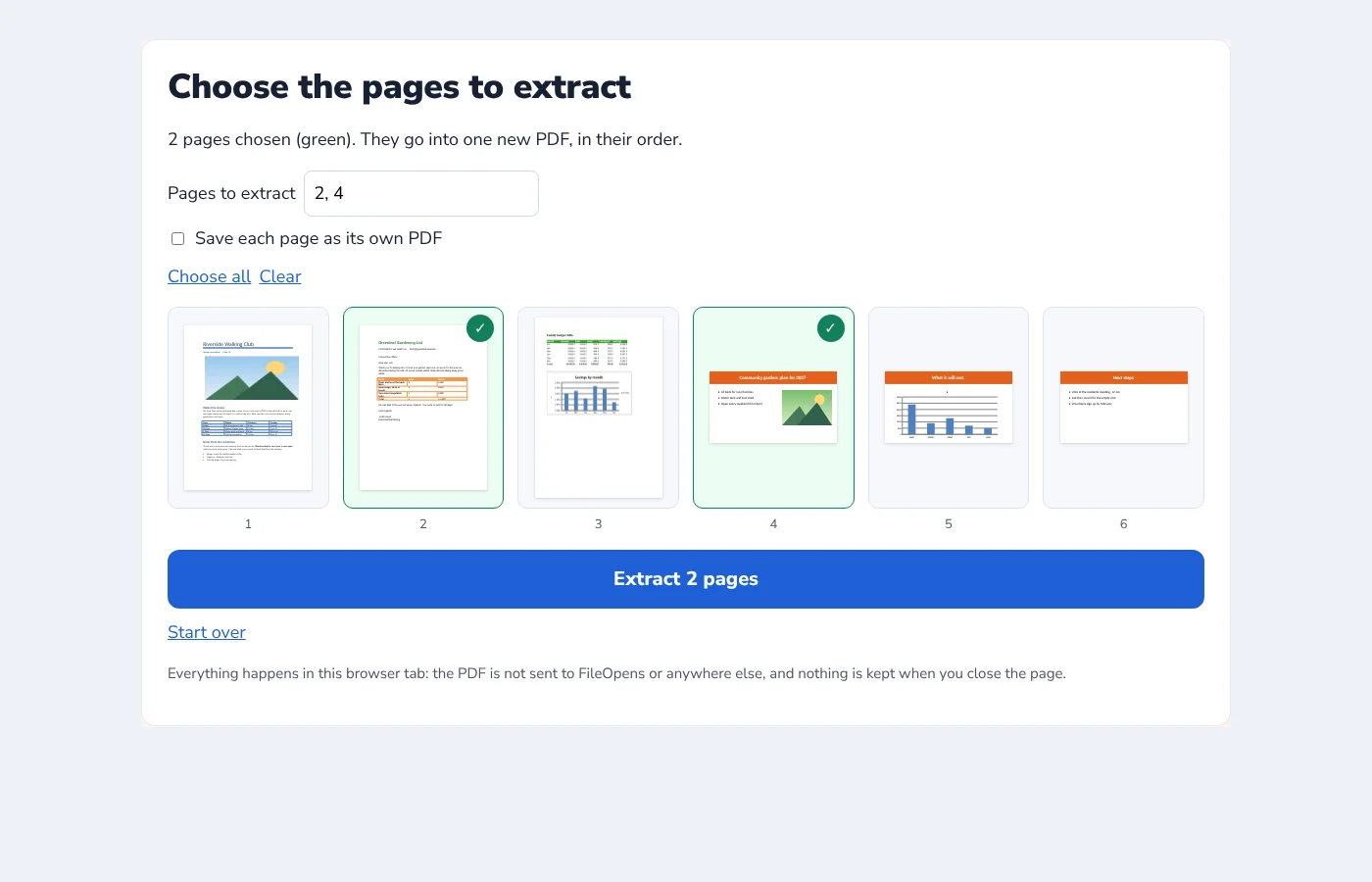
Click them (they turn green) or type numbers such as 2, 5-8.
-
Step 3
Save
Get one new PDF with those pages, or each page as its own PDF in a ZIP.
Extract pages and keep the original
You need page 4 of a 60-page contract for a form, the three pages of a report that concern your team, or one payslip out of a year of them. Extracting copies just those pages into a new PDF and leaves the original file exactly as it was. It is the opposite of deleting: instead of saying what should go, you say what you want to keep, which is quicker when you need a few pages out of many.
How to extract pages from PDF
Choose the PDF above and every page appears as a thumbnail. Click the pages you want; they turn green with a tick, and clicking again leaves a page out. For long documents type the numbers instead, such as 1, 4, 10-15. "Choose all" and "Clear" help when you want almost everything. By default the chosen pages go into one new PDF in their original order. Tick "Save each page as its own PDF" and you get one file per page in a ZIP, named with the page number. To change the order of the pages as well, use reorder PDF pages on the new file.
Extract pages without uploading the PDF
The pages are copied by your browser, on your own device. The PDF is read from your disk, the new file is made in memory and saved to your downloads; nothing is sent to FileOpens or anyone else. That matters for what people usually extract from: bank and tax documents, medical reports, contracts and HR papers. There is no account, no limit on pages and no watermark.
What the extracted pages keep
The pages are copied exactly: text you can search and select, fonts, pictures at full quality, vector drawings, page size and orientation, and links to websites. Bookmarks of the original document are not copied, and a link that jumps to a page you did not extract has nowhere to go. Filled-in form fields keep their text on the page but may not be fillable in the new file.
Extract, split or delete?
All three cut a PDF down, and the best one depends on what you want back. Extract gives you one file with the pages you picked. Split PDF cuts the whole document into several files, such as every page on its own or chapters by page ranges. Delete pages keeps the whole document minus a few pages. A protected PDF (password or editing restrictions) cannot be used in any of them: print it to a new PDF first with "Microsoft Print to PDF" or "Save as PDF".
More free PDF tools and converters
- Merge PDF
- Split PDF
- Compress PDF
- Compress PDF to 100 KB
- Delete PDF pages
- Rotate PDF
- Reorder PDF pages
- Crop PDF
- Add page numbers
- Watermark PDF
- Sign PDF
- Protect PDF
- Unlock PDF
- OCR PDF
- Flatten PDF
- PDF to grayscale
- Invert PDF colors
- Remove PDF metadata
- PDF to Word
- Word to PDF
- PDF to Excel
- Excel to PDF
- PDF to PowerPoint
- PowerPoint to PDF
- JPG to PDF
- PNG to PDF
- Image to PDF
- PDF to JPG
- PDF to PNG
- PDF to text
- HTML to PDF
- PDF to EPUB
- PDF to PDF/A
- PDF to TIFF
- PDF to SVG
Questions about extracting PDF pages
Is it free?
Yes. Extracting pages is free, with no account, no limit and no watermark.
Does the original PDF change?
No. You get a new PDF with the pages you chose; the original stays as it was.
Can I save each page as a separate PDF?
Yes. Tick "Save each page as its own PDF" and the pages come in a ZIP, one file per page.
Is my PDF uploaded?
No. The pages are copied in your browser on your device and never sent anywhere.
Will the quality stay the same?
Yes. Pages are copied as they are, without recompressing text or pictures.