Free Your pictures are not uploaded
PSD to PNG converter
Convert PSD to PNG here: each Photoshop file becomes a full-size PNG of the finished design, with transparent areas kept transparent, ready for a website, an app, a presentation or a print shop. Your browser does the work; nothing is uploaded.
or drop them here, as many as you like. .psd and .psb. Nothing is uploaded.
Your Photoshop files
Everything happens in this browser tab: your pictures are not sent to FileOpens or anywhere else, and nothing is kept when you close the page.
A PSD converted to PNG by FileOpens
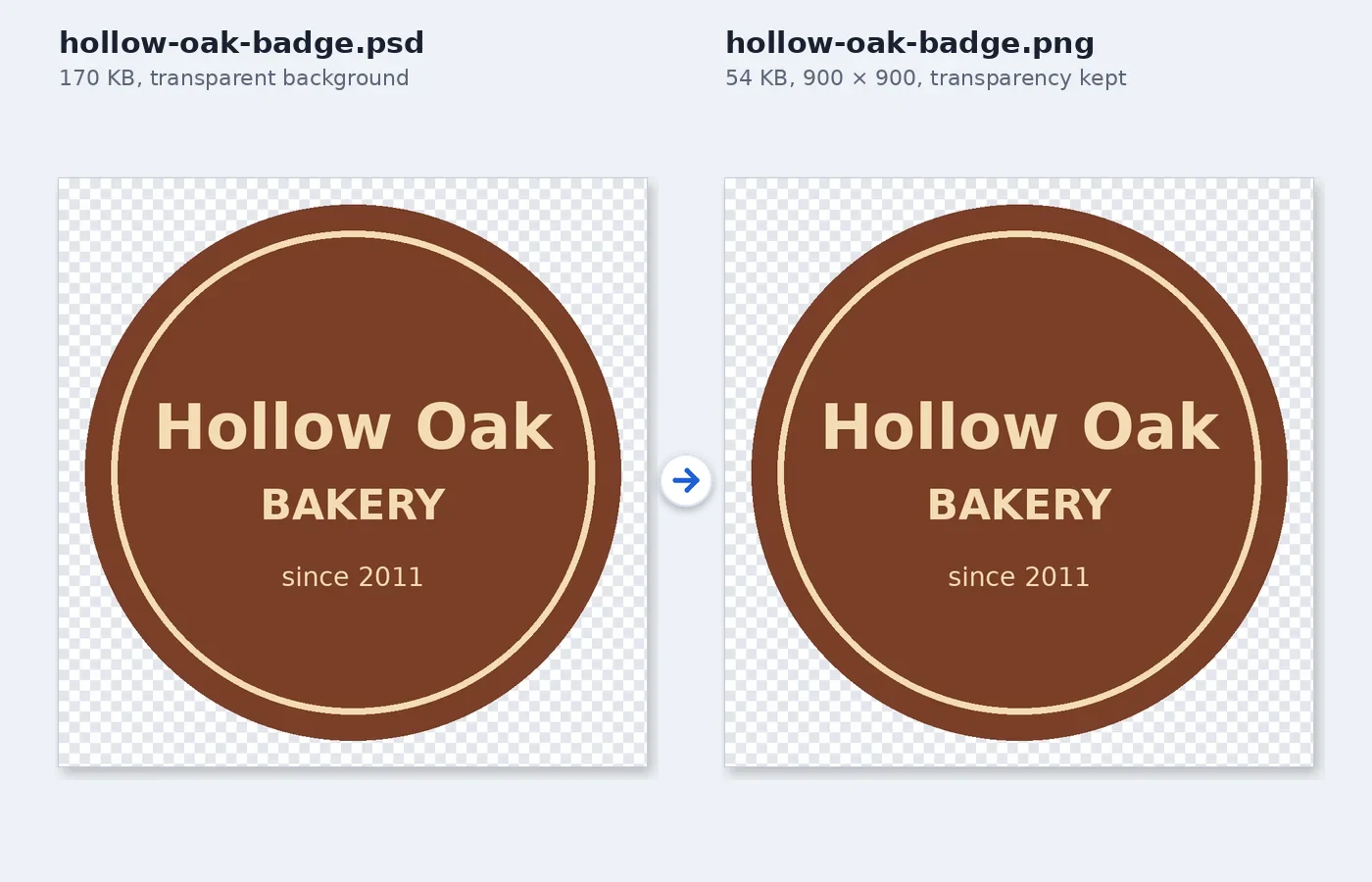
hollow-oak-badge.psdhollow-oak-badge.png
A logo PSD with a transparent background
- Transparency kept
- 900 × 900, lossless
A sample logo we made ourselves, with made-up names and data, opened in this tool and shown as it came out. Your own files stay on your device.
How to convert PSD to PNG
-
Step 1
Choose the .psd files
Logos, icons, banners, mock-ups or templates.
-
Step 2
Convert
Each design is saved as a PNG at its full size.
-
Step 3
Download
One by one, or all in a ZIP.
Why PNG for Photoshop work
PNG is lossless and keeps transparency, the two things most Photoshop work needs once it leaves Photoshop. A logo or an icon with a transparent background stays clean on any colour; a banner with text and sharp edges stays crisp, without the faint blur JPG adds around letters. It is the format website builders, app stores, slide software and developers expect for graphics. For photographs, where file size matters more, PSD to JPG gives much smaller files.
What PSD to PNG produces
Each PSD becomes one PNG of the whole document at its full size in pixels, showing all visible layers as they look together, which is what Photoshop calls the merged or flattened image. Hidden layers stay hidden. Transparent areas, where no layer has pixels, stay transparent. The PNG is 8 bits per channel in sRGB colour, the standard for screens, even if the PSD was 16-bit or CMYK. Separate layers are not exported as separate PNGs; if you need that, Photoshop's "Export Layers to Files" or GIMP can do it.
PSD to PNG for websites, apps and print
The PNG has the document's own size in pixels, so plan the size in the PSD: a website logo is often designed at two or three times its display size for sharp phone screens, app store icons are usually 1024 × 1024, and a print at 300 dpi needs about 1200 pixels per 10 cm. Because PNG is lossless, a large design gives a large file: a full-screen photo-heavy PSD can make a PNG of 5–20 MB. That is fine for print and for editing elsewhere; for a web page with photos, JPG or WebP is lighter, and PNG to WebP can shrink the PNG afterwards.
When a file looks different from Photoshop
Photoshop stores a ready-made merged picture in the PSD when "Maximize PSD and PSB File Compatibility" is ticked, as Photoshop suggests, and that is what the converter uses, so the result matches what the designer saw. A few files are saved without it to save space. Then the converter combines the visible layers itself, with their order, opacity and blend modes, but without layer effects (shadows, strokes, glows) and adjustment layers; the list tells you when this happened. Re-saving the PSD in Photoshop or Photopea with the compatibility option on fixes it.
Without Photoshop on Mac and Windows
On a Mac, open the PSD in Preview and use File > Export > PNG. On Windows there is no built-in way; GIMP opens PSD and exports PNG through File > Export As. Photopea does it in the browser too, with an editor around it. This page is quickest for a batch: drop all the files and download one ZIP. To just look at the designs first, use the PSD viewer.
Private
The files are read in your browser and never uploaded, so client designs stay on your device.
More free image converters
- Image converter
- Compress image
- JPG to PNG
- PNG to JPG
- JPEG to JPG
- Compress JPEG
- Compress PNG
- GIF to PNG
- PNG to GIF
- GIF to JPG
- JPG to GIF
- GIF maker
- Remove background
- Background eraser
- Make background transparent
- White background for photo
- Remove white background
- Resize image
- Crop image
- Rotate image
- Flip image
- Blur image
- Pixelate image
- Black and white photo
- Invert image colors
- Merge images
- Watermark image
- Add text to image
- Remove EXIF data
- EXIF viewer
- Change DPI
- Image to Base64
- Base64 to image
- MP4 to GIF
- Video to GIF
- GIF to MP4
- GIF compressor
- PNG to SVG
- JPG to SVG
- Image to SVG
- SVG to PDF
- Image to text
- PNG to DXF
- SVG to DXF
- DXF to SVG
- HEIC to JPG
- HEIC to PNG
- HEIC to PDF
- HEIC viewer
- WebP to PNG
- WebP to JPG
- WebP to GIF
- WebP to PDF
- PNG to WebP
- JPG to WebP
- AVIF to PNG
- AVIF to JPG
- JFIF to JPG
- JFIF to PNG
- SVG to PNG
- SVG to JPG
- PNG to ICO
- ICO to PNG
- BMP to JPG
- BMP to PNG
- TIFF to JPG
- TIFF to PNG
- PSD viewer
- PSD to JPG
- PSD to PDF
- AI to SVG
- AI to PNG
- Open AI file
- EPS to PNG
- DDS to PNG
- TGA to PNG
- TGA to JPG
- RAW to JPG
- CR3 to JPG
- CR2 to JPG
- NEF to JPG
Questions about PSD to PNG
Is the transparent background kept?
Yes, areas without pixels stay transparent in the PNG.
Do I get each layer as a PNG?
No, one PNG of the finished design per file.
Are hidden layers included?
No, only what is visible in the document.
Does it work with PSB files?
Yes, large-document PSB files convert the same way.
Are my files uploaded?
No, everything happens in your browser.