Free Your pictures are not uploaded
PNG to WebP converter
Convert PNG to WebP here to make the images on your website, blog or online shop smaller and faster to load: transparency is kept, and you choose between lossy (much smaller) and lossless (identical) WebP. You see each new file size before you use it.
or drop them here, as many as you like. Nothing is uploaded.
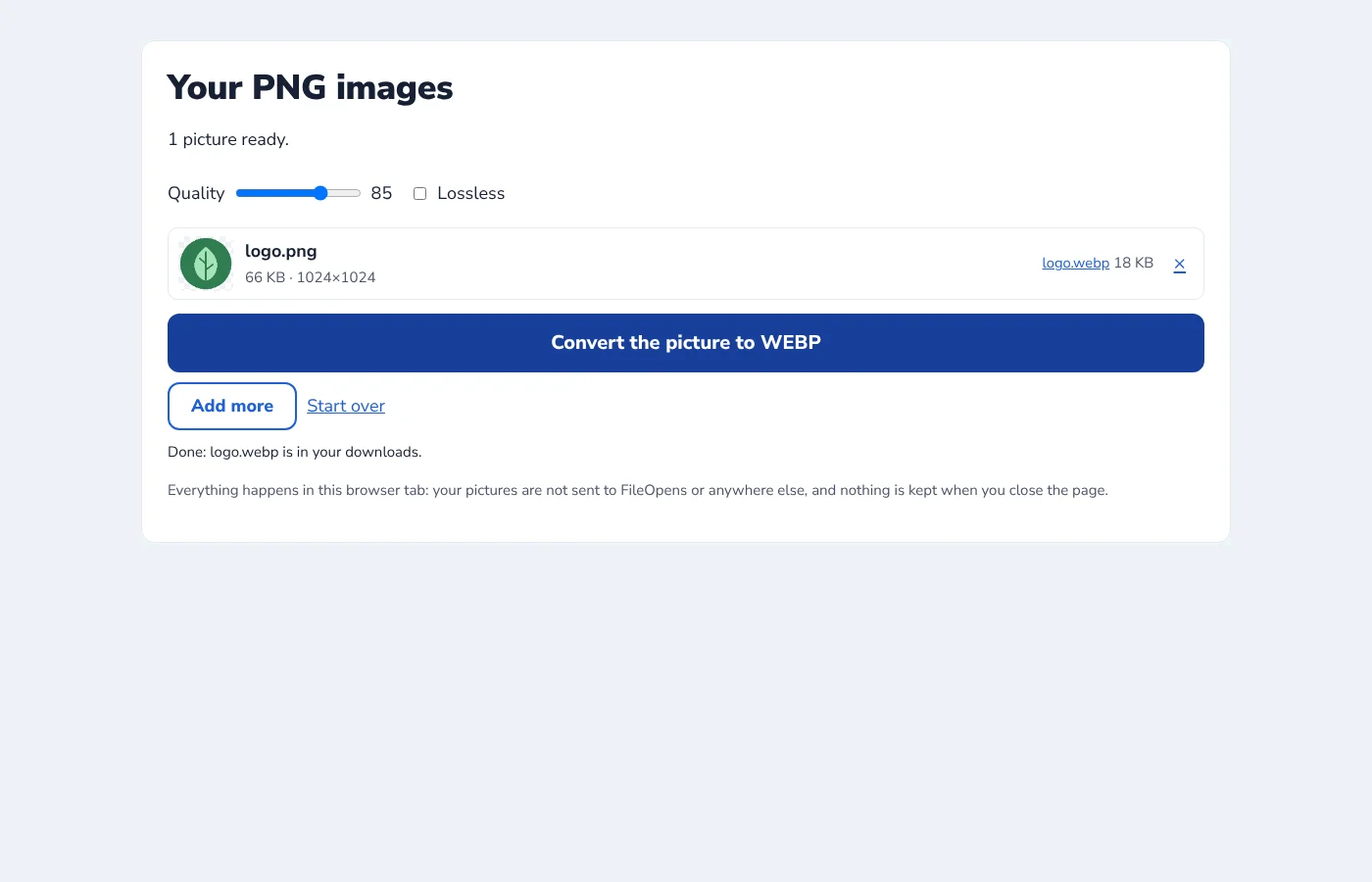
Your PNG images
Everything happens in this browser tab: your pictures are not sent to FileOpens or anywhere else, and nothing is kept when you close the page.
A PNG logo converted to WebP by FileOpens
logo.pnglogo.webp
Logo with transparency to WebP
- 66 KB PNG to 18 KB WebP at quality 85
- Transparent background kept
A sample logo we made ourselves, with made-up names and data, opened in this tool and shown as it came out. Your own files stay on your device.
How to convert PNG to WebP
-
Step 1
Choose the PNGs
Screenshots, logos, product images, illustrations.
-
Step 2
Lossy or lossless
Quality 85 for most sites; Lossless for logos and pixel art.
-
Step 3
Download
Each WebP with its size, or all in a ZIP.
Why websites use WebP
Page speed affects how many visitors stay and, through Google's Core Web Vitals, how a page ranks. Images are usually the heaviest part of a page, and PNG is the heaviest image format, because it is lossless. WebP was made for the web: lossy WebP is typically several times smaller than a PNG of the same picture, and even lossless WebP is usually around a quarter smaller than an optimised PNG. Every current browser shows WebP, Safari since version 14 in 2020, so there is no longer a reason not to use it on a site.
Lossy or lossless
Lossy (the quality slider) suits photos, product shots and illustrations with gradients: at 80–85 the difference is hard to see, and files shrink the most. Lossless keeps every pixel, which is right for logos, icons, diagrams, screenshots with small text and pixel art, where compression artefacts around sharp edges would show. Both keep transparency, so a logo on a transparent background stays that way. Try one picture both ways and compare the sizes shown in the list; the smaller good-looking one wins.
Browsers and WordPress
The WebP is written by your browser's own encoder. Chrome, Edge and Firefox can write WebP; Safari can show WebP but cannot write it from a web page, so on a Mac open this page in Chrome, Edge or Firefox. On an iPhone or iPad every browser uses Safari's engine, so convert on a computer or an Android phone. WordPress accepts WebP uploads since version 5.8, and most shop systems (Shopify, WooCommerce, Squarespace) do too. Keep your original PNGs: WebP is for publishing, and editing a lossy WebP again and again loses quality, just like JPG.
How much smaller is PNG to WebP?
It depends on the picture. A screenshot of a web page, 1.2 MB as PNG, is often 150–300 KB as lossy WebP at 85. A flat logo may shrink only a little, because PNG already handles flat colours well. Photos saved as PNG, which happens a lot with phone screenshots and design exports, shrink the most. The page shows both sizes, so you can see what you gain for each image.
Privacy and the reverse direction
Nothing is uploaded: your images never leave the browser, so unreleased product photos and client work are safe. If you have WebP files and need PNG, use WebP to PNG. For JPG photos, JPG to WebP.
Using WebP in HTML with a fallback
Every current browser shows WebP, so a plain <img src="picture.webp"> is enough today. If your audience includes very old browsers or email clients, use the picture element: <picture><source srcset="picture.webp" type="image/webp"><img src="picture.png" alt=""></picture>. Browsers that know WebP take the small file; others fall back to the PNG. Give every image a width and height in the HTML so the page does not jump while it loads, and add loading="lazy" to images further down the page.
More free image converters
- Image converter
- Compress image
- JPG to PNG
- PNG to JPG
- JPEG to JPG
- Compress JPEG
- Compress PNG
- GIF to PNG
- PNG to GIF
- GIF to JPG
- JPG to GIF
- GIF maker
- Remove background
- Background eraser
- Make background transparent
- White background for photo
- Remove white background
- Resize image
- Crop image
- Rotate image
- Flip image
- Blur image
- Pixelate image
- Black and white photo
- Invert image colors
- Merge images
- Watermark image
- Add text to image
- Remove EXIF data
- EXIF viewer
- Change DPI
- Image to Base64
- Base64 to image
- MP4 to GIF
- Video to GIF
- GIF to MP4
- GIF compressor
- PNG to SVG
- JPG to SVG
- Image to SVG
- SVG to PDF
- Image to text
- PNG to DXF
- SVG to DXF
- DXF to SVG
- HEIC to JPG
- HEIC to PNG
- HEIC to PDF
- HEIC viewer
- WebP to PNG
- WebP to JPG
- WebP to GIF
- WebP to PDF
- JPG to WebP
- AVIF to PNG
- AVIF to JPG
- JFIF to JPG
- JFIF to PNG
- SVG to PNG
- SVG to JPG
- PNG to ICO
- ICO to PNG
- BMP to JPG
- BMP to PNG
- TIFF to JPG
- TIFF to PNG
- PSD viewer
- PSD to PNG
- PSD to JPG
- PSD to PDF
- AI to SVG
- AI to PNG
- Open AI file
- EPS to PNG
- DDS to PNG
- TGA to PNG
- TGA to JPG
- RAW to JPG
- CR3 to JPG
- CR2 to JPG
- NEF to JPG
Questions about PNG to WebP
Is transparency kept?
Yes, both lossy and lossless WebP keep the transparent background.
Lossy or lossless?
Lossy at 80–85 for photos and illustrations; lossless for logos, icons and screenshots with text.
Why does it not work in Safari?
Safari can show WebP but cannot write it from a web page. Use Chrome, Edge or Firefox.
Does WordPress accept WebP?
Yes, since WordPress 5.8.
Are my images uploaded?
No, the conversion happens in your browser.