Free Your pictures are not uploaded
Merge images
Merge images here: put two or more pictures side by side, one under another, or in a grid of two or three across, with a gap and background colour of your choice, and save them as one picture. A live preview shows the result as you change the settings, all in your browser.
or drop them here. JPG, PNG, WebP, HEIC, AVIF, GIF, BMP, TIFF. Nothing is uploaded.
Your pictures
Everything happens in this browser tab: your pictures are not sent to FileOpens or anywhere else, and nothing is kept when you close the page.
Pictures merged by FileOpens
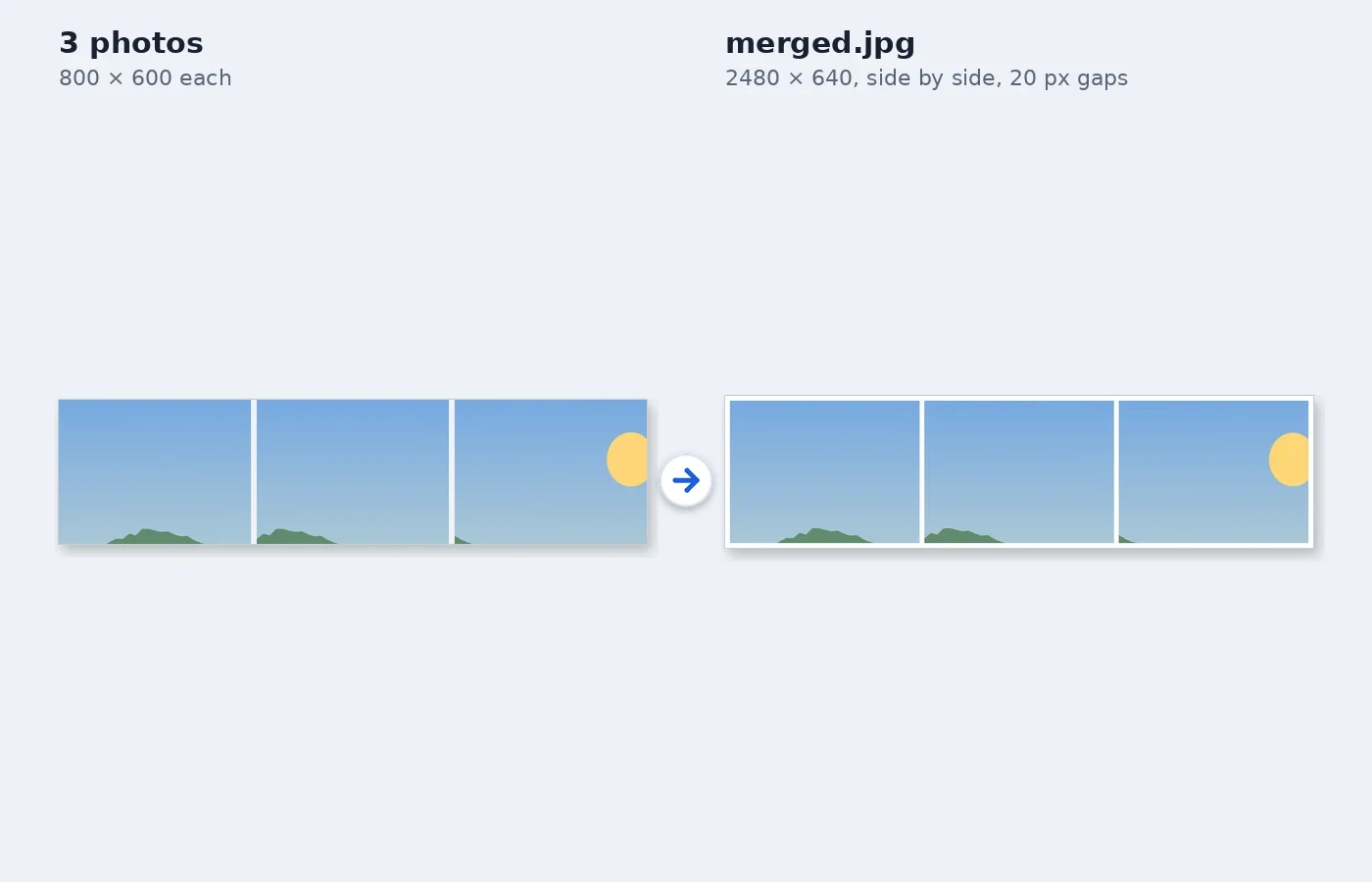
3 photosmerged.jpg
Three photos side by side
- 2480 × 640 with 20 px gaps
- Same height, nothing enlarged
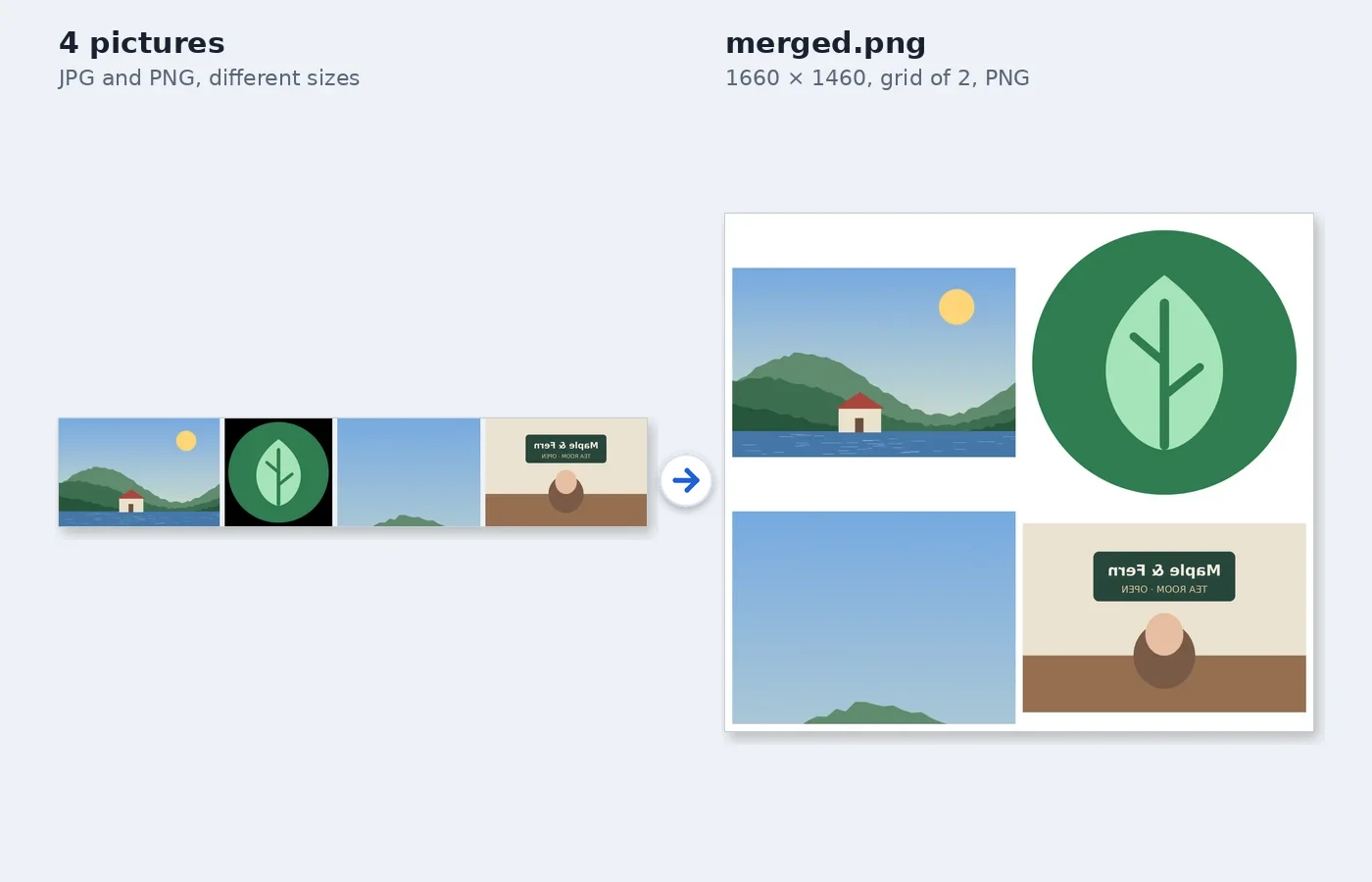
4 picturesmerged.png
Four pictures of different sizes in a grid
- 2 across, centred in their cells
- PNG because one input was PNG
A sample picture set we made ourselves, with made-up names and data, opened in this tool and shown as it came out. Your own files stay on your device.
How to merge images
-
Step 1
Choose the pictures
Two or more, in the order they should appear.
-
Step 2
Pick the layout
Side by side, one under another or a grid; gap and background.
-
Step 3
Merge and save
One JPG or PNG with everything in it.
When one picture is better than several
Many forms and sites accept only one image: a before-and-after comparison, the front and back of an ID card or receipt, several screenshots of one conversation, product photos from different angles, or a set of pictures for a single social media post. Merging them into one file keeps them together, in the right order, and saves the person you send them to from opening several attachments.
How to merge images here
Choose the pictures and they appear in the list in the order you picked them; move one earlier with ↑, remove any with × and add more with "Add more". "Side by side" scales every picture to the same height, so they line up in a neat row; "one under another" scales them to the same width, which suits long screenshots and documents; the grids place two or three pictures per row. The size used is the smallest one among your pictures, so nothing is enlarged and blurred. The preview updates as you change the settings and shows the final size in pixels.
Gap, background and transparency
Choose no gap for a seamless join, or 10–40 pixels for a clean border between pictures, in any colour. Tick "transparent" to keep empty areas see-through, saved as PNG, for designs and stickers. If all your pictures are JPG and the background is a colour, the result is a JPG at quality 92, otherwise a PNG. Pictures of different shapes are centred in their cell, so the layout stays tidy.
Merge photos for social media and documents
A side-by-side "before and after" is easiest with two photos of the same shape; crop them first with crop image if needed. For an ID card, put the front above the back and keep a small white gap; then use compress image if the form has a size limit. To put pictures on separate pages instead, use image to PDF.
Very large results
Merging many large photos side by side quickly makes a very wide picture: ten 4000-pixel phone photos would be 40,000 pixels wide, more than most viewers handle. Resize the photos first, for example to 1600 pixels, or use a grid. The page stops with an explanation if the result would be too large for a browser to draw.
Merge images on a phone
On an iPhone or Android phone, open this page in the browser, tap the button and choose the pictures from your photos or files; they appear in the order you picked them. Choose the layout, check the preview and save: the merged picture lands in your downloads and can be added to your photos or attached straight away. This is often quicker than a collage app, has no watermark and needs no account. Your pictures are merged in your browser and never uploaded.
More free image converters
- Image converter
- Compress image
- JPG to PNG
- PNG to JPG
- JPEG to JPG
- Compress JPEG
- Compress PNG
- GIF to PNG
- PNG to GIF
- GIF to JPG
- JPG to GIF
- GIF maker
- Remove background
- Background eraser
- Make background transparent
- White background for photo
- Remove white background
- Resize image
- Crop image
- Rotate image
- Flip image
- Blur image
- Pixelate image
- Black and white photo
- Invert image colors
- Watermark image
- Add text to image
- Remove EXIF data
- EXIF viewer
- Change DPI
- Image to Base64
- Base64 to image
- MP4 to GIF
- Video to GIF
- GIF to MP4
- GIF compressor
- PNG to SVG
- JPG to SVG
- Image to SVG
- SVG to PDF
- Image to text
- PNG to DXF
- SVG to DXF
- DXF to SVG
- HEIC to JPG
- HEIC to PNG
- HEIC to PDF
- HEIC viewer
- WebP to PNG
- WebP to JPG
- WebP to GIF
- WebP to PDF
- PNG to WebP
- JPG to WebP
- AVIF to PNG
- AVIF to JPG
- JFIF to JPG
- JFIF to PNG
- SVG to PNG
- SVG to JPG
- PNG to ICO
- ICO to PNG
- BMP to JPG
- BMP to PNG
- TIFF to JPG
- TIFF to PNG
- PSD viewer
- PSD to PNG
- PSD to JPG
- PSD to PDF
- AI to SVG
- AI to PNG
- Open AI file
- EPS to PNG
- DDS to PNG
- TGA to PNG
- TGA to JPG
- RAW to JPG
- CR3 to JPG
- CR2 to JPG
- NEF to JPG
Questions about merging images
How do I put two pictures side by side?
Choose both, pick "side by side" and merge.
Can I change the order?
Yes. They follow the list: move a picture earlier with ↑, or remove it with × and add it again to put it at the end.
Will the pictures be resized?
Yes, to the same height or width, using the smallest one so nothing blurs.
Can the background be transparent?
Yes, tick "transparent" and you get a PNG.
How many pictures can I merge?
As many as you like, within the size a browser can draw.
Are my pictures uploaded?
No, they are merged in your browser.