Free Your PDF is not uploaded
Crop PDF pages
Crop PDF pages here: set how much to cut from the top, bottom and sides, see the frame on the first page, and save the trimmed PDF. It works in your browser, so the file is never uploaded. Free.
or drop it here. One PDF up to 500 MB. Pages are cropped on your device and never sent anywhere.
Set the margins to cut
Everything happens in this browser tab: the PDF is not sent to FileOpens or anywhere else, and nothing is kept when you close the page.
A PDF cropped by FileOpens
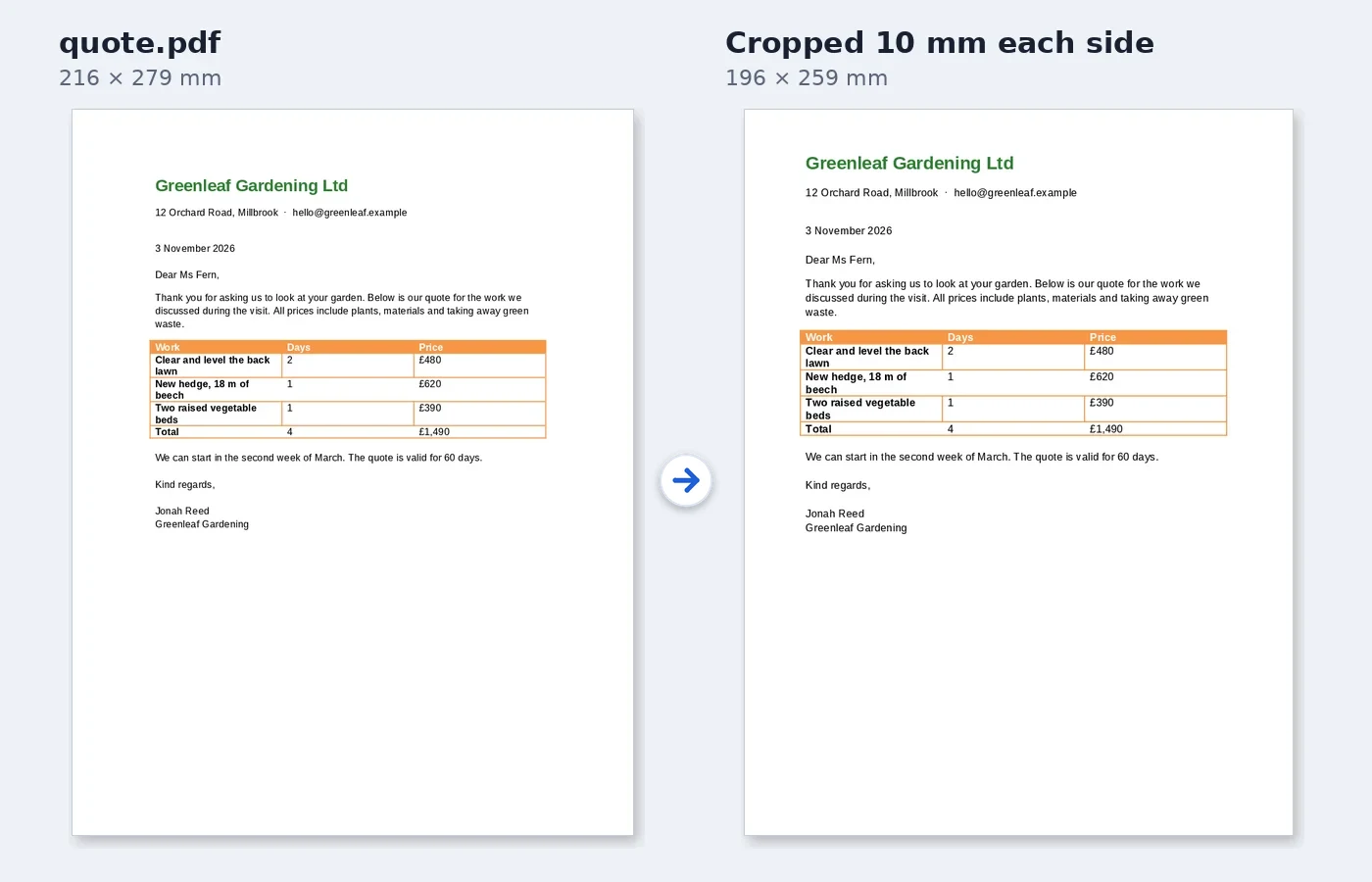
quote.pdfcropped.pdf
10 mm cut from every edge
- 216 × 279 mm becomes 196 × 259 mm
- Same margins on every page
A sample letter we made ourselves, with made-up names and data, opened in this tool and shown as it came out. Your own files stay on your device.
How to crop a PDF
-
Step 1
Choose the PDF
Pick or drop the file. The first page is shown large.
-
Step 2
Set the margins
Type how many millimetres to cut from each edge; the blue frame shows what stays.
-
Step 3
Save
Download the cropped PDF, all pages or just the first.
Why crop a PDF
Wide white margins make a page small on a phone and waste paper when you print several pages on one sheet. Scans often have a dark border or the edge of the scanner lid. Slides exported to PDF can carry empty space around them, and a book in PDF reads much better on an e-reader without its margins. Cropping trims the page so the content fills more of the screen or the paper.
How to crop PDF pages
Choose the PDF above and the first page appears with a blue frame. Type how many millimetres to cut from the top, bottom, left and right; the darkened area outside the frame is what goes. The line below gives the page size before and after. By default every page is cropped the same way, which suits documents and books; untick the box to crop only the first page, for example a cover. Pages that are stored sideways are handled so the margins match the page as you see it. Click Crop and the new PDF downloads.
Important: cropping hides, it does not erase
Like Adobe Acrobat and every other PDF tool, this changes the visible area of each page. The part outside the frame is no longer shown or printed, but it is still inside the file, and someone with a PDF editor can bring it back. So do not use cropping to hide a name, an account number or anything private; cover or remove it properly, or print the cropped PDF to a new PDF ("Microsoft Print to PDF" or "Save as PDF"), which leaves out what is outside the page.
No upload, no quality loss
The cropping is done by your browser, on your device, and the PDF never leaves it. Nothing is redrawn or recompressed: text stays sharp and searchable, pictures keep their resolution, and links still work. The file size stays about the same, because the hidden margins are still there. Other quick fixes for the same file: rotate PDF for sideways pages and delete pages for blank ones.
More free PDF tools and converters
- Merge PDF
- Split PDF
- Compress PDF
- Compress PDF to 100 KB
- Delete PDF pages
- Rotate PDF
- Extract PDF pages
- Reorder PDF pages
- Add page numbers
- Watermark PDF
- Sign PDF
- Protect PDF
- Unlock PDF
- OCR PDF
- Flatten PDF
- PDF to grayscale
- Invert PDF colors
- Remove PDF metadata
- PDF to Word
- Word to PDF
- PDF to Excel
- Excel to PDF
- PDF to PowerPoint
- PowerPoint to PDF
- JPG to PDF
- PNG to PDF
- Image to PDF
- PDF to JPG
- PDF to PNG
- PDF to text
- HTML to PDF
- PDF to EPUB
- PDF to PDF/A
- PDF to TIFF
- PDF to SVG
Questions about cropping PDFs
Is cropping free?
Yes. Free, with no account, no limit and no watermark.
Is the cropped part deleted?
No. It is hidden, like in Acrobat, but still inside the file. Do not crop to hide private information.
Can I crop only one page?
Untick "The same for every page" and only the first page is cropped.
Does cropping reduce quality?
No. Nothing is redrawn; only the visible area of the page changes.
Is my PDF uploaded?
No. It is cropped in your browser on your device and never sent anywhere.