Free Your pictures are not uploaded
Convert images to one PDF
Image to PDF, whatever the format: JPG, PNG, GIF, WebP and BMP pictures, mixed, go into one PDF in the order you choose. It all happens on your device; nothing is uploaded.
or drop them here. JPG, PNG, GIF, WebP, BMP and, in Safari, HEIC. Any number of pictures, made into one PDF on your device.
Your pictures, in order
Everything happens in this browser tab: the pictures are not sent to FileOpens or anywhere else, and nothing is kept when you close the page.
Pictures turned into a PDF by FileOpens
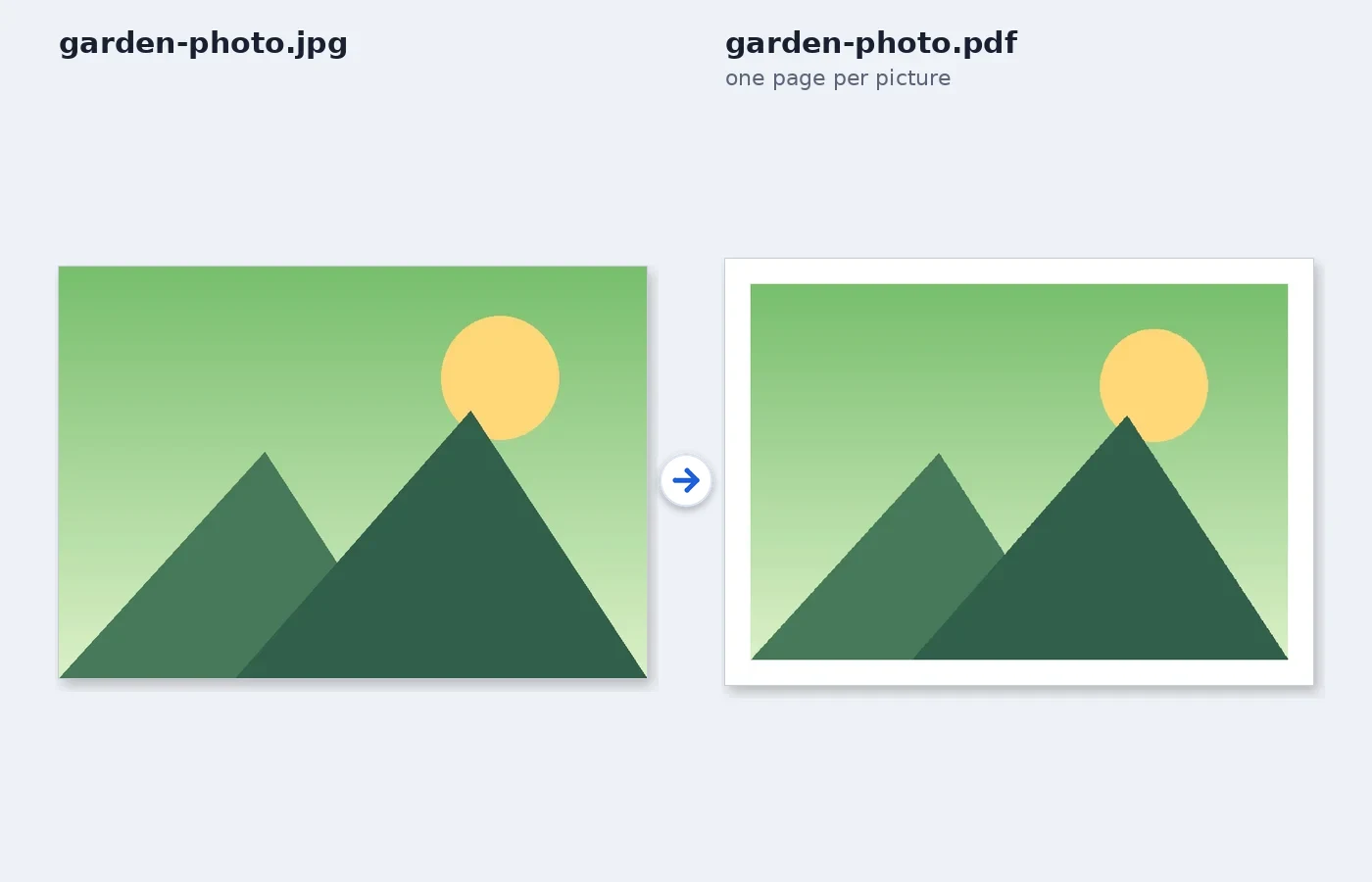
garden-photo.jpggarden-photo.pdf
A picture as a PDF page
- Page the size of the picture, or A4 / Letter
- Phone photos turned the right way
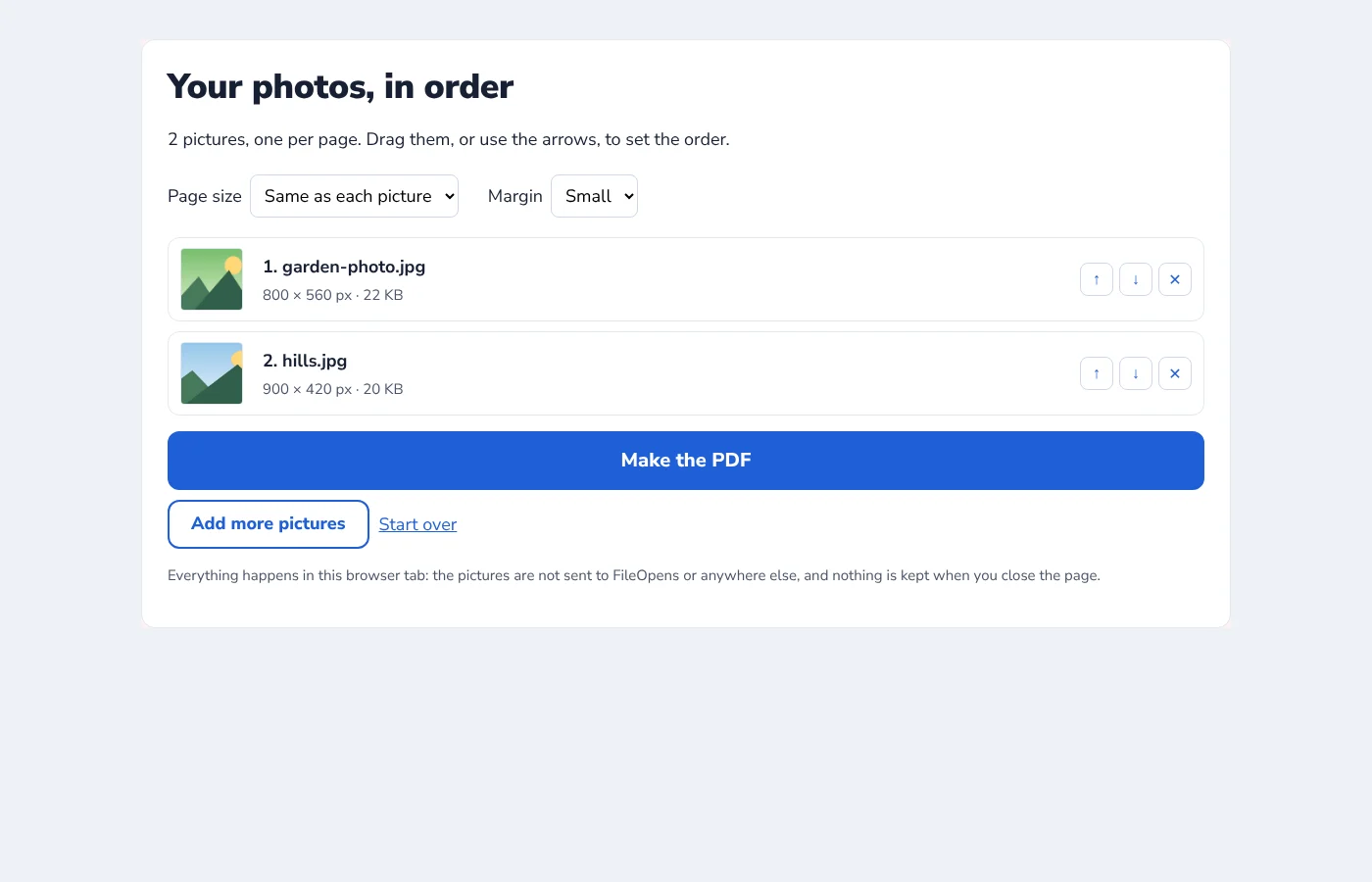
two picturesone PDF
Pictures in the order you set
- Drag or use the arrows
- Page size and margin to choose
A sample picture we made ourselves, with made-up names and data, opened in this tool and shown as it came out. Your own files stay on your device.
How to convert images to PDF
-
Step 1
Add the pictures
Choose or drop images in any of the usual formats, mixed.
-
Step 2
Order and size
Drag them into order; choose the picture size, A4 or Letter, and a margin.
-
Step 3
Download
One PDF with one picture per page.
Image to PDF from any format
Pictures come from everywhere: JPG photos from a phone, PNG screenshots, WebP images saved from a website, a GIF from a chat, an old BMP scan. Most converters want them all in one format first. Here you can drop them as they are, in any mix, and get one PDF with a page per picture, in the order you choose. It is the quick way to make one document out of a pile of images for a report, an application or an archive.
Images to PDF step by step, with every option
Choose the images above or drop them from a folder. Each one is listed with its size; drag them into order or use the arrows. Choose the page size: the size of each picture, A4 or US Letter (wide pictures get a landscape page), and a margin. Click Make the PDF and it downloads.
How each format is handled
JPG photos go in unchanged, at full quality, and turned the right way up if the phone stored them sideways. PNG images go in pixel for pixel, keeping transparency. WebP and AVIF pictures are converted to JPEG at high quality on the way in, and GIF and BMP to lossless PNG; an animated GIF gives its first frame. HEIC photos from an iPhone can be added in Safari, which reads them; other browsers cannot open HEIC, so convert them to JPG on the phone first (or set the camera to "Most Compatible"). TIFF scans, including multi-page faxes, have their own tool: TIFF to PDF.
Private by design
Your browser builds the PDF on your own device; the pictures are not uploaded to FileOpens or anywhere else. There is no account, no limit and no watermark, and nothing is kept once you close the page.
Other picture-to-PDF tools
For photos only, JPG to PDF; for screenshots, PNG to PDF. To add the pictures to an existing PDF, convert them and use merge PDF.
More free PDF tools and converters
- Merge PDF
- Split PDF
- Compress PDF
- Compress PDF to 100 KB
- Delete PDF pages
- Rotate PDF
- Extract PDF pages
- Reorder PDF pages
- Crop PDF
- Add page numbers
- Watermark PDF
- Sign PDF
- Protect PDF
- Unlock PDF
- OCR PDF
- Flatten PDF
- PDF to grayscale
- Invert PDF colors
- Remove PDF metadata
- PDF to Word
- Word to PDF
- PDF to Excel
- Excel to PDF
- PDF to PowerPoint
- PowerPoint to PDF
- JPG to PDF
- PNG to PDF
- PDF to JPG
- PDF to PNG
- PDF to text
- HTML to PDF
- PDF to EPUB
- PDF to PDF/A
- PDF to TIFF
- PDF to SVG
Questions about image to PDF
Which image formats work?
JPG, PNG, GIF, WebP and BMP in every current browser, AVIF in most, and HEIC in Safari.
Can I mix formats in one PDF?
Yes. Add JPG, PNG, WebP and others together; each becomes one page.
Is it free?
Yes. Free, with no account and no watermark.
What happens to an animated GIF?
Its first frame becomes the page.
Are my pictures uploaded?
No. The PDF is made in your browser on your device.