Free Your pictures are not uploaded
Rotate image
Rotate images here: turn sideways or upside-down photos and scans 90° right, 90° left or 180°, or straighten a tilted picture by any angle, with the corners filled, transparent or trimmed. A whole batch is turned at once, in your browser.
or drop them here. JPG, PNG, WebP, HEIC, AVIF, GIF, BMP, TIFF. Nothing is uploaded.
Your pictures
Everything happens in this browser tab: your pictures are not sent to FileOpens or anywhere else, and nothing is kept when you close the page.
Photos rotated by FileOpens
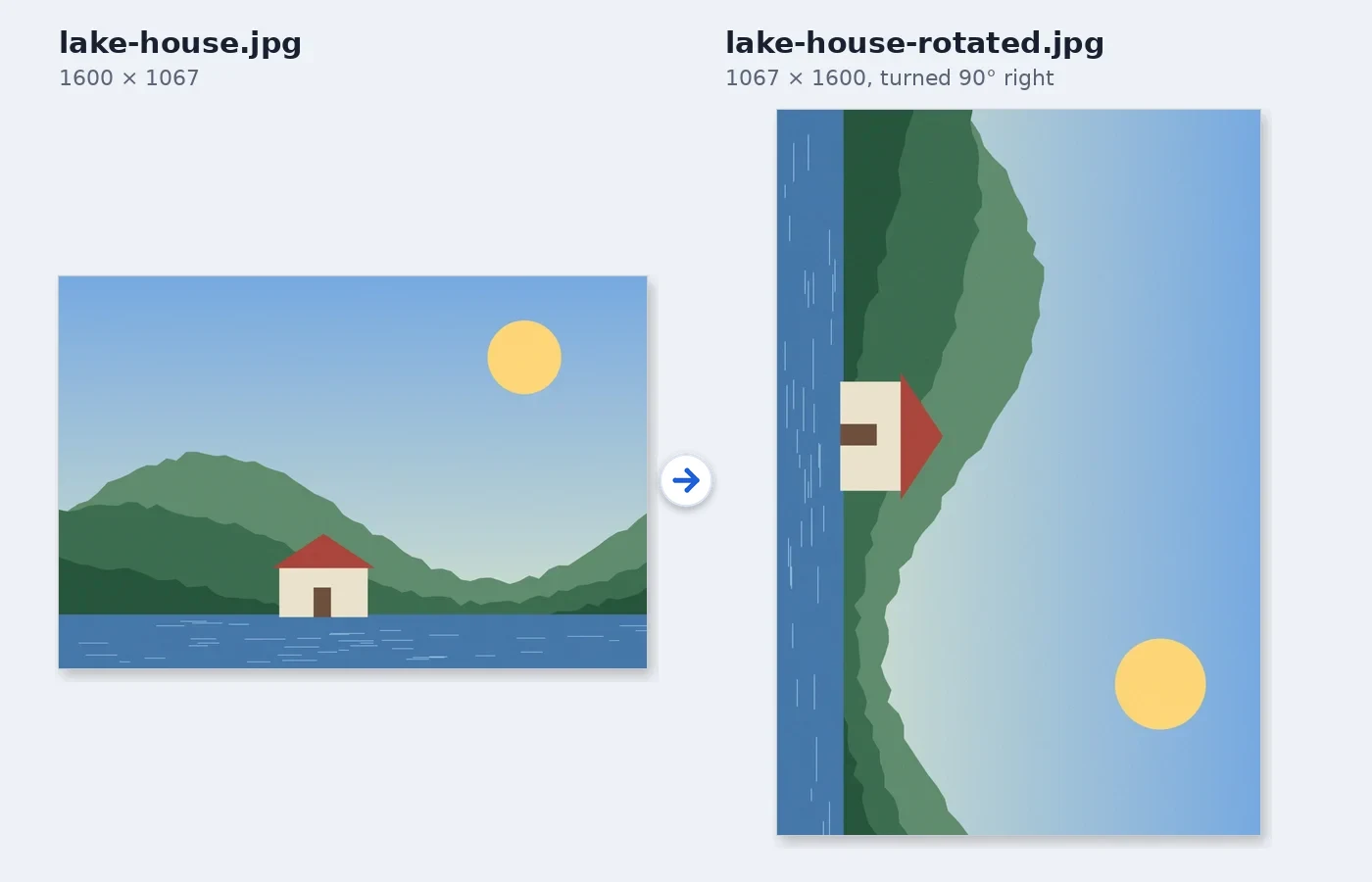
lake-house.jpglake-house-rotated.jpg
Turned 90° right
- 1600 × 1067 to 1067 × 1600
- Pixels moved exactly
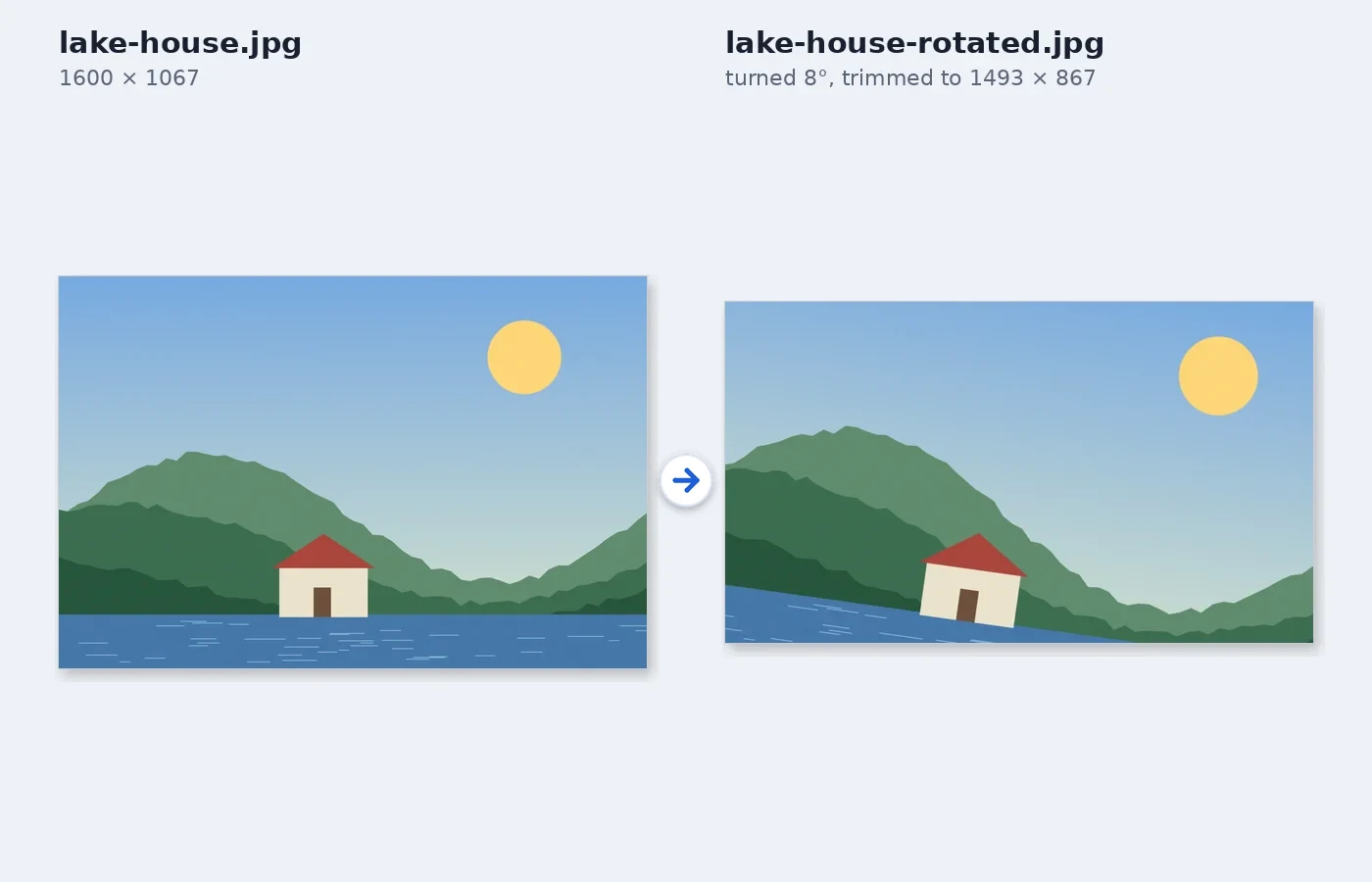
lake-house.jpglake-house-rotated.jpg
Turned 8° with straight edges
- Trimmed to 1493 × 867
- No empty corners
A sample photo we made ourselves, with made-up names and data, opened in this tool and shown as it came out. Your own files stay on your device.
How to rotate an image
-
Step 1
Choose the pictures
Sideways photos, scans, screenshots.
-
Step 2
Choose the turn
90° right or left, 180°, or an angle such as 3° to straighten.
-
Step 3
Download
Each turned picture, or all in a ZIP.
Why pictures end up sideways
Phones and cameras do not turn the pixels when you hold them sideways; they store an orientation note (the EXIF Orientation tag) and leave it to the viewer. Some programs, websites and printers ignore the note, so the photo shows up lying on its side. Scanned pages, photos of documents and pictures from old cameras are often simply taken the wrong way. Rotating here turns the pixels themselves, so the picture is upright everywhere.
Rotate image 90 degrees, 180 degrees
Choose "90° right" (clockwise), "90° left" (counter-clockwise) or "180°" and every picture in the list is turned that way. These turns move pixels exactly, with nothing redrawn or blurred; width and height swap places for 90°. Photos are first set upright according to their orientation note, so what you see in the list is what gets turned.
Straighten a tilted photo
A horizon that leans or a document photographed at a slant needs a small angle, like 2° or −3.5°. Choose "by an angle", type it (positive turns right) and decide what happens to the corners that appear: fill them with a colour, leave them transparent (the result is saved as PNG), or trim to the largest upright rectangle inside the picture, which gives clean straight edges at the cost of a slightly smaller picture. Redrawing at an angle smooths pixels a little, which is normal.
Rotate or flip?
Rotating turns the picture around its centre; flipping mirrors it. A selfie that shows text backwards needs flip image, not rotation. JPG pictures are saved as JPG at quality 92, PNG stays PNG with its transparency, WebP stays WebP; HEIC, AVIF, GIF, BMP and TIFF are saved as PNG, which every program opens. For a PDF with sideways pages, use rotate PDF, which turns pages without touching their content.
Rotate photos on a phone or in bulk
Phones can rotate a photo in their gallery app, but the result may again be only an orientation note rather than turned pixels, so it can still appear sideways after uploading. Rotating here always turns the pixels. For a batch, for example a stack of scanned pages that all came out sideways, add them all, choose the turn once and download one ZIP. Pictures in the list that need a different turn can be done in a second round. The result keeps the original size, with width and height swapped for 90 degree turns. A turned JPG is saved again at quality 92, which looks the same as the original.
Private
Pictures are rotated in your browser and never uploaded.
More free image converters
- Image converter
- Compress image
- JPG to PNG
- PNG to JPG
- JPEG to JPG
- Compress JPEG
- Compress PNG
- GIF to PNG
- PNG to GIF
- GIF to JPG
- JPG to GIF
- GIF maker
- Remove background
- Background eraser
- Make background transparent
- White background for photo
- Remove white background
- Resize image
- Crop image
- Flip image
- Blur image
- Pixelate image
- Black and white photo
- Invert image colors
- Merge images
- Watermark image
- Add text to image
- Remove EXIF data
- EXIF viewer
- Change DPI
- Image to Base64
- Base64 to image
- MP4 to GIF
- Video to GIF
- GIF to MP4
- GIF compressor
- PNG to SVG
- JPG to SVG
- Image to SVG
- SVG to PDF
- Image to text
- PNG to DXF
- SVG to DXF
- DXF to SVG
- HEIC to JPG
- HEIC to PNG
- HEIC to PDF
- HEIC viewer
- WebP to PNG
- WebP to JPG
- WebP to GIF
- WebP to PDF
- PNG to WebP
- JPG to WebP
- AVIF to PNG
- AVIF to JPG
- JFIF to JPG
- JFIF to PNG
- SVG to PNG
- SVG to JPG
- PNG to ICO
- ICO to PNG
- BMP to JPG
- BMP to PNG
- TIFF to JPG
- TIFF to PNG
- PSD viewer
- PSD to PNG
- PSD to JPG
- PSD to PDF
- AI to SVG
- AI to PNG
- Open AI file
- EPS to PNG
- DDS to PNG
- TGA to PNG
- TGA to JPG
- RAW to JPG
- CR3 to JPG
- CR2 to JPG
- NEF to JPG
Questions about rotating images
Is rotating by 90° lossless?
The pixels are moved exactly. JPGs are saved again at quality 92.
Can I rotate many photos at once?
Yes, every picture in the list is turned the same way.
How do I straighten a crooked photo?
Choose "by an angle", type a small value like 2 or −3, and trim the corners.
Which way is positive?
Positive angles turn the picture clockwise, to the right.
Why was my photo sideways?
The camera stored only an orientation note, which some programs ignore.
Can I rotate a PNG and keep it transparent?
Yes. For an angle, choose transparent corners and the result is a PNG.
Are my pictures uploaded?
No, they are rotated in your browser.