Free Your pictures are not uploaded
Compress JPEG
Compress JPEG photos here: each JPG is re-saved at a quality that keeps it looking the same but makes the file several times smaller, or exactly under the limit you set, such as 200 KB or 100 KB. Many photos at once, in your browser.
or drop them here, as many as you like. Nothing is uploaded.
Your photos
Everything happens in this browser tab: your pictures are not sent to FileOpens or anywhere else, and nothing is kept when you close the page.
A photo compressed by FileOpens
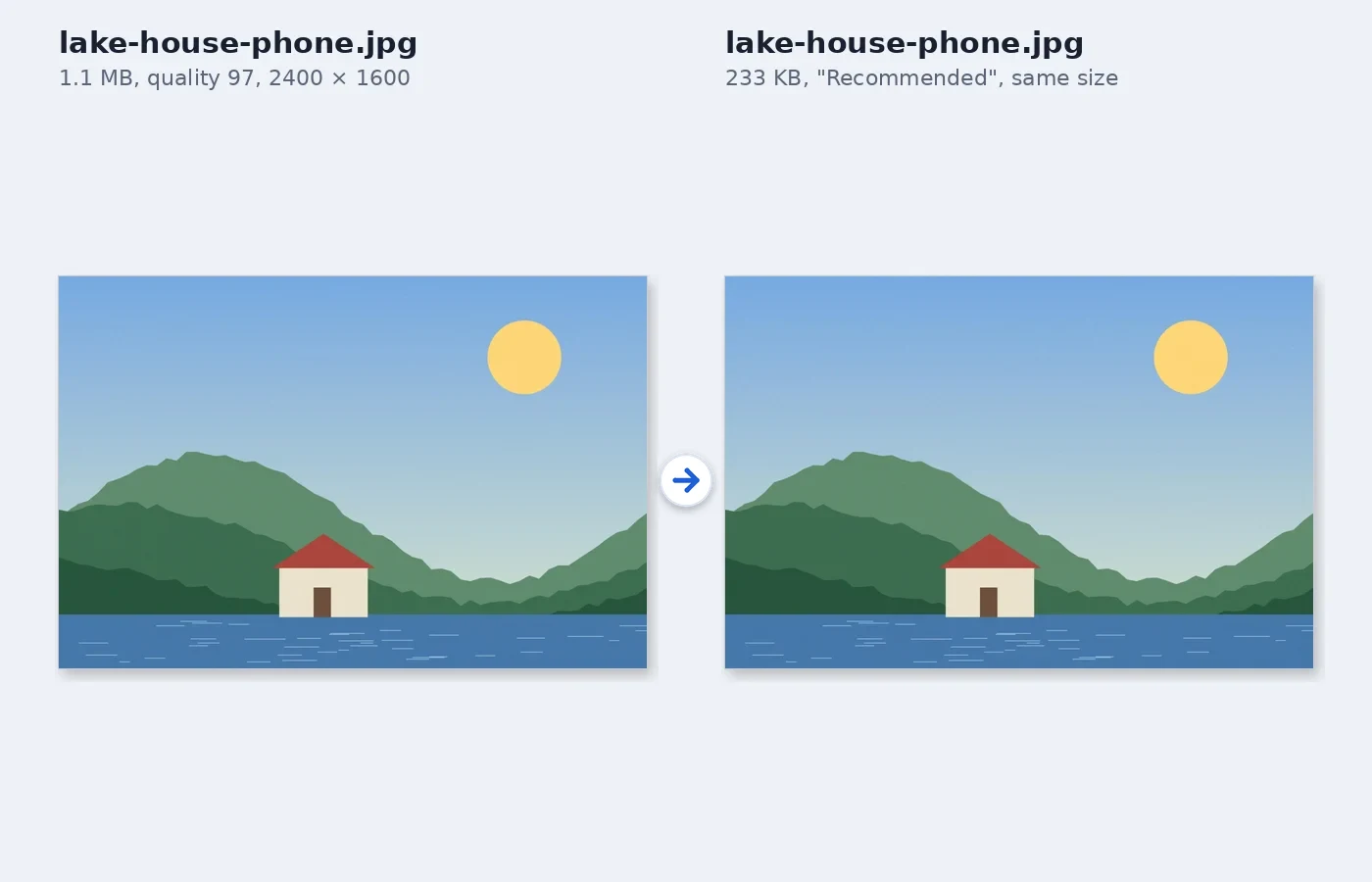
lake-house-phone.jpglake-house-phone.jpg
A 1.1 MB photo on "Recommended"
- 1.1 MB to 233 KB, 80% smaller
- Same 2400 × 1600 pixels
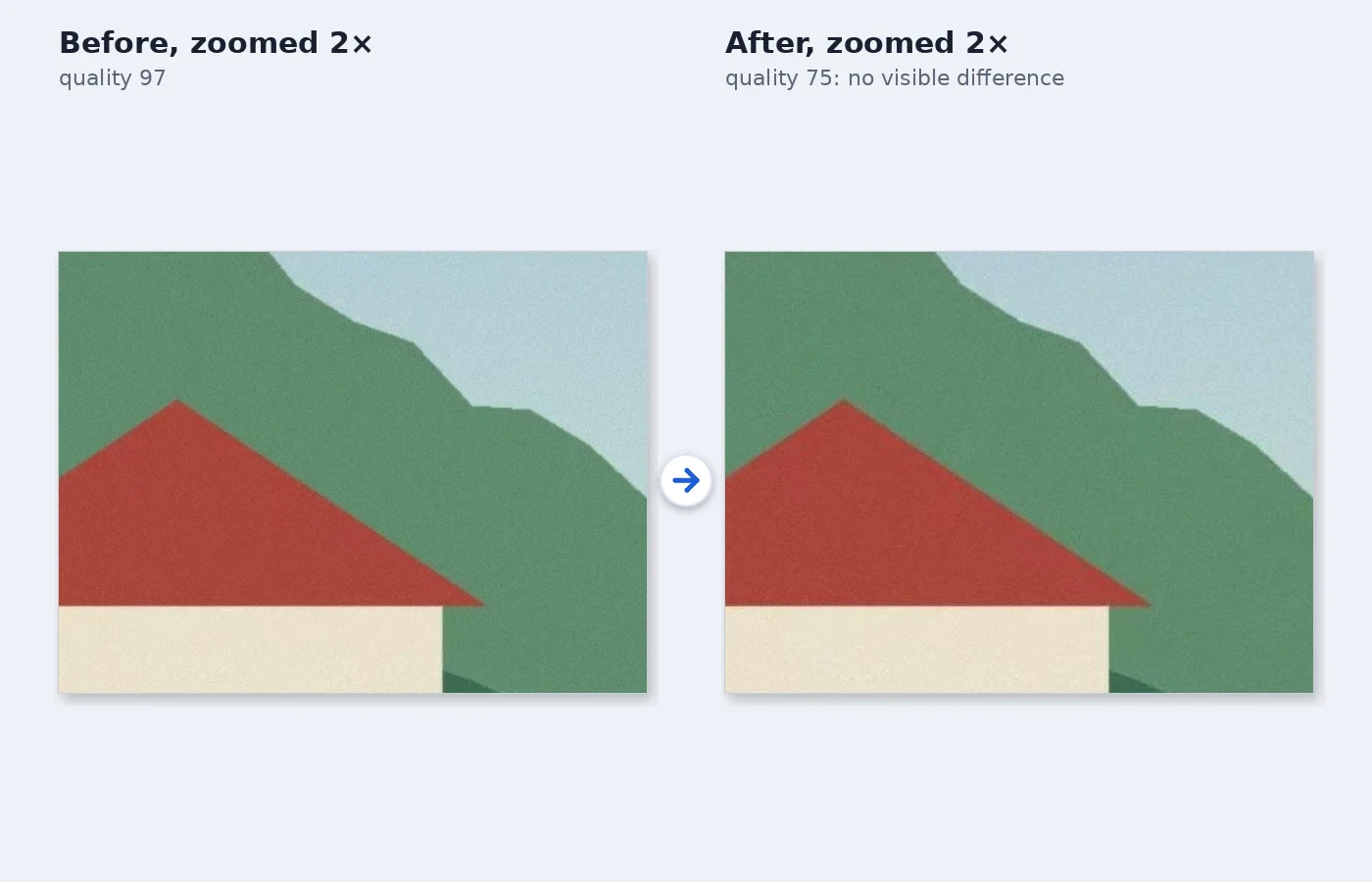
beforeafter
The same detail before and after
- Quality 97 against 75
- No visible difference
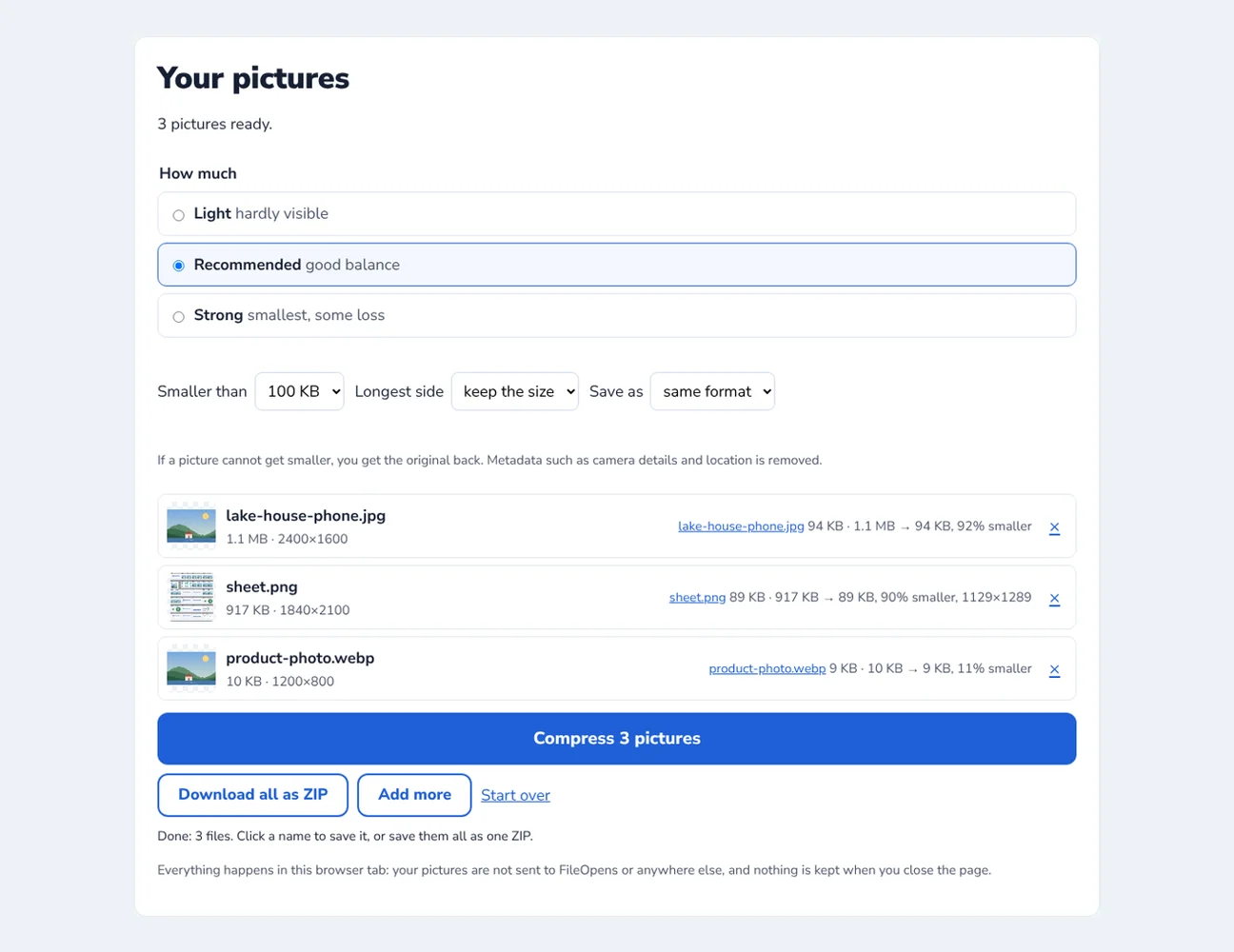
3 picturesunder 100 KB
A JPG, a PNG and a WebP under 100 KB
- 1.1 MB photo to 94 KB
- A 917 KB PNG to 89 KB
A sample photo we made ourselves, with made-up names and data, opened in this tool and shown as it came out. Your own files stay on your device.
How to compress a JPEG
-
Step 1
Choose the JPGs
Phone and camera photos, scans, product pictures.
-
Step 2
Pick how much
Light, recommended or strong, or a size limit.
-
Step 3
Download
Check the new sizes, then save one by one or as a ZIP.
How to compress JPEG photos
JPEG stores photos by dividing them into small blocks and keeping fine detail only where the eye would notice it. Every JPG has a quality setting from 1 to 100 that decides how much is kept. Phones and cameras save at 90–98 to be safe, which makes photos large. Re-saving at 75–85 removes detail that is practically invisible on a screen and typically cuts the size by two thirds or more.
Light, recommended, strong
"Light" saves at quality 85: the safest choice for photos you might print. "Recommended" uses 75, the usual setting for websites and email. "Strong" uses 60: noticeably softer in fine textures, but tiny. If you set a limit in KB, the page searches for the highest quality that fits; if even quality 30 is too big, it reduces the photo's width and height in steps of 15% until it fits. Choosing a longest side such as 1920 px first is often the best combination: photos from phones are 4000 px wide or more.
Compress JPG to 100 KB and other limits
Upload forms usually state limits like "max 100 KB" or "under 1 MB". A 12-megapixel phone photo reaches 100 KB at around 1280 px with good quality, and 1 MB at full size. Signature and passport photo uploads often ask for 20–50 KB at small sizes; set the limit and the page does the rest. The list shows "before → after" for each photo, and says when a limit could not be reached.
Camera data and orientation
The compressed JPG is upright and without EXIF data (camera model, date, GPS location), which is good for privacy and saves a few more kilobytes. If you need to keep the date for your archive, keep the original too. For PNG screenshots and graphics, use compress PNG; for any mix of formats, compress image.
Batch compress JPG photos
Drop a whole holiday or product folder at once: each photo is compressed with the same settings, the list shows its old and new size and the percentage saved, and "Download all" gives one ZIP with the files under their original names. A typical batch of 50 phone photos goes from about 200 MB to 20–40 MB at "Recommended" with a longest side of 1920 px, small enough to share through most cloud links and messengers. The work is done by your device, so a computer is faster than a phone for big batches, and nothing has to be uploaded first.
Private
Photos are compressed on your own device and never uploaded.
More free image converters
- Image converter
- Compress image
- JPG to PNG
- PNG to JPG
- JPEG to JPG
- Compress PNG
- GIF to PNG
- PNG to GIF
- GIF to JPG
- JPG to GIF
- GIF maker
- Remove background
- Background eraser
- Make background transparent
- White background for photo
- Remove white background
- Resize image
- Crop image
- Rotate image
- Flip image
- Blur image
- Pixelate image
- Black and white photo
- Invert image colors
- Merge images
- Watermark image
- Add text to image
- Remove EXIF data
- EXIF viewer
- Change DPI
- Image to Base64
- Base64 to image
- MP4 to GIF
- Video to GIF
- GIF to MP4
- GIF compressor
- PNG to SVG
- JPG to SVG
- Image to SVG
- SVG to PDF
- Image to text
- PNG to DXF
- SVG to DXF
- DXF to SVG
- HEIC to JPG
- HEIC to PNG
- HEIC to PDF
- HEIC viewer
- WebP to PNG
- WebP to JPG
- WebP to GIF
- WebP to PDF
- PNG to WebP
- JPG to WebP
- AVIF to PNG
- AVIF to JPG
- JFIF to JPG
- JFIF to PNG
- SVG to PNG
- SVG to JPG
- PNG to ICO
- ICO to PNG
- BMP to JPG
- BMP to PNG
- TIFF to JPG
- TIFF to PNG
- PSD viewer
- PSD to PNG
- PSD to JPG
- PSD to PDF
- AI to SVG
- AI to PNG
- Open AI file
- EPS to PNG
- DDS to PNG
- TGA to PNG
- TGA to JPG
- RAW to JPG
- CR3 to JPG
- CR2 to JPG
- NEF to JPG
Questions about compressing JPEG
Is compress JPG the same as compress JPEG?
Yes, JPG and JPEG are one format.
How small can a photo get?
As small as you set; very small limits reduce the size in pixels too.
Does compressing twice make it worse?
Yes, a little each time, so compress from the original.
Is the photo turned the right way?
Yes, it is saved upright, without EXIF data.
Can I keep the original size in pixels?
Yes, "keep the size" is the default.
Which level should I choose?
"Recommended" for screens and email, "Light" for printing.
Are my photos uploaded?
No, everything happens in your browser.