Free Your pictures are not uploaded
Invert image colors
Invert image colors here: every colour becomes its opposite, black turns white and blue turns orange, which is how you view a scanned film negative, turn a dark screenshot light for printing, or make a striking effect. A whole batch at once, in your browser.
or drop them here. JPG, PNG, WebP, HEIC, AVIF, GIF, BMP, TIFF. Nothing is uploaded.
Your pictures
Everything happens in this browser tab: your pictures are not sent to FileOpens or anywhere else, and nothing is kept when you close the page.
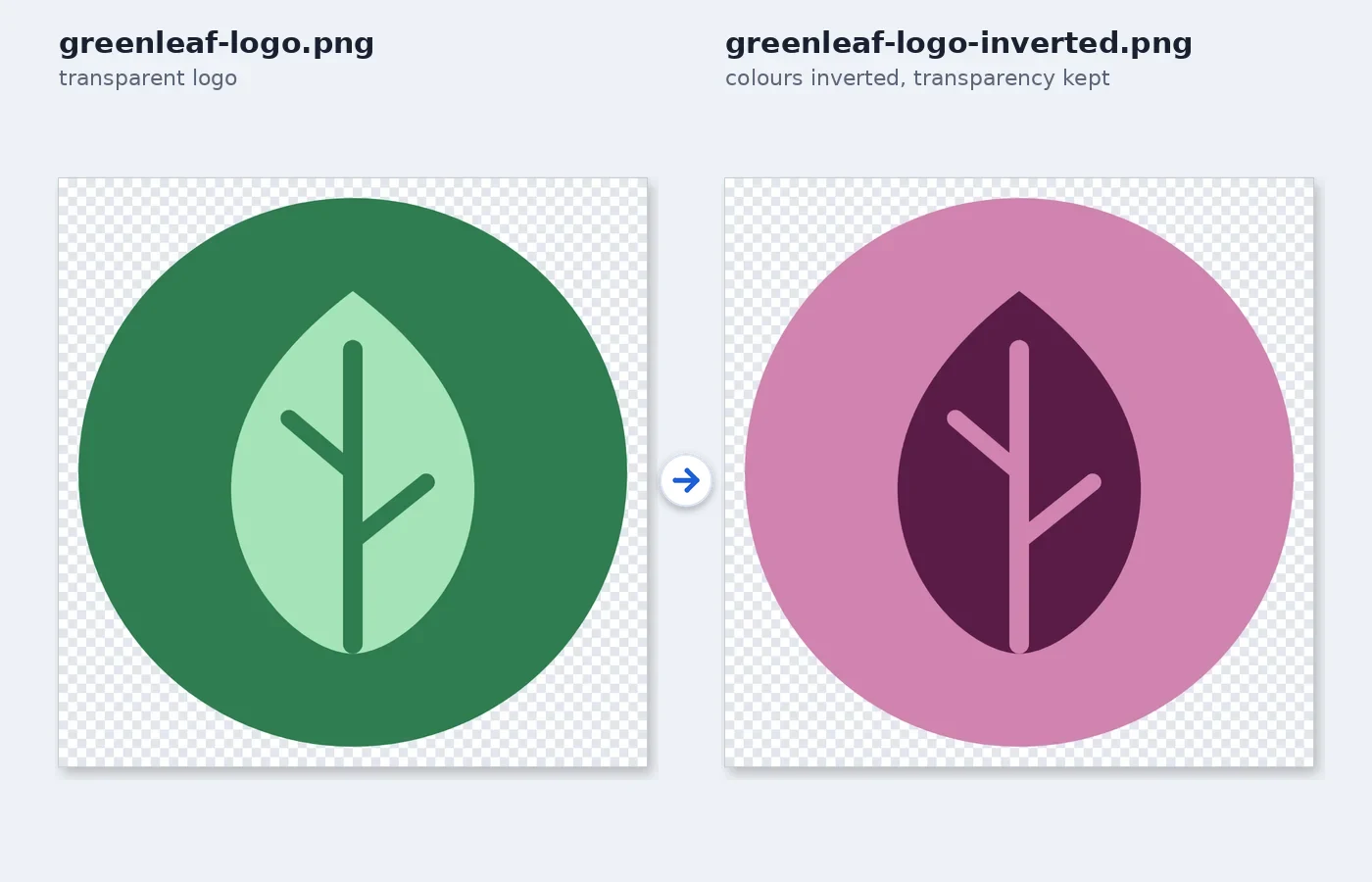
A logo inverted by FileOpens
greenleaf-logo.pnggreenleaf-logo-inverted.png
Colours turned into their opposites
- Green to pink, white to black
- Transparency kept
A sample logo we made ourselves, with made-up names and data, opened in this tool and shown as it came out. Your own files stay on your device.
How to invert image colors
-
Step 1
Choose the pictures
Negatives, dark-mode screenshots, logos, designs.
-
Step 2
Invert
Each colour is replaced by its opposite; transparency stays.
-
Step 3
Download
One by one, or all in a ZIP.
What invert image colors does
Each pixel's red, green and blue values are turned around: 0 becomes 255 and 255 becomes 0, so black and white swap, dark becomes light, and every colour becomes its complement, red to cyan, blue to orange, green to magenta. Transparency is left as it is. The operation is exact and reversible: inverting the result again gives the original picture back.
Viewing film negatives
If you photographed or scanned old black-and-white negatives against a light, inverting them gives a positive picture you can look at and share. For black-and-white film this works directly. Colour negatives have an orange base, so after inverting they look blue-tinted; a photo editor's colour balance or "auto levels" fixes that afterwards, or turn them grayscale with black and white photo if the colours do not matter.
Dark screenshots and printing
Screenshots of apps in dark mode, code editors and dark websites use a lot of black ink when printed. Inverting turns them into dark text on a light background that prints cleanly and reads well in documents. Colours inside the screenshot, such as syntax highlighting, change to their opposites, which is usually still readable. Logos on a dark background can be checked the same way. For long documents, inverting dozens of dark screenshots at once and downloading one ZIP saves a lot of printer ink and toner, and the text stays perfectly sharp because nothing is redrawn or resized. Check one page first to be sure the colours still make sense.
Formats
JPG pictures are saved as JPG at quality 92, PNG stays PNG with its transparency, WebP stays WebP; HEIC, AVIF, GIF, BMP and TIFF are saved as PNG, which every program opens. The size in pixels does not change. To invert the colours of a whole PDF, use invert PDF colors.
Invert colors for design and accessibility
Designers invert logos and icons to make a light version for dark backgrounds, then adjust the brand colours by hand. Teachers and students invert dark diagrams and slides before printing. People with light sensitivity sometimes prefer inverted documents, and inverting a picture is a quick way to check how it might look in a dark theme. Because only the colour values are flipped, the picture keeps its size and sharpness, and transparent areas around a logo stay transparent, so the inverted logo can be placed straight onto a dark page. Inverting a photo of a person gives an eerie negative look that some artists use on purpose for posters and album covers.
Private
Pictures are inverted in your browser and never uploaded.
More free image converters
- Image converter
- Compress image
- JPG to PNG
- PNG to JPG
- JPEG to JPG
- Compress JPEG
- Compress PNG
- GIF to PNG
- PNG to GIF
- GIF to JPG
- JPG to GIF
- GIF maker
- Remove background
- Background eraser
- Make background transparent
- White background for photo
- Remove white background
- Resize image
- Crop image
- Rotate image
- Flip image
- Blur image
- Pixelate image
- Black and white photo
- Merge images
- Watermark image
- Add text to image
- Remove EXIF data
- EXIF viewer
- Change DPI
- Image to Base64
- Base64 to image
- MP4 to GIF
- Video to GIF
- GIF to MP4
- GIF compressor
- PNG to SVG
- JPG to SVG
- Image to SVG
- SVG to PDF
- Image to text
- PNG to DXF
- SVG to DXF
- DXF to SVG
- HEIC to JPG
- HEIC to PNG
- HEIC to PDF
- HEIC viewer
- WebP to PNG
- WebP to JPG
- WebP to GIF
- WebP to PDF
- PNG to WebP
- JPG to WebP
- AVIF to PNG
- AVIF to JPG
- JFIF to JPG
- JFIF to PNG
- SVG to PNG
- SVG to JPG
- PNG to ICO
- ICO to PNG
- BMP to JPG
- BMP to PNG
- TIFF to JPG
- TIFF to PNG
- PSD viewer
- PSD to PNG
- PSD to JPG
- PSD to PDF
- AI to SVG
- AI to PNG
- Open AI file
- EPS to PNG
- DDS to PNG
- TGA to PNG
- TGA to JPG
- RAW to JPG
- CR3 to JPG
- CR2 to JPG
- NEF to JPG
Questions about inverting colors
How do I turn a negative into a photo?
Photograph or scan the negative and invert it here.
Why does my colour negative look blue?
Colour film has an orange base; correct the balance in an editor or make it grayscale.
Is transparency inverted too?
No, only the colours change; transparency stays.
Can I undo it?
Yes, inverting again gives the original colours.
Can I invert many pictures at once?
Yes, every picture in the list is inverted.
Does inverting change the file size?
Hardly; the picture keeps its size in pixels and its format.
Are my pictures uploaded?
No, everything happens in your browser.