Free Your PDF is not uploaded
Convert PDF to PNG
Convert PDF to PNG here: each page, or the pages you choose, becomes a sharp, lossless PNG image at up to 300 dpi. It is done in your browser, so the PDF is never uploaded. Free, no watermark.
or drop it here. One PDF up to 500 MB. The pages become PNG images on your device.
Choose pages and quality
Everything happens in this browser tab: the PDF is not sent to FileOpens or anywhere else, and nothing is kept when you close the page.
A PDF turned into pictures by FileOpens
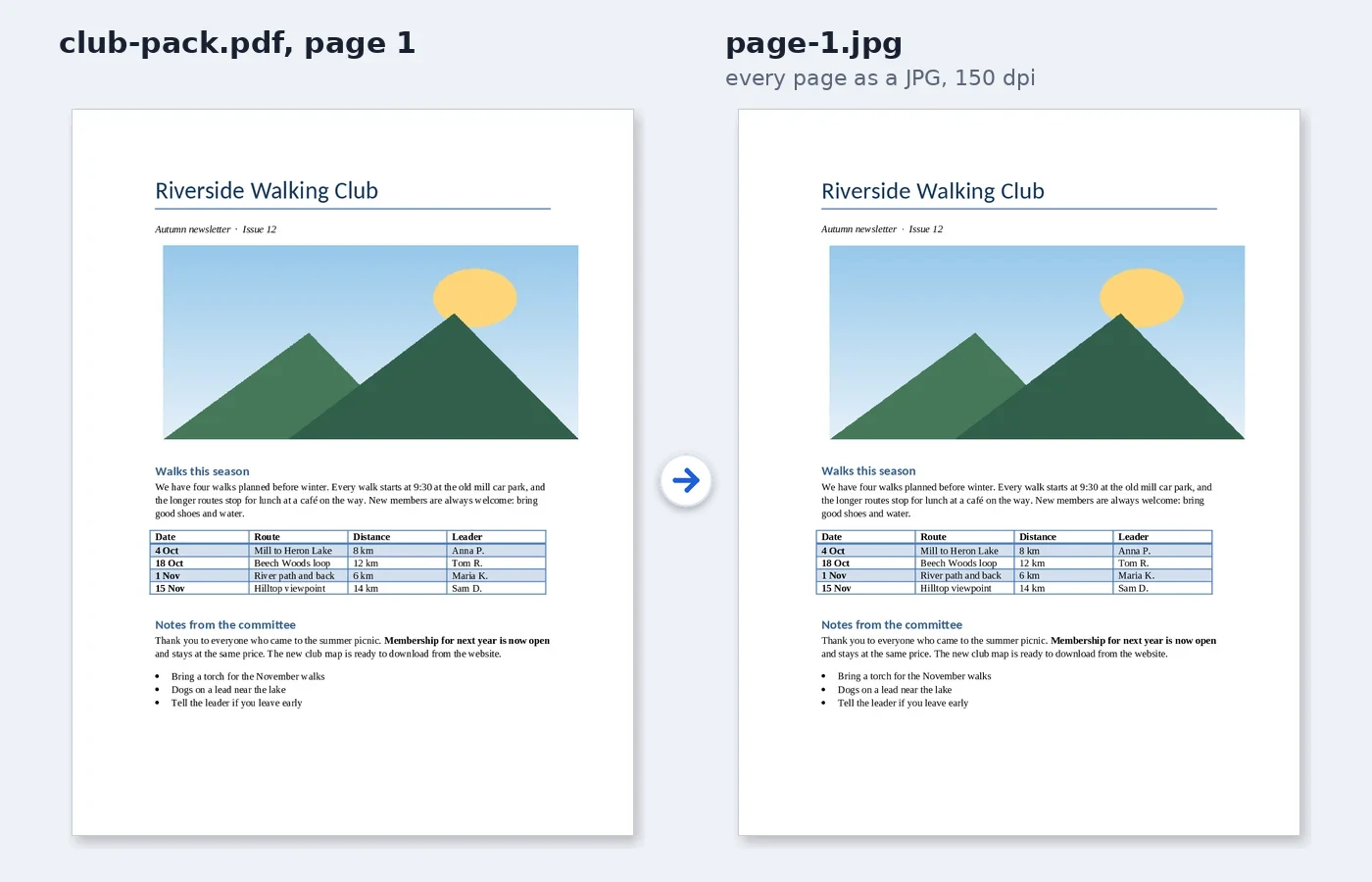
club-pack.pdfpage-1.jpg
Every page as a picture
- 100, 150 or 300 dpi
- All pages in one ZIP
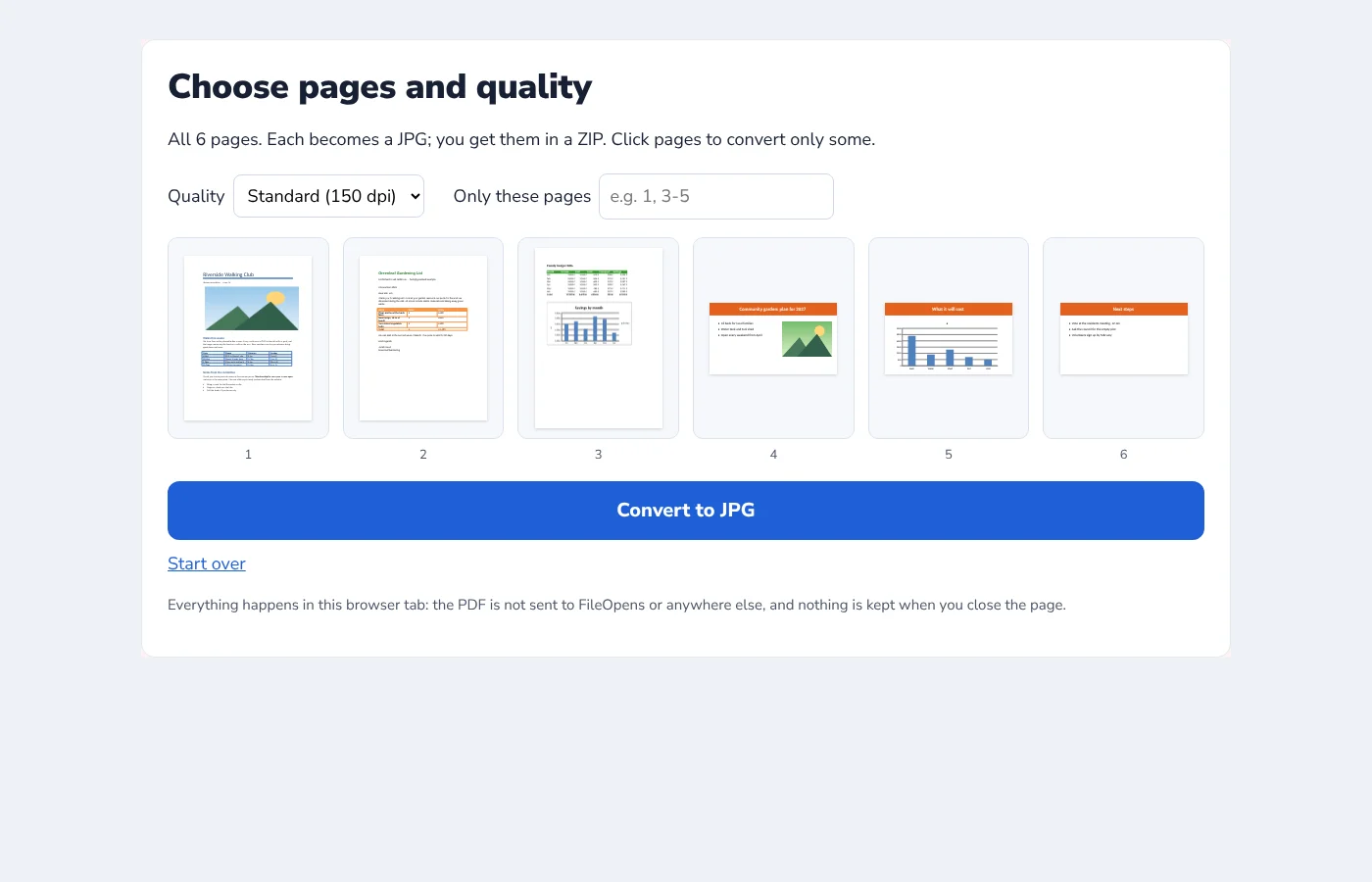
club-pack.pdf6 pictures
Choose pages and quality
- Click pages to convert only some
- Thumbnails of every page
A sample PDF we made ourselves, with made-up names and data, opened in this tool and shown as it came out. Your own files stay on your device.
How to convert PDF to PNG
-
Step 1
Choose the PDF
Pick or drop the file and see its pages.
-
Step 2
Pick pages and quality
All pages or the ones you click; from 100 to 300 dpi.
-
Step 3
Download
One PNG, or a ZIP with a PNG per page.
Why PNG for PDF pages
PNG is lossless: every pixel is stored exactly, so text, lines, tables and charts come out with clean, sharp edges and no blotches. That makes PNG the right choice when a PDF page goes into a slide deck, a manual, a website or a design program, or when small print has to stay readable. Photos are the exception; for pages that are mostly photos, PDF to JPG gives much smaller files that look the same.
PDF to PNG step by step, with every option
Choose the PDF above. All pages are converted unless you click some of them (they turn green) or type numbers such as 2, 4-6. Choose the resolution: 100 dpi for screens, 150 dpi for most documents, 220 or 300 dpi for printing or zooming in. Click Convert: one page downloads as a PNG; several come in a ZIP, each named with its page number.
Size and resolution
Each page is drawn from the PDF at the resolution you choose, not copied from a small preview. A4 at 300 dpi gives an image of about 2480 × 3508 pixels; Letter about 2550 × 3300. Because PNG does not throw anything away, files are larger than JPG, especially for pages with photos, typically from a few hundred kilobytes for a text page to several megabytes for a full-colour page at 300 dpi. Page backgrounds are filled with white. If a page looks too small, pick a higher resolution rather than enlarging the image afterwards, which only makes it blurry.
No upload
Your browser renders the pages on your own device; the PDF is not sent to FileOpens or anywhere else. There is no account, no queue, no limit and no watermark, and nothing is kept once you close the page.
Other tools for PDF pages
To put PNG images back into a PDF, use PNG to PDF. To get only some pages of a PDF as a new PDF instead of pictures, use extract pages.
PDF to PNG on Windows, Mac and phones without a tool
On a Mac, Preview can export the page you are looking at: File > Export, Format PNG, and a resolution. It does one page at a time, so a 20-page PDF means 20 exports. Windows has no built-in way; the Snipping Tool takes a screenshot of what is on the screen, at screen resolution, which is too coarse for print. On an iPhone you can screenshot a page in the Files app, again only at screen size. This page converts every page, or just the ones you pick, at the resolution you choose, in one go, and works the same in Safari and Chrome on a phone. For a vector copy that stays sharp at any size instead of pixels, use PDF to SVG; for one multi-page image file for fax or archives, PDF to TIFF.
More free PDF tools and converters
- Merge PDF
- Split PDF
- Compress PDF
- Compress PDF to 100 KB
- Delete PDF pages
- Rotate PDF
- Extract PDF pages
- Reorder PDF pages
- Crop PDF
- Add page numbers
- Watermark PDF
- Sign PDF
- Protect PDF
- Unlock PDF
- OCR PDF
- Flatten PDF
- PDF to grayscale
- Invert PDF colors
- Remove PDF metadata
- PDF to Word
- Word to PDF
- PDF to Excel
- Excel to PDF
- PDF to PowerPoint
- PowerPoint to PDF
- JPG to PDF
- PNG to PDF
- Image to PDF
- PDF to JPG
- PDF to text
- HTML to PDF
- PDF to EPUB
- PDF to PDF/A
- PDF to TIFF
- PDF to SVG
Questions about PDF to PNG
Is it free?
Yes. Converting PDF to PNG is free, with no account and no watermark.
Is PNG better than JPG?
For text, lines and charts, yes: PNG is lossless and sharp. For photos, JPG is smaller and looks the same.
Can I choose the resolution?
Yes, from 100 to 300 dpi. 300 dpi is print quality.
Can I convert just some pages?
Yes. Click them or type their numbers before converting.
Is my PDF uploaded?
No. The pages are rendered in your browser on your device.