Free Your PDF is not uploaded
Delete pages from a PDF
Delete pages from PDF files here: click the pages you want gone, or type their numbers, and download the same PDF without them. It works in your browser, so the file is never uploaded. Free.
or drop it here. One PDF up to 500 MB. Pages are removed on your device and the file is never sent anywhere.
Choose the pages to delete
Everything happens in this browser tab: the PDF is not sent to FileOpens or anywhere else, and nothing is kept when you close the page.
Delete PDF pages in use
club-pack.pdfedited.pdf
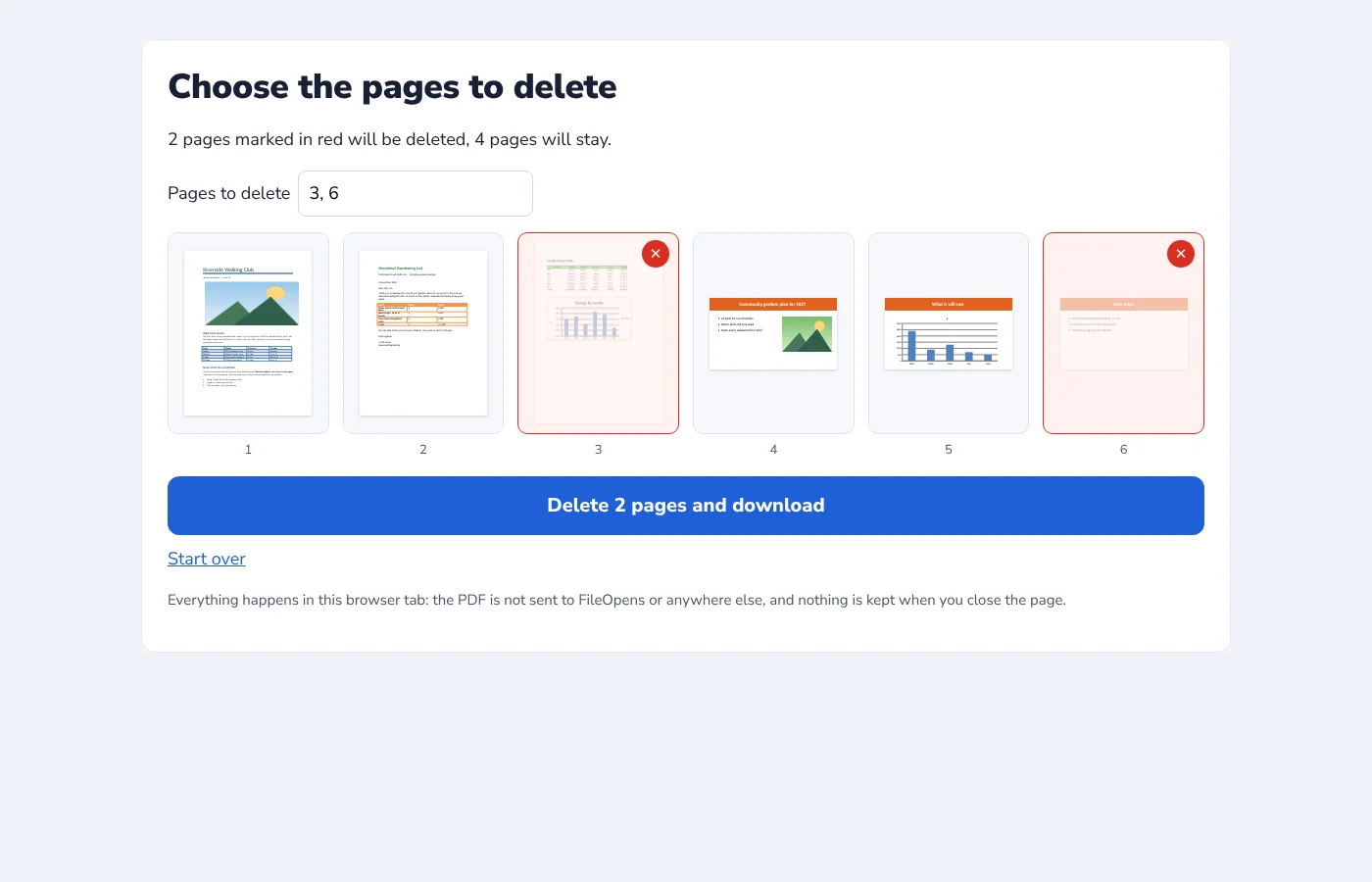
Pages 3 and 6 marked for deletion
- Click pages or type their numbers
- Shows how many pages stay
A sample PDF we made ourselves, with made-up names and data, opened in this tool and shown as it came out. Your own files stay on your device.
How to delete pages from a PDF in three steps
-
Step 1
Choose the PDF
Pick or drop the file. You see every page as a thumbnail.
-
Step 2
Mark the pages
Click a page to mark it for deletion, or type numbers like 2, 5-7. Click again to keep it.
-
Step 3
Download
Get the PDF without those pages, everything else unchanged.
Remove pages from a PDF without uploading it
A blank page from the scanner, an old version of a page, a page with details you should not send on: removing pages is one of the most common things people need to do with a PDF, and one of the few things a free PDF reader will not do. Here your browser does it on your own device. The PDF is opened from your disk, the pages you choose are taken out and the new file is saved to your downloads. Nothing is uploaded to FileOpens or anywhere else, which makes it safe for statements, contracts and medical papers, and there is no account, limit or watermark.
How to delete pages from PDF
Choose the PDF above and every page appears as a thumbnail with its number. Click the pages you want to remove: they turn red with a cross. Click a page again to keep it. If the document is long, type the numbers instead, separated by commas, with a dash for a run of pages, such as 1, 4, 10-15. The line above the pages tells you how many will be deleted and how many stay. Click Delete and the new PDF downloads at once. At least one page has to stay, because a PDF cannot be empty.
What stays the same
Only the pages you marked are removed. All other pages keep their text, fonts, pictures, links, page size and order, and filled-in form fields keep their values. Nothing is recompressed, so the quality is exactly as before, and the file usually gets smaller by about the size of the pages you took out. If the PDF has bookmarks, a bookmark that pointed to a deleted page no longer leads anywhere. The document title, author and other properties stay as they were.
Delete blank pages after scanning
Double-sided scanning of single-sided paper leaves a blank page after every page. Look through the thumbnails: blank pages are easy to spot, and you can click them one after another. If they fall on every second page, typing 2, 4, 6 and so on also works. To keep only a few pages instead of removing many, split the PDF by page ranges. Pages that are upside down do not need deleting and rescanning: turn them with rotate PDF.
Protected PDFs
If a PDF is protected with a password or editing restrictions, its pages cannot be removed, and the tool tells you so. Print it to a new PDF first: in the print window choose "Microsoft Print to PDF" on Windows or "Save as PDF" on a Mac, then delete pages from that copy. The PDF can be up to 500 MB.
More free PDF tools and converters
- Merge PDF
- Split PDF
- Compress PDF
- Compress PDF to 100 KB
- Rotate PDF
- Extract PDF pages
- Reorder PDF pages
- Crop PDF
- Add page numbers
- Watermark PDF
- Sign PDF
- Protect PDF
- Unlock PDF
- OCR PDF
- Flatten PDF
- PDF to grayscale
- Invert PDF colors
- Remove PDF metadata
- PDF to Word
- Word to PDF
- PDF to Excel
- Excel to PDF
- PDF to PowerPoint
- PowerPoint to PDF
- JPG to PDF
- PNG to PDF
- Image to PDF
- PDF to JPG
- PDF to PNG
- PDF to text
- HTML to PDF
- PDF to EPUB
- PDF to PDF/A
- PDF to TIFF
- PDF to SVG
Questions about deleting PDF pages
Is it free?
Yes. Deleting pages is free, with no account, no limit and no watermark.
Is my PDF uploaded?
No. The pages are removed in your browser on your device; the file is never sent anywhere.
Can I delete several pages at once?
Yes. Click as many pages as you like, or type numbers and ranges such as 2, 5-7, 12.
Does the rest of the PDF change?
No. The other pages keep their text, pictures, links and quality. Only the marked pages are taken out.
Can I undo a page I marked?
Yes. Click it again before you download and it stays in the PDF.
Why can I not delete pages from my PDF?
It is protected with a password or restrictions. Print it to a new PDF and use that copy.