Free Your pictures are not uploaded
Convert PNG to PDF
Convert PNG to PDF here: screenshots, scanned pages, diagrams and graphics go into one PDF, sharp and without losing quality. Put them in order and download. Nothing is uploaded; it is free.
or drop them here. Any number of .png files (JPG, GIF and WebP work too). The PDF is made on your device.
Your images, in order
Everything happens in this browser tab: the pictures are not sent to FileOpens or anywhere else, and nothing is kept when you close the page.
Pictures turned into a PDF by FileOpens
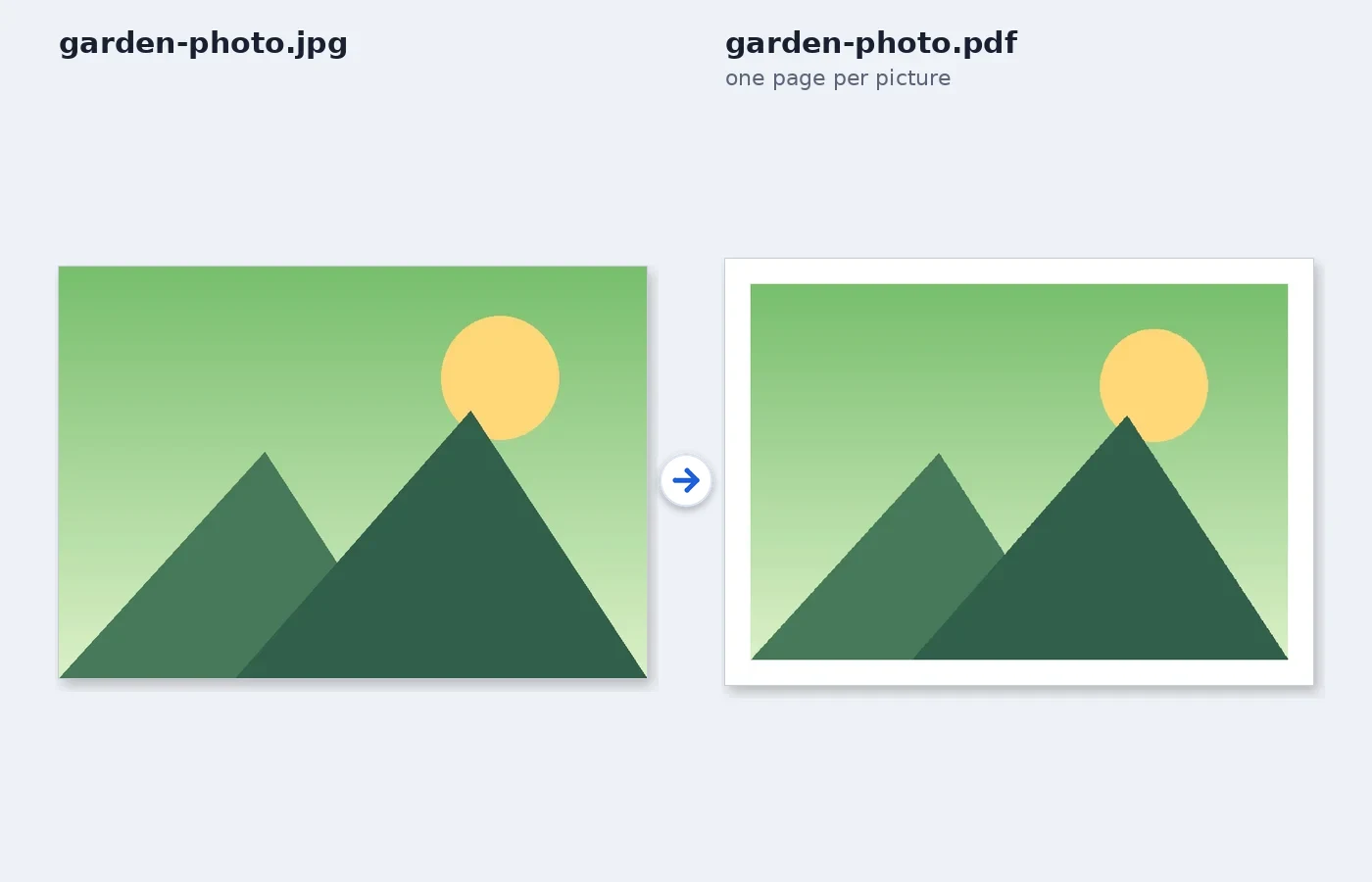
garden-photo.jpggarden-photo.pdf
A picture as a PDF page
- Page the size of the picture, or A4 / Letter
- Phone photos turned the right way
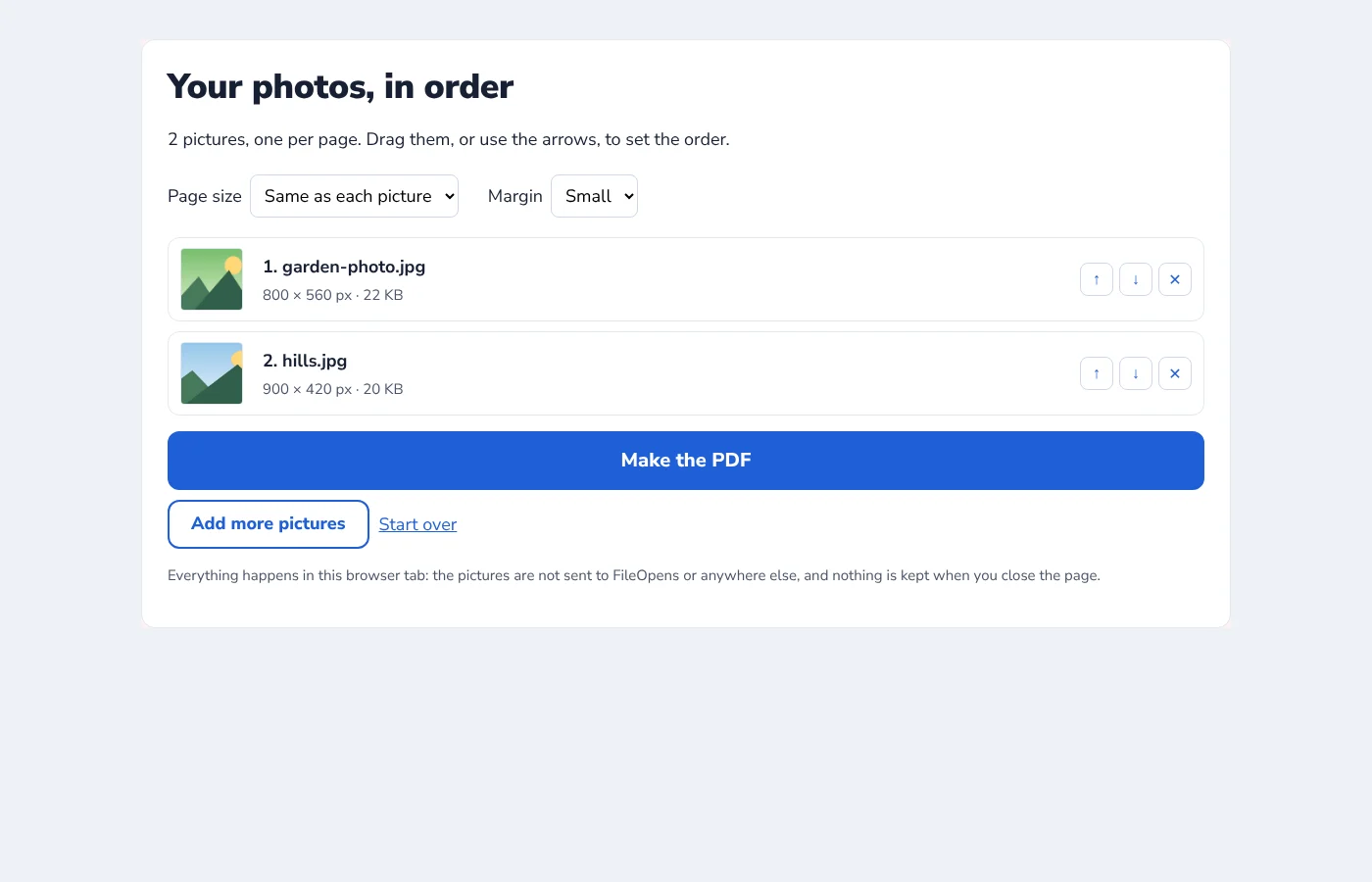
two picturesone PDF
Pictures in the order you set
- Drag or use the arrows
- Page size and margin to choose
A sample picture we made ourselves, with made-up names and data, opened in this tool and shown as it came out. Your own files stay on your device.
How to convert PNG to PDF
-
Step 1
Add the PNG files
Choose or drop one or many images; add more at any time.
-
Step 2
Order and size
Drag them into order; pick the image size, A4 or US Letter, and a margin.
-
Step 3
Download
One PDF, one image per page, pixel for pixel.
PNG to PDF for screenshots and graphics
PNG is the format of screenshots, charts, diagrams, logos and many scanners. It keeps text and lines perfectly sharp, which is why a screenshot of an order confirmation, a chat or an error message is usually a PNG. When you need to send such images as one document, to support, a lawyer or a teacher, a PDF keeps them together, in order and easy to print.
PNG to PDF step by step, with every option
Choose the PNG files above or drop them onto the box. Each image appears with its size in pixels; drag them into order, or use the arrows, and remove any extra ones. "Same as each picture" makes every page the size of its image, which is best for screenshots of different sizes. A4 or US Letter fits each image on a standard page for printing, in landscape if it is wide. Choose a margin and click Make the PDF.
Lossless: nothing is blurred
PNG images are placed in the PDF exactly as they are, pixel for pixel, so small text in a screenshot stays as readable as on your screen. Transparent areas, such as around a logo, stay transparent, which shows as white on paper. Because nothing is compressed into JPEG, the PDF is about as large as the PNG files together. For photos, JPG is the better format: see JPG to PDF; for a mix of GIF, WebP and BMP images, see image to PDF.
No upload
Screenshots often show account numbers, addresses and private messages. Your browser makes the PDF on your own device; nothing is sent to FileOpens or anyone else, there is no account and no watermark.
Text in the PDF
The pages are pictures of text, so you can read and print them but not search or copy the words; that would need OCR, which is not done here. To get images back out of a PDF, use PDF to PNG.
More free PDF tools and converters
- Merge PDF
- Split PDF
- Compress PDF
- Compress PDF to 100 KB
- Delete PDF pages
- Rotate PDF
- Extract PDF pages
- Reorder PDF pages
- Crop PDF
- Add page numbers
- Watermark PDF
- Sign PDF
- Protect PDF
- Unlock PDF
- OCR PDF
- Flatten PDF
- PDF to grayscale
- Invert PDF colors
- Remove PDF metadata
- PDF to Word
- Word to PDF
- PDF to Excel
- Excel to PDF
- PDF to PowerPoint
- PowerPoint to PDF
- JPG to PDF
- Image to PDF
- PDF to JPG
- PDF to PNG
- PDF to text
- HTML to PDF
- PDF to EPUB
- PDF to PDF/A
- PDF to TIFF
- PDF to SVG
Questions about PNG to PDF
Is it free?
Yes. Converting PNG to PDF is free, with no account and no watermark.
Does PNG lose quality in the PDF?
No. PNG images go into the PDF pixel for pixel, without compression.
Is transparency kept?
Yes. Transparent areas stay transparent and show as white when printed.
Can I combine many screenshots into one PDF?
Yes. Add them all, set the order and you get one PDF with a page per screenshot.
Are my images uploaded?
No. The PDF is made in your browser; the images never leave your device.