Free Your PDF is not uploaded
Add page numbers to a PDF
Add page numbers to PDF files here: pick where they go, how they read ("1", "Page 1", "1 of 12") and the number to start from, then save the numbered PDF. It runs in your browser; nothing is uploaded.
or drop it here. One PDF up to 500 MB. Numbers are added on your device and the file is never sent anywhere.
Choose how to number the pages
Everything happens in this browser tab: the PDF is not sent to FileOpens or anywhere else, and nothing is kept when you close the page.
Page numbers added by FileOpens
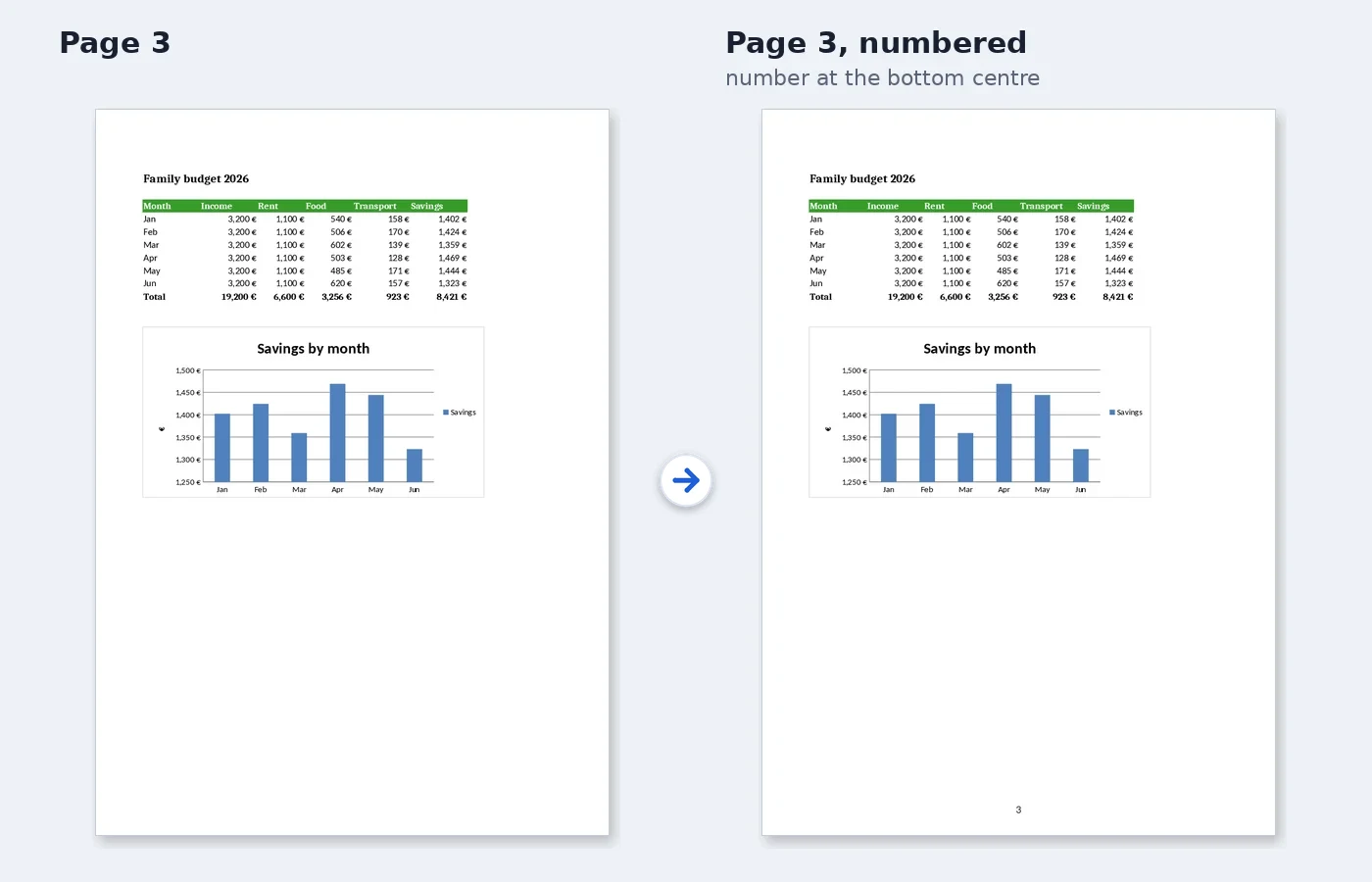
club-pack.pdfnumbered.pdf
Number at the bottom centre
- Position, style and first number to choose
- Cover page can be skipped
A sample PDF we made ourselves, with made-up names and data, opened in this tool and shown as it came out. Your own files stay on your device.
How to number PDF pages
-
Step 1
Choose the PDF
Pick or drop the file you want to number.
-
Step 2
Set the numbers
Corner, text, first number and size. Skip the cover page if you like.
-
Step 3
Save
Download the PDF with a number on every page.
When a PDF needs page numbers
A merged PDF of several letters, a scan of a bundle of papers, a thesis exported without a footer, court or tender documents that must be referred to by page: as soon as someone says "see page 14", the pages need numbers. Adding them to the PDF itself means everyone, on screen or on paper, sees the same number on the same page.
How to add page numbers to PDF
Choose the PDF above, then pick the position: bottom centre, the bottom or top corners, or top centre. Choose how the number reads: just "1", "Page 1", "1 of 12" or "Page 1 of 12". Set the number to start from, which is useful when this PDF continues another document, and the size in points (11 is a usual footer size). Tick "No number on the first page" for a cover sheet: numbering then begins on the second page. The line above the options shows the first and last number you will get. Click Add and the numbered PDF downloads.
What the numbers look like
The numbers are written in a plain dark grey Helvetica, about one centimetre from the edge of the page, so they sit in the margin of most documents. They are real text: they print sharply and you can search for them. Pages that are stored sideways get their number in the right place for the page as you see it. If a page has content right at the edge, the number may touch it; choose another position or a smaller size. Nothing else on the page changes.
No upload
Your browser adds the numbers on your own device. The PDF is never uploaded to FileOpens or anywhere else, which matters for legal bundles, medical records and contracts, and there is no account, limit or watermark.
Bates numbers and next steps
Lawyers often number pages with a prefix and a running number (Bates numbering). You can do a simple version here by choosing "1" and setting the start number to continue from the previous bundle. To join documents into one bundle before numbering, use merge PDF; to mark copies, add a watermark as well.
More free PDF tools and converters
- Merge PDF
- Split PDF
- Compress PDF
- Compress PDF to 100 KB
- Delete PDF pages
- Rotate PDF
- Extract PDF pages
- Reorder PDF pages
- Crop PDF
- Watermark PDF
- Sign PDF
- Protect PDF
- Unlock PDF
- OCR PDF
- Flatten PDF
- PDF to grayscale
- Invert PDF colors
- Remove PDF metadata
- PDF to Word
- Word to PDF
- PDF to Excel
- Excel to PDF
- PDF to PowerPoint
- PowerPoint to PDF
- JPG to PDF
- PNG to PDF
- Image to PDF
- PDF to JPG
- PDF to PNG
- PDF to text
- HTML to PDF
- PDF to EPUB
- PDF to PDF/A
- PDF to TIFF
- PDF to SVG
Questions about page numbers
Is it free?
Yes. Adding page numbers is free, with no account and no watermark.
Can I start from a number other than 1?
Yes. Set "Start at" to any number, for example to continue a previous document.
Can I leave the cover page without a number?
Yes. Tick "No number on the first page"; numbering starts on page 2.
Can I write "Page 1 of 12"?
Yes. Choose that format; the total is counted for you.
Is my PDF uploaded?
No. The numbers are added in your browser and the file never leaves your device.