Free Your pictures are not uploaded
Background eraser
Use this background eraser to clean up a photo by hand where it matters: an AI model first removes most of the background in your browser, then you paint with the eraser to remove what is left, or with the restore brush to bring back parts of the subject. Save a transparent PNG or a photo on white, at full size, with nothing uploaded.
or drop it here. JPG, PNG, WebP, HEIC and more. Nothing is uploaded.
Erase the background
Everything happens in this browser tab: your pictures are not sent to FileOpens or anywhere else, and nothing is kept when you close the page.
The first, automatic step of the background eraser
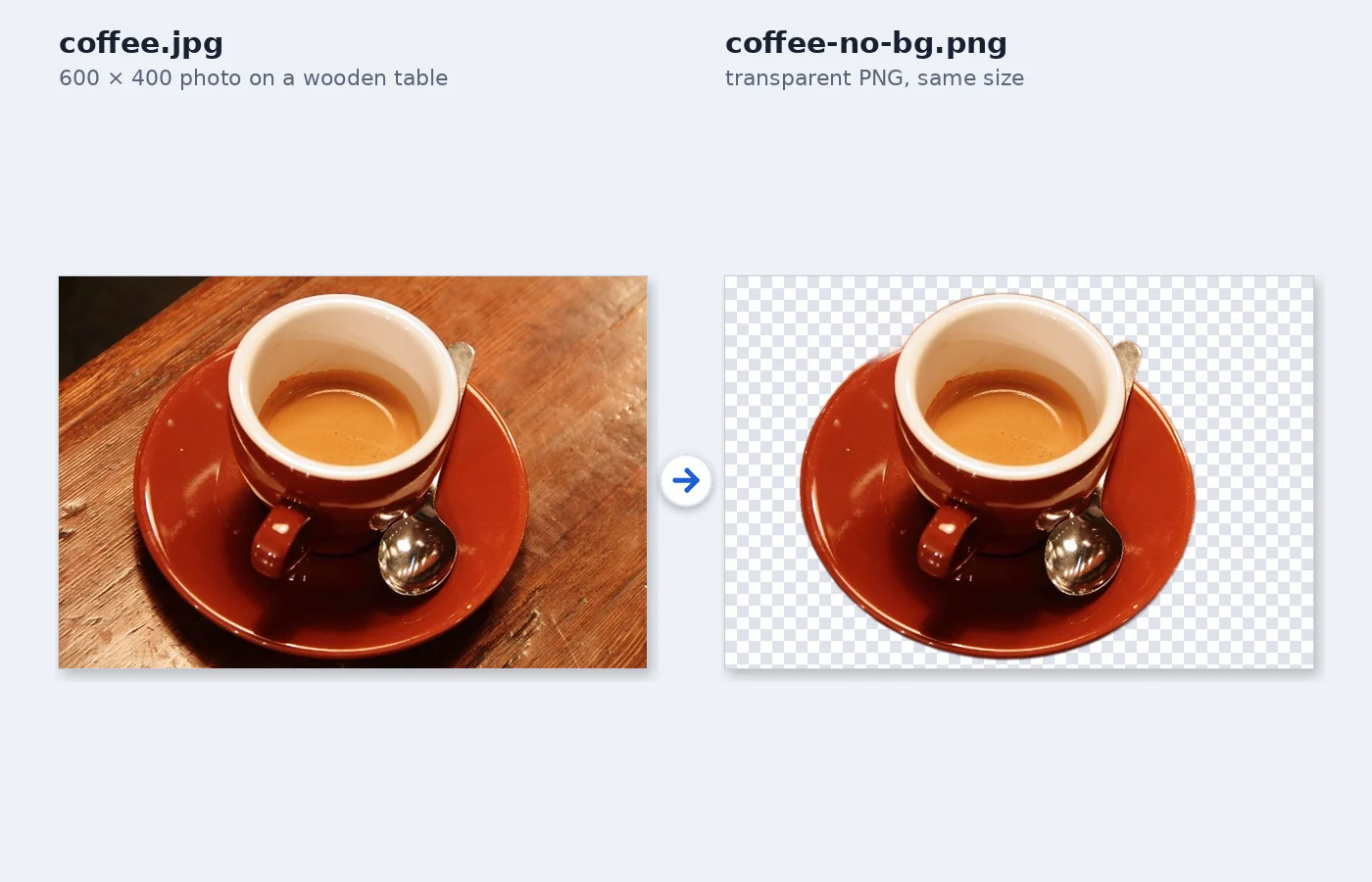
coffee.jpgcoffee-no-bg.png
The AI result the brushes start from
- Table removed automatically
- Edges ready to touch up with the brush
Sample photos with no copyright restrictions (CC0): the coffee cup by Rachel Michetti and Chelsea the cat by Stefan van der Walt, from the scikit-image test images. Processed by this tool in the browser; the photos shown are the real results.
How to erase a background
-
Step 1
Choose the photo
The AI removes the background first.
-
Step 2
Paint the details
Erase leftovers, restore missing parts, undo any stroke.
-
Step 3
Save
Transparent PNG, or JPG on white or a colour.
Why a background eraser still needs a brush
Automatic background removal gets most photos right, but not every pixel: a shadow under a shoe may stay, a pale sleeve against a white wall may vanish, a bit of the table may cling to a cup. Editors such as Photoshop and GIMP have an eraser for this, but they take time to learn. This background eraser does the heavy part with AI and gives you two simple brushes for the rest, right on the preview, so a product photo can be fixed in a minute instead of re-shot.
Erase and restore
"Erase background" paints transparency: drag over leftovers and they disappear. "Restore subject" paints the original photo back: while it is active, the removed parts are shown faintly behind the cut-out, so you can see what you are bringing back. The brush has soft edges that blend into the AI edge, and its size runs from fine to broad. Every stroke can be undone, and "Reset" returns the picture to the AI result.
Tips for clean edges
Work with a large brush away from the subject and a small one along the edge. Erase in short strokes so that one undo removes only a little. Hair and fur look best when you leave the AI edge alone and only remove larger leftovers. If you need precise straight edges, for example on a box or a phone, a few short strokes along the side are quicker than one long one. Switch the brush to "Off" to see the result on the background you chose.
Several photos, each with its own touch-ups
Choose a whole set of photos: click a photo in the list to show it on the preview and touch it up; each photo keeps its own changes until you save. Photos you do not touch use the AI result. When you press the button, every photo is saved at full size, as a transparent PNG or on white or a colour, one by one or together in a ZIP. For logos and scans on plain white, the faster tool is remove white background; for a fully automatic result, use remove background.
On a phone or tablet
The brushes work with a finger or a stylus on phones and tablets as well as with a mouse. On a small screen the preview is small too, so choose a smaller brush for edges, or do detailed work on a computer. The AI model is downloaded once and kept by the browser, which makes the second photo much quicker to start than the first.
Private
Your photos never leave your device. The page downloads the AI model once (44 MB) and your browser keeps it; the subject is found and cut out by your own computer or phone. Nothing is uploaded, and nothing is kept when you close the page.
More free image converters
- Image converter
- Compress image
- JPG to PNG
- PNG to JPG
- JPEG to JPG
- Compress JPEG
- Compress PNG
- GIF to PNG
- PNG to GIF
- GIF to JPG
- JPG to GIF
- GIF maker
- Remove background
- Make background transparent
- White background for photo
- Remove white background
- Resize image
- Crop image
- Rotate image
- Flip image
- Blur image
- Pixelate image
- Black and white photo
- Invert image colors
- Merge images
- Watermark image
- Add text to image
- Remove EXIF data
- EXIF viewer
- Change DPI
- Image to Base64
- Base64 to image
- MP4 to GIF
- Video to GIF
- GIF to MP4
- GIF compressor
- PNG to SVG
- JPG to SVG
- Image to SVG
- SVG to PDF
- Image to text
- PNG to DXF
- SVG to DXF
- DXF to SVG
- HEIC to JPG
- HEIC to PNG
- HEIC to PDF
- HEIC viewer
- WebP to PNG
- WebP to JPG
- WebP to GIF
- WebP to PDF
- PNG to WebP
- JPG to WebP
- AVIF to PNG
- AVIF to JPG
- JFIF to JPG
- JFIF to PNG
- SVG to PNG
- SVG to JPG
- PNG to ICO
- ICO to PNG
- BMP to JPG
- BMP to PNG
- TIFF to JPG
- TIFF to PNG
- PSD viewer
- PSD to PNG
- PSD to JPG
- PSD to PDF
- AI to SVG
- AI to PNG
- Open AI file
- EPS to PNG
- DDS to PNG
- TGA to PNG
- TGA to JPG
- RAW to JPG
- CR3 to JPG
- CR2 to JPG
- NEF to JPG
Questions about the background eraser
Can I undo a stroke?
Yes, Undo removes the last stroke, and Reset returns to the AI result.
Can I bring back a part the AI removed?
Yes, with the "Restore subject" brush.
Does it work with a finger on a phone?
Yes, the brushes work with touch and a stylus.
Is the result full size?
Yes, the touch-ups are applied to the full-size photo.
Are my photos uploaded?
No, everything happens in your browser.
Is it free?
Yes, with no watermark and no account.