Free No account · the file is deleted after 24 hours
Compress PDF
Compress PDF files here to make them small enough for e-mail, a job portal or a government upload. Choose how strong, and you get the new file with its size next to the old one. Text and drawings stay sharp; only the pictures inside are made lighter.
or drop it here. Up to 200 MB. Free, no account, no watermark.
How small should it be?
The file is sent over an encrypted connection to our server in Canada (OVHcloud, Beauharnois, Quebec), processed by a program there, and deleted with the result 24 hours later. Nobody looks at it.
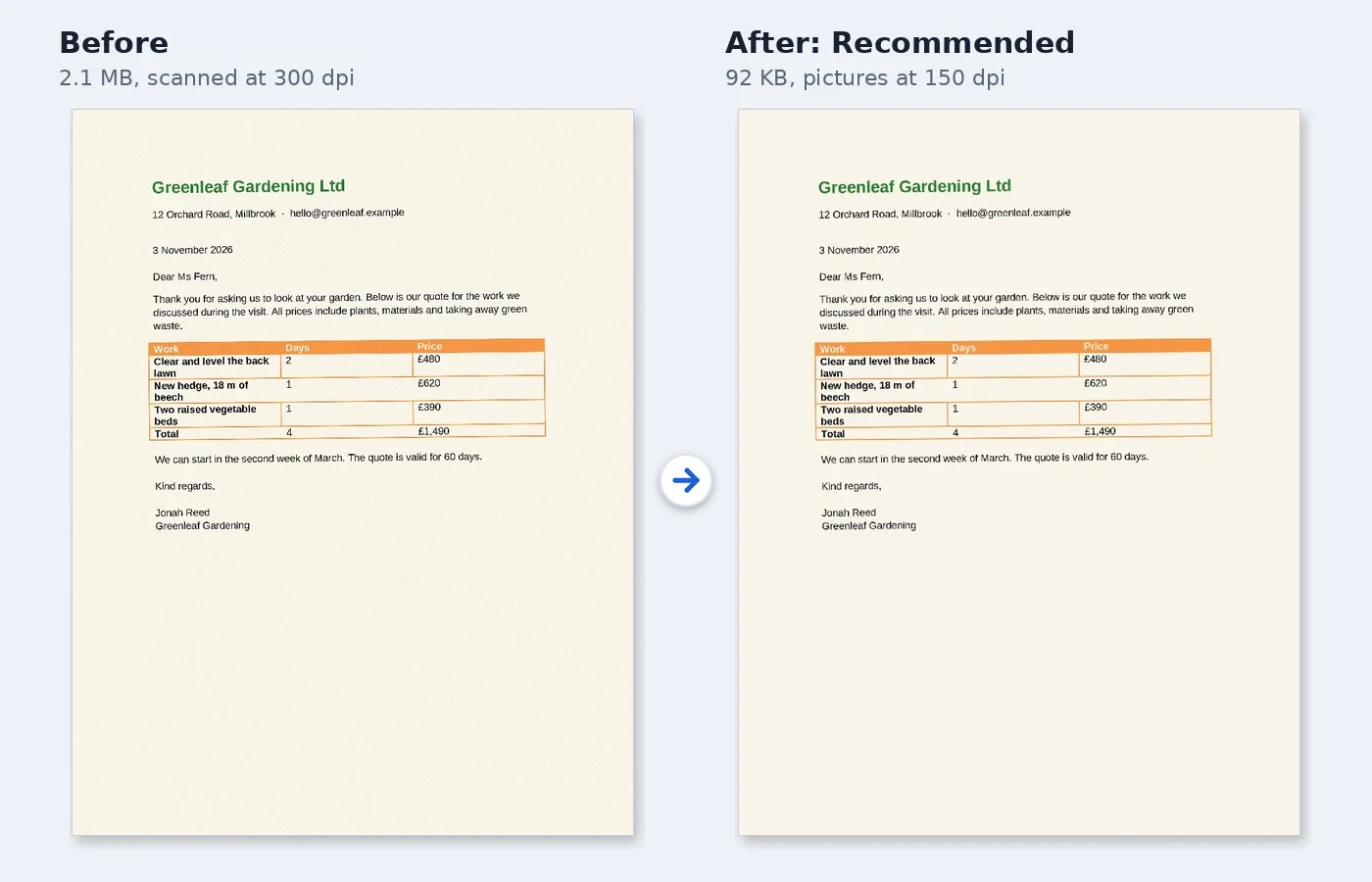
A scanned letter compressed by FileOpens
scanned-quote.pdfcompressed.pdf
A colour scan: 2.1 MB to 92 KB
- Scanned at 300 dpi, Recommended strength
- Pictures resampled to 150 dpi
- Fits a 100 KB upload limit
scanned-quote.pdfcompressed.pdf
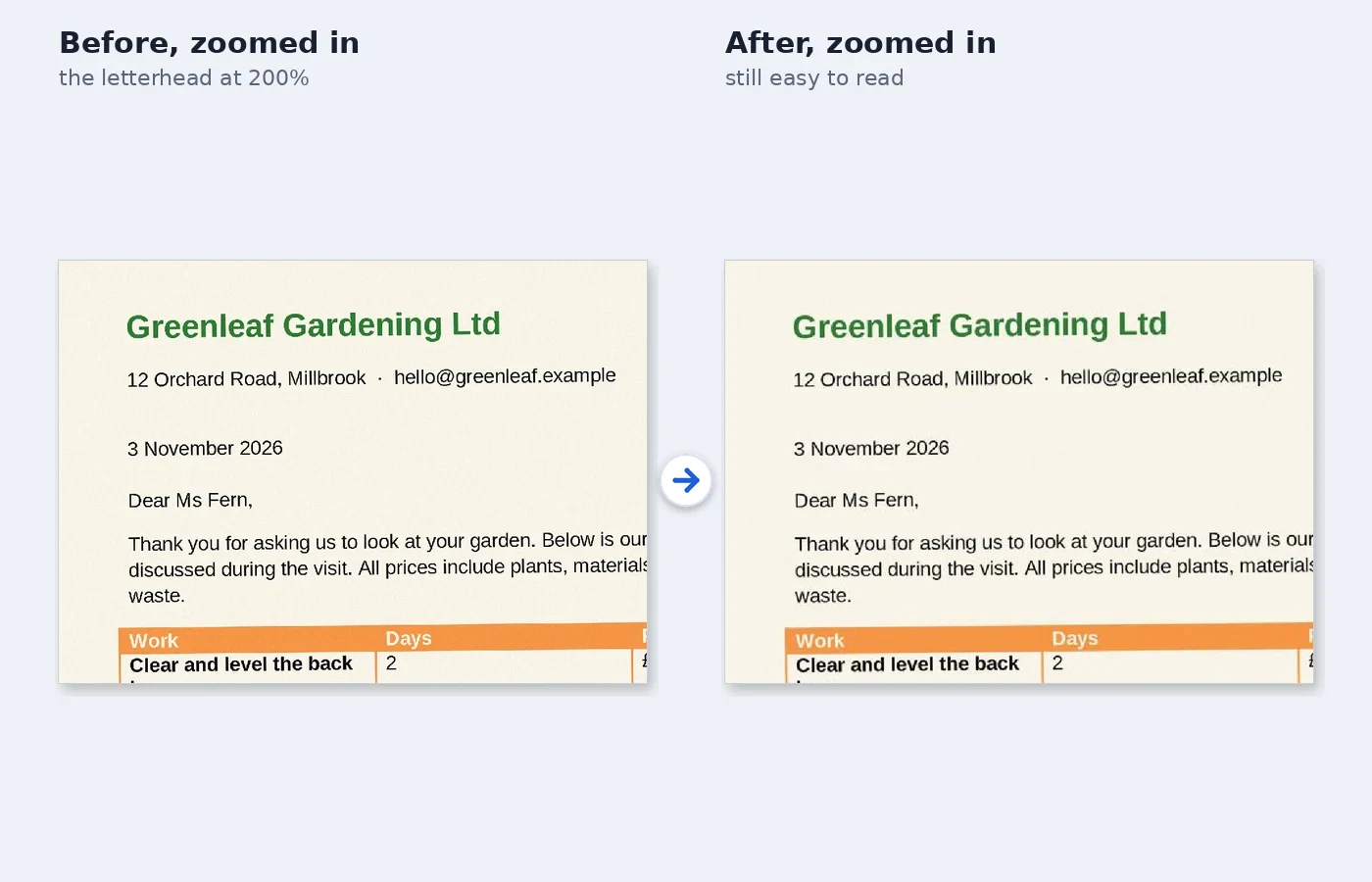
The same letter, zoomed in
- Letterhead and text still sharp
- No blocks or smudges
- Before and after at 200%
Sample letter we made ourselves, with made-up names and data, converted here and shown as they came out. Your own files are never shown to anyone.
How to compress a PDF
-
Step 1
Choose the PDF
Pick it or drop it on the box. It can be up to 200 MB.
-
Step 2
Pick the strength
Recommended suits screen reading and e-mail; Light keeps pictures good for print; Strong makes the smallest file.
-
Step 3
Download
The result page shows the size before and after. If the PDF cannot get smaller, you get the original back instead of a bigger file.
Why a PDF is so big
Almost always it is the pictures. A phone photo is 3 to 5 MB, and a page scanned at 600 dpi in colour is about as heavy. When such pictures are put into a PDF, they usually go in at full size, even though on a page the width of an A4 sheet they would look exactly the same at a quarter of the pixels. Text, on the other hand, takes almost nothing: a 300-page novel without pictures is often under 2 MB. Fonts add a little, because a PDF carries the fonts it uses so it looks the same everywhere. So "compress PDF" really means "make the pictures inside it smaller", and that is what this tool does.
How to compress PDF: the three strengths
The compressor is Ghostscript, the program behind many printers and PDF tools. It rebuilds the PDF and resamples every picture that is sharper than it needs to be. Light brings pictures down to 200 dpi, which still prints well on an office printer. Recommended uses 150 dpi, plenty for reading on a screen and for most uploads. Strong goes to 96 dpi with stronger JPEG compression: the smallest file, fine for a quick look, but small print inside photos and scans can blur. Text, lines and vector drawings are not turned into pictures at any strength, so they stay crisp and you can still search and copy the text. Fonts are kept but only the letters actually used are stored, and identical pictures (a logo on every page) are stored once.
How to reduce PDF size on Windows, Mac and phone without a tool
On a Mac, Preview can do it: File > Export, then Quartz Filter > Reduce File Size. It works, but often too hard: pictures get very blurry and you cannot choose how much. On Windows there is no built-in compressor; "Microsoft Print to PDF" makes a new PDF but does not shrink pictures, and the text may stop being searchable. Word can save a smaller PDF if you still have the document: File > Save As > PDF > Minimum size. On iPhone and Android the usual route is an app or a site like this one; the page works the same in Safari and Chrome on a phone, and the compressed PDF goes to your downloads.
When a PDF will not get smaller
Some PDFs are already as small as they can be: a document typed in Word and saved as PDF, for example, has no big pictures to shrink. Then the result page tells you so and gives you the original file back, because a "compressed" PDF that is larger than the original helps nobody. A scan made in black and white (the fax-like CCITT format) is also already very compact. If you need a file under a fixed size, such as 100 KB or 1 MB for a form, use compress PDF to 100 KB, which keeps trying stronger settings until the file fits. If the PDF is big because it has hundreds of pages, split it into parts or remove the pages you do not need first.
Privacy and limits
Unlike our merge and split tools, compression runs on our server, because a browser cannot rebuild every kind of picture inside a PDF reliably. The file goes over an encrypted connection, is processed by Ghostscript without anyone looking at it, and is deleted with the result 24 hours later. Files up to 200 MB are accepted. PDFs that need a password to open cannot be compressed until the password is removed with Unlock PDF. Links are kept; fillable form fields may not stay fillable, so fill the form in before compressing it.
More free PDF tools and converters
- Merge PDF
- Split PDF
- Compress PDF to 100 KB
- Delete PDF pages
- Rotate PDF
- Extract PDF pages
- Reorder PDF pages
- Crop PDF
- Add page numbers
- Watermark PDF
- Sign PDF
- Protect PDF
- Unlock PDF
- OCR PDF
- Flatten PDF
- PDF to grayscale
- Invert PDF colors
- Remove PDF metadata
- PDF to Word
- Word to PDF
- PDF to Excel
- Excel to PDF
- PDF to PowerPoint
- PowerPoint to PDF
- JPG to PDF
- PNG to PDF
- Image to PDF
- PDF to JPG
- PDF to PNG
- PDF to text
- HTML to PDF
- PDF to EPUB
- PDF to PDF/A
- PDF to TIFF
- PDF to SVG
Questions about compressing PDFs
Will the text get blurry?
No. Only pictures are resampled. Text and vector drawings stay sharp and searchable at every strength.
Which strength should I choose?
Recommended for e-mail and uploads, Light if you will print it, Strong if the file must be as small as possible and the pictures matter less.
Why did my PDF not get smaller?
It has no large pictures to shrink, for example a document saved from Word. You get the original back rather than a bigger file.
Is there a size or page limit?
Files up to 200 MB. There is no page limit, but very long scans take a minute or two.
Is it safe for confidential documents?
The file is sent encrypted, processed automatically and deleted with the result after 24 hours. Nobody looks at it.