Free Your pictures are not uploaded
HEIC to JPG converter
Convert HEIC to JPG here: drop your iPhone photos, all of them at once if you like, and get JPG files that open on any Windows PC, Android phone, website or printer. The conversion runs in your browser, so your photos never leave your device.
or drop them here, as many as you like. .heic and .heif. Nothing is uploaded.
Your photos
Everything happens in this browser tab: your pictures are not sent to FileOpens or anywhere else, and nothing is kept when you close the page.
A HEIC photo converted to JPG by FileOpens
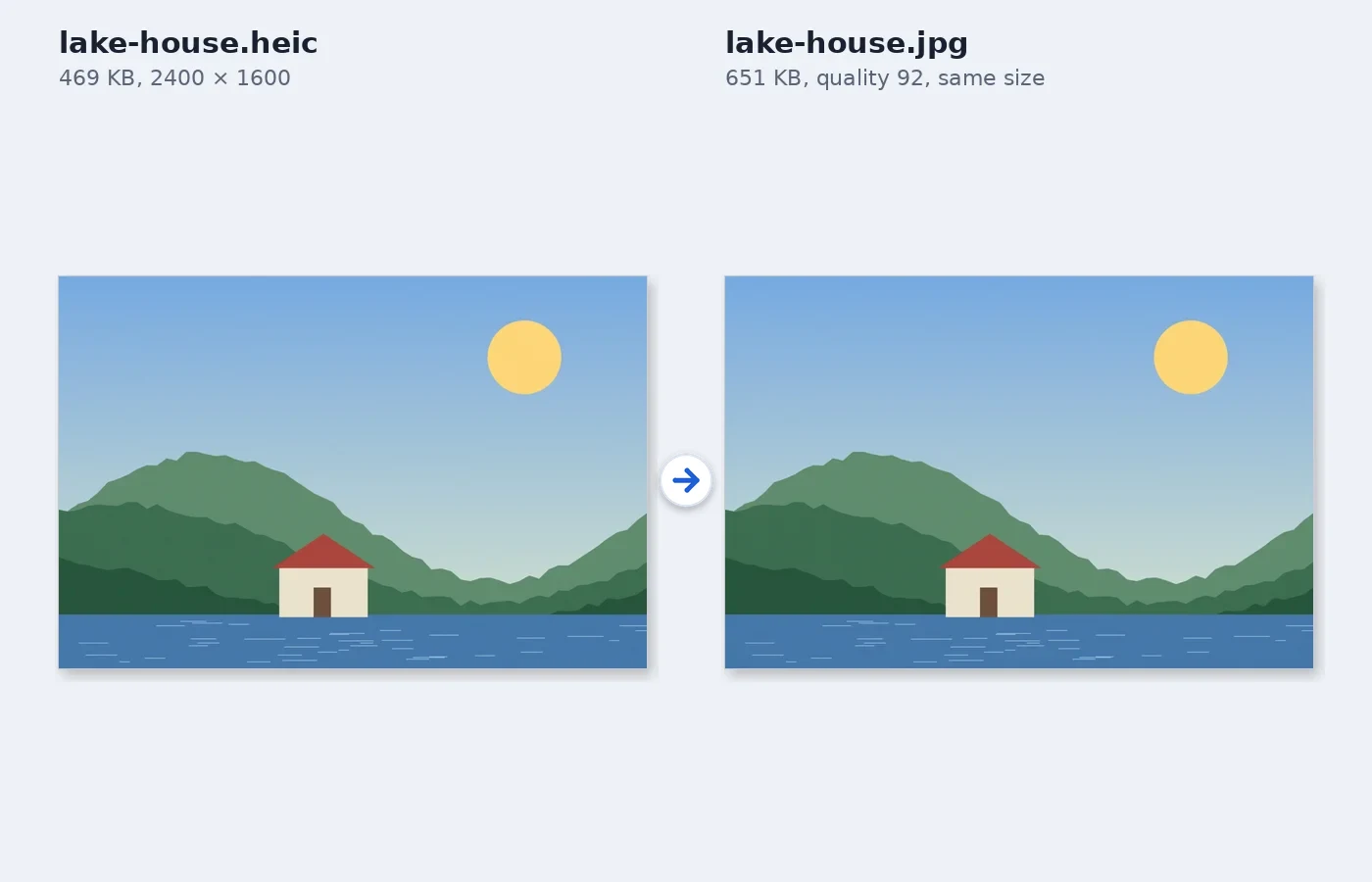
lake-house.heiclake-house.jpg
HEIC photo to JPG
- 469 KB HEIC, 2400 × 1600
- 651 KB JPG at quality 92, same size
- Converted in the browser
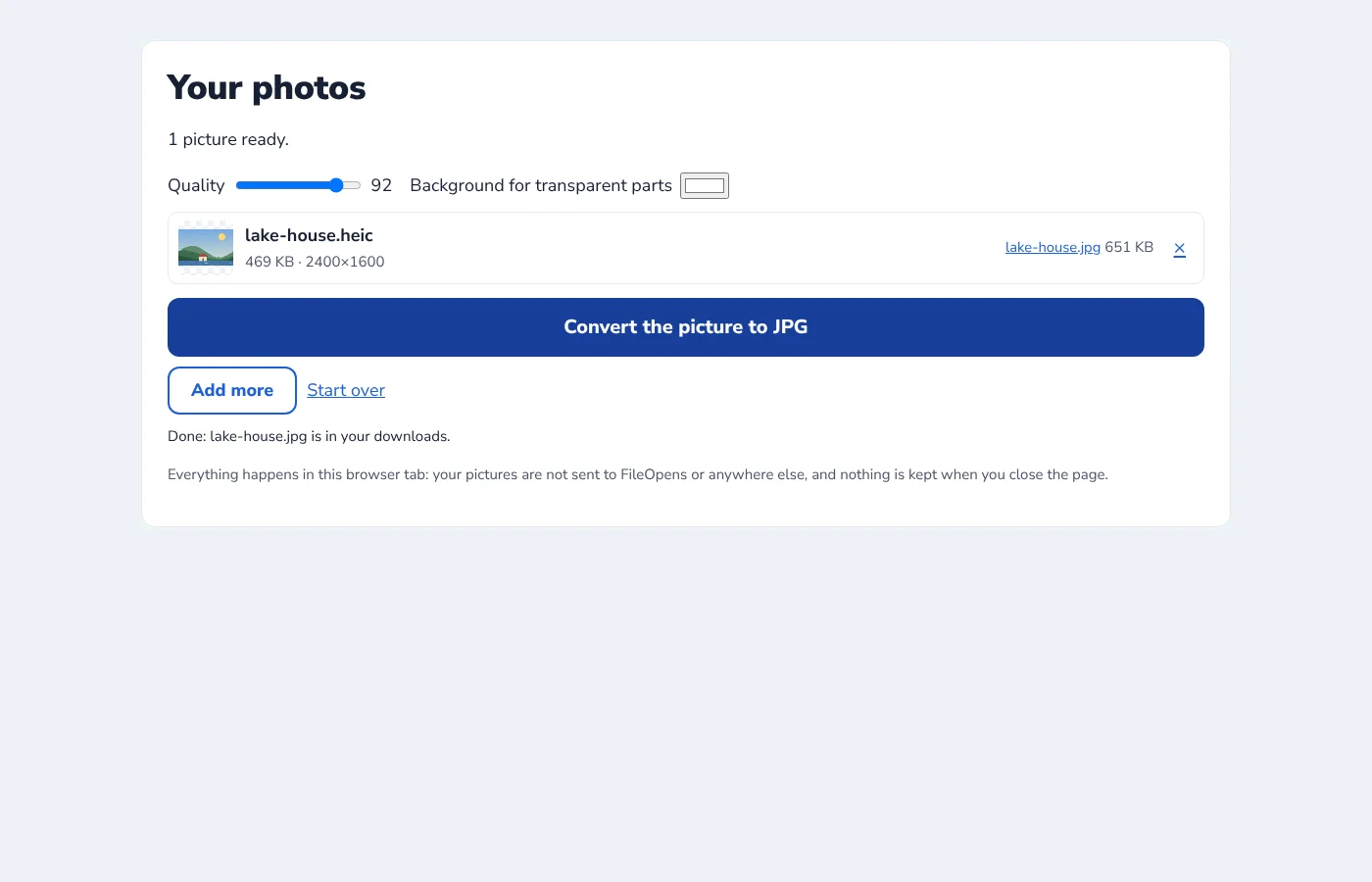
lake-house.heiclake-house.jpg
The converter after one photo
- Quality slider, background for transparency
- Size of the new file shown
A sample photo we made ourselves, with made-up names and data, opened in this tool and shown as it came out. Your own files stay on your device.
How to convert HEIC to JPG
-
Step 1
Choose the photos
From your iPhone, a USB stick or an email: one or a whole folder.
-
Step 2
Pick the quality
92 is close to the original; lower makes smaller files.
-
Step 3
Download
One JPG straight away, or all of them in one ZIP.
Why your iPhone photos are HEIC
Since iOS 11 in 2017, iPhones save photos as HEIC (High Efficiency Image Container) unless you change it. HEIC uses the same compression as HEVC video, so a photo takes about half the space of a JPG of the same quality, and that is why Apple made it the default. The catch is that much of the world still expects JPG: Windows without extra extensions, older Android phones, many websites and job or visa portals, online print shops and photo frames refuse HEIC or show it as a blank icon. Converting to JPG makes the photo open everywhere, at the cost of a somewhat bigger file.
What the converter keeps
The photo is decoded by libheif, the open-source HEIC library also used by GIMP and many Linux photo apps, running inside your browser as WebAssembly. It is turned the right way up, as the iPhone recorded it, and saved as a standard JPG at the quality you choose (92 by default, visually the same as the original). Full resolution is kept: a 12-megapixel photo stays 4032 × 3024 pixels. What does not come across: the camera details (EXIF: date taken, location, camera model) are not copied into the JPG, which many people actually prefer before sharing; Live Photo motion and depth data stay in the HEIC; and HDR highlights are mapped to a normal JPG.
HEIC to JPG on Windows, Mac and iPhone without a converter
On the iPhone you can stop the problem at the source: Settings > Camera > Formats > Most Compatible makes new photos JPG. Settings > Photos > Transfer to Mac or PC > Automatic makes the iPhone convert photos to JPG when you copy them to a computer with a cable. On a Mac, open the photo in Preview and use File > Export > JPEG. On Windows 10 and 11 the Photos app can open HEIC after you install the free HEIF Image Extensions and the HEVC Video Extensions (which Microsoft charges 99 cents for) from the Microsoft Store, then save a copy as JPG one photo at a time. This page does many at once, needs no installs, and works the same on a Chromebook or someone else's computer.
Many photos at once, privately
Choose or drop as many HEIC files as you have; they are converted one after another, and you can download each JPG on its own or all of them as one ZIP. Because everything happens in this browser tab, there is no upload, no waiting in a queue and no limit on the number of photos; private photos stay on your device. A very old or slow phone may take a few seconds per photo. If you want PNG instead, with no compression at all, use HEIC to PNG; to put several photos into one document for a form, HEIC to PDF. To just look at a HEIC file, HEIC viewer.
More free image converters
- Image converter
- Compress image
- JPG to PNG
- PNG to JPG
- JPEG to JPG
- Compress JPEG
- Compress PNG
- GIF to PNG
- PNG to GIF
- GIF to JPG
- JPG to GIF
- GIF maker
- Remove background
- Background eraser
- Make background transparent
- White background for photo
- Remove white background
- Resize image
- Crop image
- Rotate image
- Flip image
- Blur image
- Pixelate image
- Black and white photo
- Invert image colors
- Merge images
- Watermark image
- Add text to image
- Remove EXIF data
- EXIF viewer
- Change DPI
- Image to Base64
- Base64 to image
- MP4 to GIF
- Video to GIF
- GIF to MP4
- GIF compressor
- PNG to SVG
- JPG to SVG
- Image to SVG
- SVG to PDF
- Image to text
- PNG to DXF
- SVG to DXF
- DXF to SVG
- HEIC to PNG
- HEIC to PDF
- HEIC viewer
- WebP to PNG
- WebP to JPG
- WebP to GIF
- WebP to PDF
- PNG to WebP
- JPG to WebP
- AVIF to PNG
- AVIF to JPG
- JFIF to JPG
- JFIF to PNG
- SVG to PNG
- SVG to JPG
- PNG to ICO
- ICO to PNG
- BMP to JPG
- BMP to PNG
- TIFF to JPG
- TIFF to PNG
- PSD viewer
- PSD to PNG
- PSD to JPG
- PSD to PDF
- AI to SVG
- AI to PNG
- Open AI file
- EPS to PNG
- DDS to PNG
- TGA to PNG
- TGA to JPG
- RAW to JPG
- CR3 to JPG
- CR2 to JPG
- NEF to JPG
Questions about converting HEIC to JPG
Are my photos uploaded?
No. They are converted in your browser and never leave your device.
Will the JPG lose quality?
At the default quality of 92 the difference is not visible. The JPG is usually about twice the size of the HEIC.
Is the date and location kept?
No, the camera details (EXIF) are not copied, so the JPG does not show where the photo was taken.
Can I convert many photos at once?
Yes, as many as you like, and download them all as one ZIP.
What is HEIF?
The same format: HEIC is a HEIF file with HEVC compression. Both are converted here.