Free Your pictures are not uploaded
Crop image
Crop images here: drag a frame over the part of the picture you want to keep, choose a shape such as square, 4:3, 16:9 or a 9:16 story, and save it at full quality. Each picture in the list keeps its own frame. It works with a mouse or a finger, in your browser.
or drop them here. JPG, PNG, WebP, HEIC, AVIF, GIF, BMP, TIFF. Nothing is uploaded.
Crop your pictures
Everything happens in this browser tab: your pictures are not sent to FileOpens or anywhere else, and nothing is kept when you close the page.
A photo cropped by FileOpens
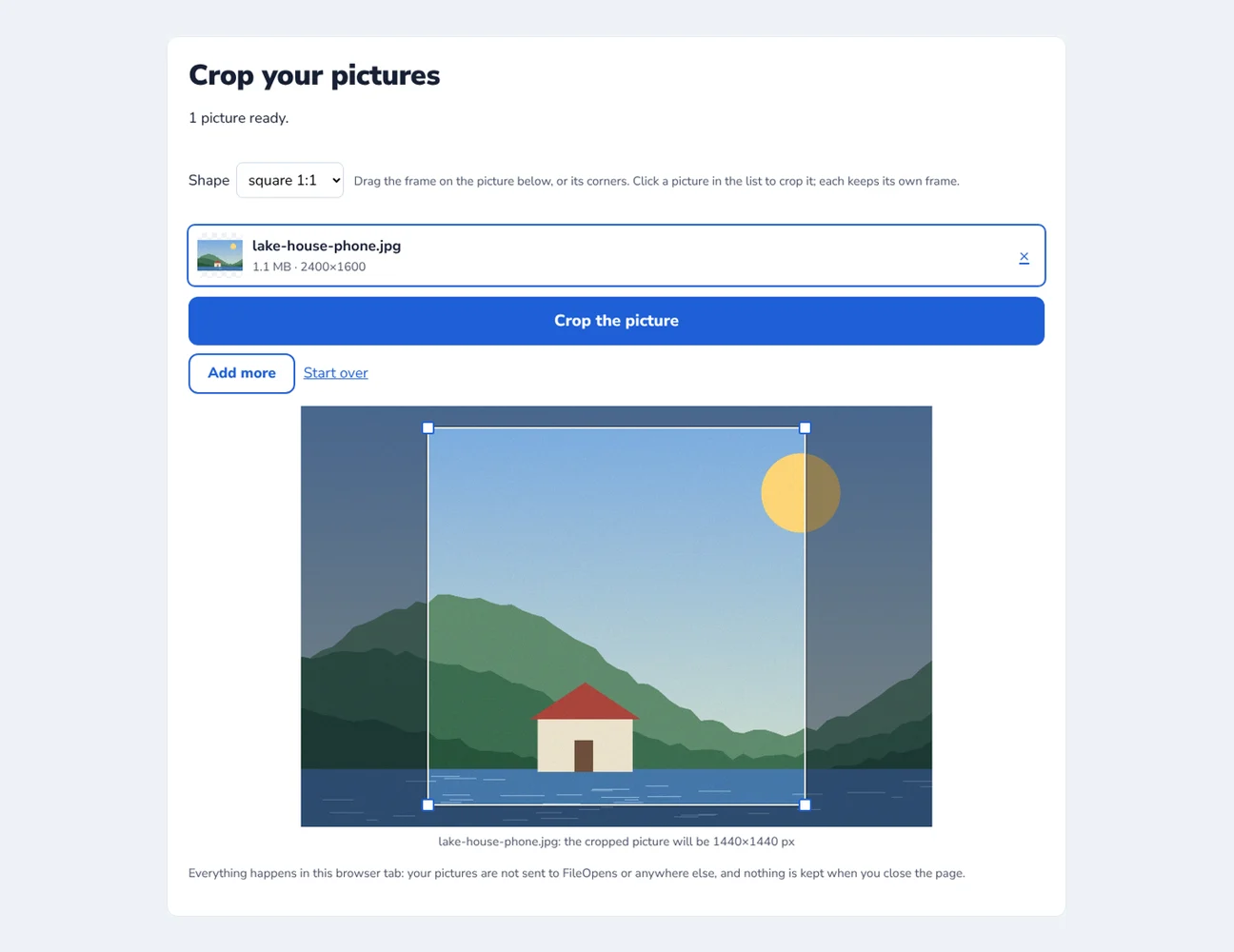
lake-house-phone.jpgthe frame
Choosing a square on the picture
- Frame keeps the 1:1 shape
- Result size shown while dragging
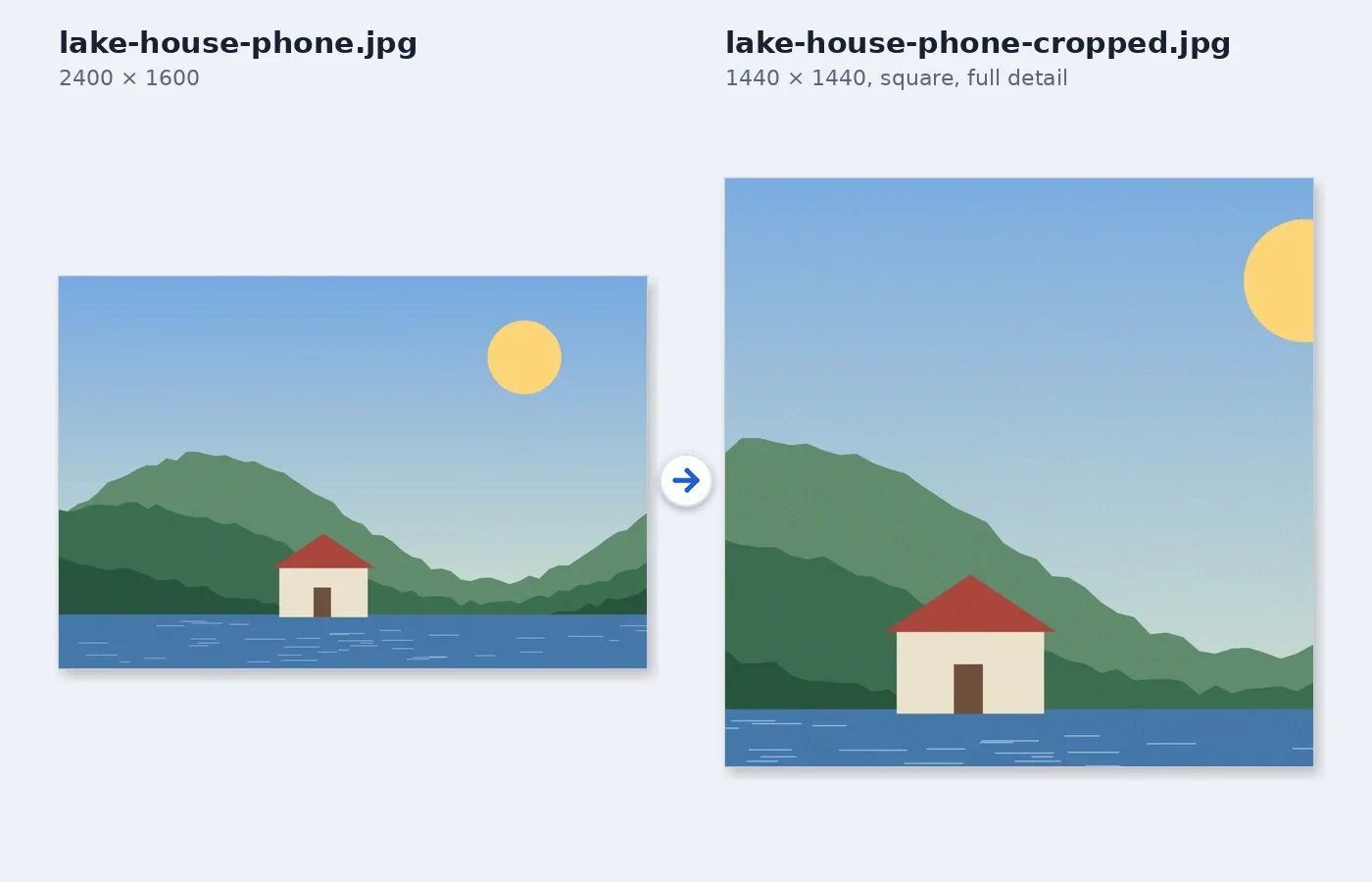
lake-house-phone.jpglake-house-phone-cropped.jpg
The cropped square
- 1440 × 1440 pixels
- No scaling, full detail
A sample photo we made ourselves, with made-up names and data, opened in this tool and shown as it came out. Your own files stay on your device.
How to crop an image
-
Step 1
Choose the pictures
One photo or several; click a name in the list to work on it.
-
Step 2
Drag the frame
Move it, pull its corners, or draw a new one; pick a shape if you need one.
-
Step 3
Crop and download
Every picture is cut to its own frame.
What cropping is for
Cropping cuts away the edges of a picture: a stranger at the side of a photo, an untidy background, the browser bars around a screenshot, the table around a document you photographed. It also changes the shape, for example a landscape photo into a square for a profile picture or a 4:5 portrait for Instagram. Unlike resizing, cropping keeps the remaining part at its full resolution.
How to crop here
After choosing the pictures, the first one appears with a frame over it. Drag inside the frame to move it, drag a corner to change its size, or drag anywhere outside it to draw a new frame. The size of the result in pixels is shown below the picture as you go. Click another picture in the list to crop that one; every picture remembers its own frame, and "Crop" cuts them all in one go. On a phone, use your finger the same way.
Crop image to a square and other shapes
Choose a shape before you start: square 1:1 for profile pictures and marketplaces, 4:3 for classic photos and slides, 3:2 for camera prints, 16:9 for videos, thumbnails and wide screens, 4:5 for Instagram portrait posts, 9:16 for stories and reels. The frame then keeps that shape while you drag. If you need an exact pixel size as well, for example 1080 × 1080, crop to the shape here and then use resize image.
Quality and formats
The cropped picture keeps the original pixels of the part you chose, with no scaling. JPG pictures are saved as JPG at quality 92, PNG stays PNG with its transparency, WebP stays WebP; HEIC, AVIF, GIF, BMP and TIFF are saved as PNG, which every program opens. Photos are turned upright before cropping, so the frame matches what you see. To straighten a slightly tilted photo first, use rotate image with an angle.
Common crops
For a profile picture, crop to a square around the face with some space above the head; most sites then show it in a circle, so keep important details away from the corners. For a screenshot, crop away the window bars and taskbar so only the content remains. For a photographed document or receipt, crop tightly to the paper edges, which also makes the file smaller. For a group photo, a 3:2 or 4:3 frame keeps the classic photo shape. The frame can be as small as a few pixels, so even tiny details can be cut out precisely.
Private
Your pictures are cropped in the browser and never uploaded.
More free image converters
- Image converter
- Compress image
- JPG to PNG
- PNG to JPG
- JPEG to JPG
- Compress JPEG
- Compress PNG
- GIF to PNG
- PNG to GIF
- GIF to JPG
- JPG to GIF
- GIF maker
- Remove background
- Background eraser
- Make background transparent
- White background for photo
- Remove white background
- Resize image
- Rotate image
- Flip image
- Blur image
- Pixelate image
- Black and white photo
- Invert image colors
- Merge images
- Watermark image
- Add text to image
- Remove EXIF data
- EXIF viewer
- Change DPI
- Image to Base64
- Base64 to image
- MP4 to GIF
- Video to GIF
- GIF to MP4
- GIF compressor
- PNG to SVG
- JPG to SVG
- Image to SVG
- SVG to PDF
- Image to text
- PNG to DXF
- SVG to DXF
- DXF to SVG
- HEIC to JPG
- HEIC to PNG
- HEIC to PDF
- HEIC viewer
- WebP to PNG
- WebP to JPG
- WebP to GIF
- WebP to PDF
- PNG to WebP
- JPG to WebP
- AVIF to PNG
- AVIF to JPG
- JFIF to JPG
- JFIF to PNG
- SVG to PNG
- SVG to JPG
- PNG to ICO
- ICO to PNG
- BMP to JPG
- BMP to PNG
- TIFF to JPG
- TIFF to PNG
- PSD viewer
- PSD to PNG
- PSD to JPG
- PSD to PDF
- AI to SVG
- AI to PNG
- Open AI file
- EPS to PNG
- DDS to PNG
- TGA to PNG
- TGA to JPG
- RAW to JPG
- CR3 to JPG
- CR2 to JPG
- NEF to JPG
Questions about cropping images
How do I crop a picture to a square?
Choose "square 1:1" and move the frame to the part you want.
Can I crop several pictures at once?
Yes, each picture keeps its own frame; click a name to adjust it.
Does cropping lower the quality?
No, the part you keep stays at its original resolution.
Does it work on a phone?
Yes, drag the frame and its corners with your finger.
Can I set an exact size in pixels?
Crop to the shape here, then use resize image for the exact size.
Are my pictures uploaded?
No, everything happens in your browser.