Free No account · the file is deleted after 24 hours
Invert PDF colors
Invert PDF colors here: white pages turn black and black text turns white, and every other colour flips to its opposite, so the PDF is easy on the eyes at night. The text stays real text. Free.
or drop it here. Up to 200 MB. Free, no account.
Invert the colours
The file is sent over an encrypted connection to our server in Canada (OVHcloud, Beauharnois, Quebec), processed by a program there, and deleted with the result 24 hours later. Nobody looks at it.
PDF colors inverted by FileOpens
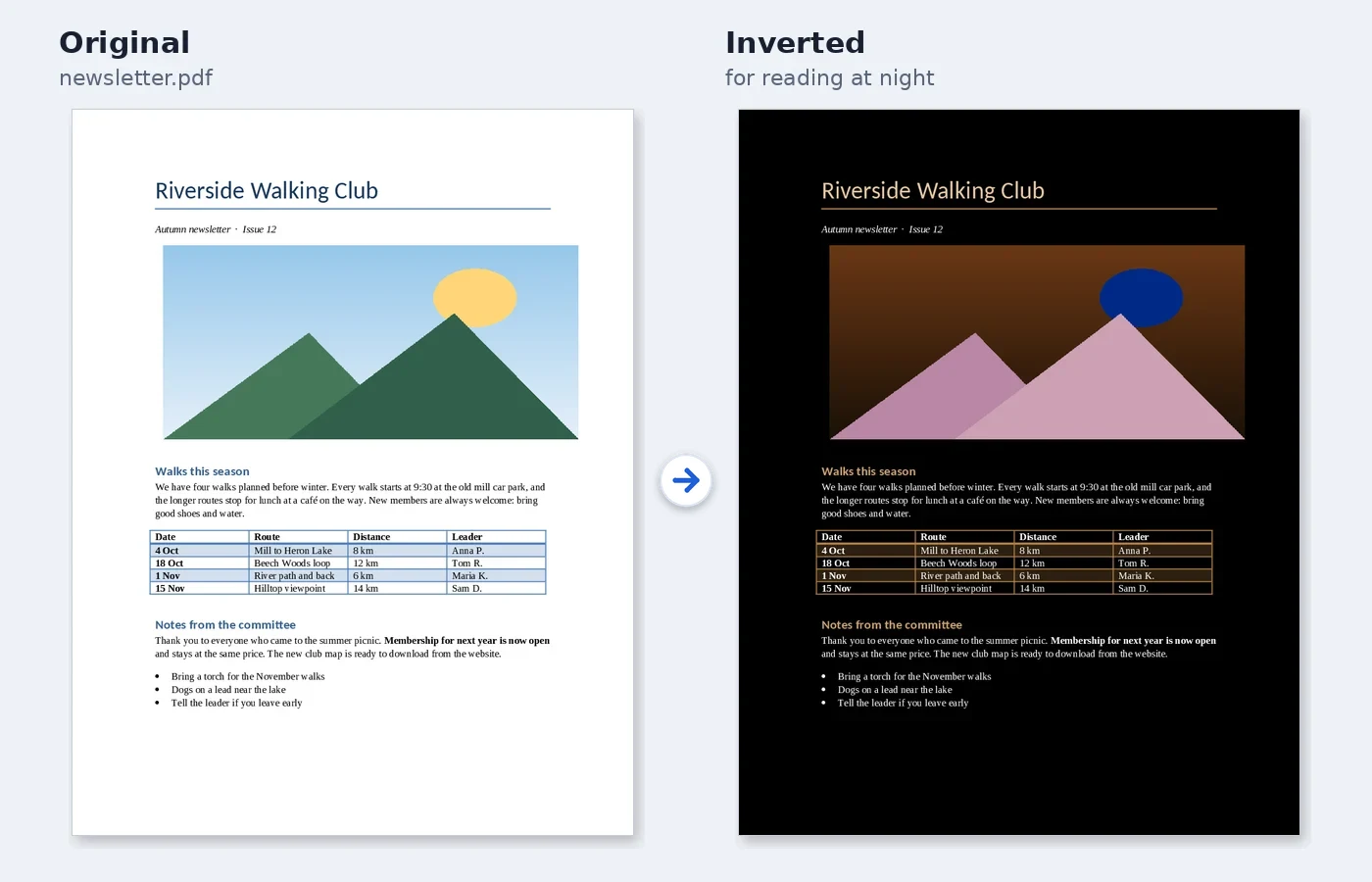
newsletter.pdfinverted.pdf
White pages turned black
- Black text becomes white
- Every colour flips to its opposite
- Text stays selectable
Sample newsletter we made ourselves, with made-up names and data, converted here and shown as they came out. Your own files are never shown to anyone.
How to invert the colours of a PDF
-
Step 1
Choose the PDF
A book, paper or notes you read on screen in the evening.
-
Step 2
Colours are flipped
Every page gets its colours inverted, pictures included.
-
Step 3
Download
Read it in any PDF reader, on any device.
Why invert PDF colors
Reading a bright white page in a dark room is tiring, and on OLED phones and tablets a black page uses less battery. Many people with light sensitivity or some kinds of low vision also find light text on a dark background easier. Some PDF readers have a dark mode, but most only darken their own menus and leave the page white, and the ones that do invert pages (Acrobat's "Replace document colours", for example) do it only in that one app. An inverted PDF stays inverted wherever you open it: in any browser, in the Files app on a phone, on a tablet.
How it is done
Instead of turning each page into a picture, the tool lays a white sheet in "difference" blend mode over every page. Difference blending subtracts each colour from white, which is exactly an inversion: white becomes black, black becomes white, blue becomes orange, and so on. Because the original page is still underneath, text stays text: you can search, select and copy it, links still work, and the file is about the same size as before instead of the much bigger file a page of pictures would be. Blend modes are part of the PDF standard and are shown by Acrobat, Chrome, Edge, Firefox, Apple Preview and the readers on iPhone and Android.
Photos and colours
Everything on the page is inverted, photos included, so they look like film negatives. In a text book that hardly matters, but in a PDF that is mostly photos the result may be strange; for those, a reader's own night mode or lower screen brightness may be better. Coloured highlighting turns into its opposite colour (yellow becomes dark blue), which stays readable. If you want grey rather than inverted, use PDF to grayscale. Dark grey text on a light grey page, common in scanned books, becomes light grey on dark grey, which is softer on the eyes than pure white on black. If you would like the opposite of a scanned book's yellowed paper, first compress or convert the scan to grey, then invert it, and the pages come out an even near-black.
Do not print it
An inverted page is mostly black, so printing it uses a large amount of toner or ink. Keep the original for printing. If an older or simpler PDF viewer does not support blend modes, it may show the original colours, or a white page; open the file in one of the readers above. Scanned PDFs are inverted just like any other; to make their text searchable as well, run OCR PDF first.
Privacy
The PDF goes to our server over an encrypted connection and is processed automatically; both files are deleted 24 hours later. Up to 200 MB. Password-protected PDFs must be unlocked first.
More free PDF tools and converters
- Merge PDF
- Split PDF
- Compress PDF
- Compress PDF to 100 KB
- Delete PDF pages
- Rotate PDF
- Extract PDF pages
- Reorder PDF pages
- Crop PDF
- Add page numbers
- Watermark PDF
- Sign PDF
- Protect PDF
- Unlock PDF
- OCR PDF
- Flatten PDF
- PDF to grayscale
- Remove PDF metadata
- PDF to Word
- Word to PDF
- PDF to Excel
- Excel to PDF
- PDF to PowerPoint
- PowerPoint to PDF
- JPG to PDF
- PNG to PDF
- Image to PDF
- PDF to JPG
- PDF to PNG
- PDF to text
- HTML to PDF
- PDF to EPUB
- PDF to PDF/A
- PDF to TIFF
- PDF to SVG
Questions about inverting PDF colours
Is the text still selectable?
Yes. The page is not turned into a picture; the inversion is a layer on top.
Will it look right in every reader?
In Acrobat, Chrome, Edge, Firefox, Preview and phone readers, yes. Very simple viewers may ignore the blend mode.
Are photos inverted too?
Yes, everything on the page, so photos look like negatives.
Can I print it?
You can, but it uses a lot of ink. Print the original instead.
Is it free?
Yes, with no account.