Free Your PDF is not uploaded
Convert PDF to JPG
Convert PDF to JPG here: every page, or only the pages you choose, becomes a JPG image at the resolution you pick, up to 300 dpi for print. Done in your browser, so the PDF is never uploaded. Free.
or drop it here. One PDF up to 500 MB. The pages are turned into JPG images on your device.
Choose pages and quality
Everything happens in this browser tab: the PDF is not sent to FileOpens or anywhere else, and nothing is kept when you close the page.
A PDF turned into pictures by FileOpens
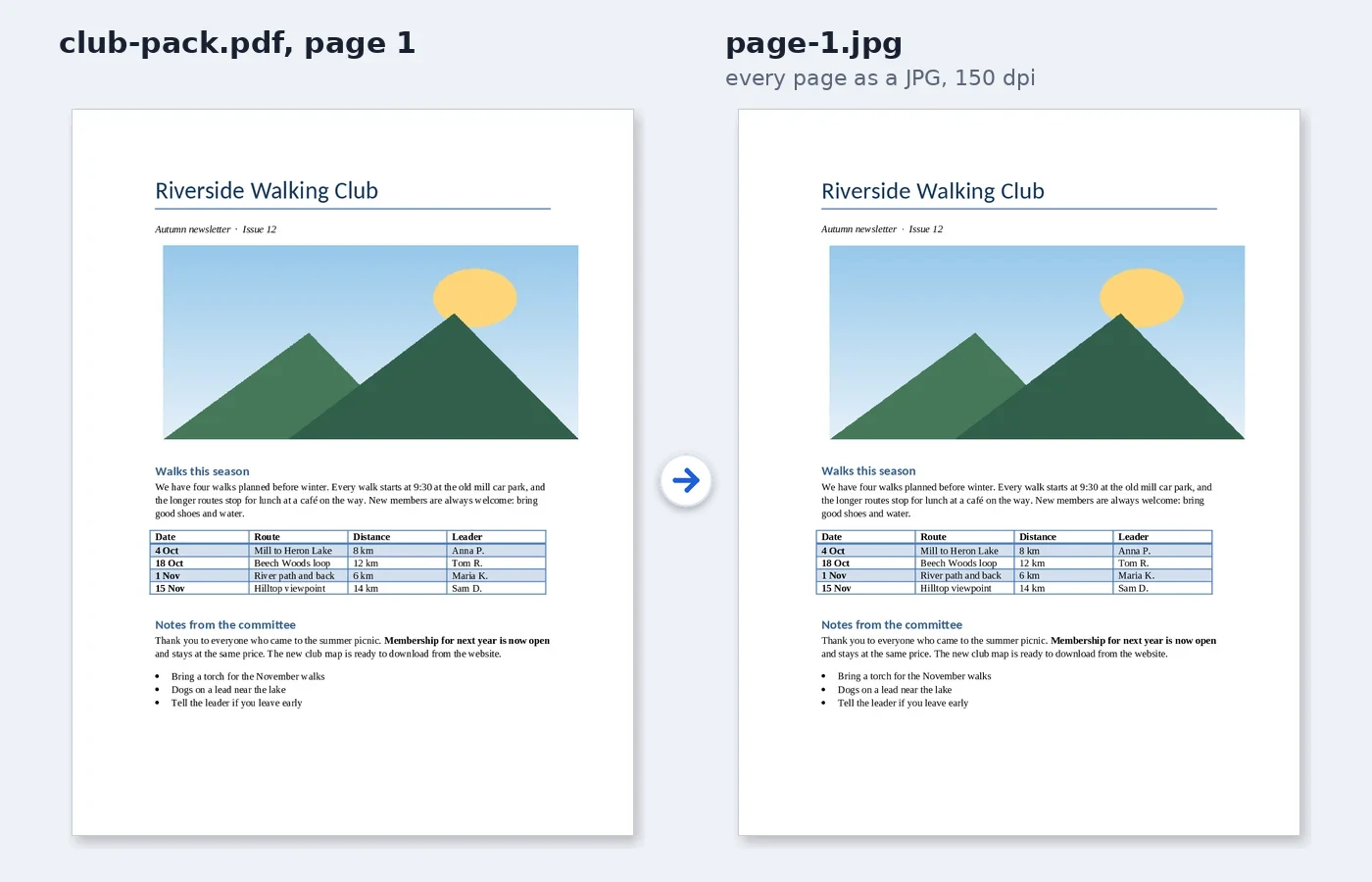
club-pack.pdfpage-1.jpg
Every page as a picture
- 100, 150 or 300 dpi
- All pages in one ZIP
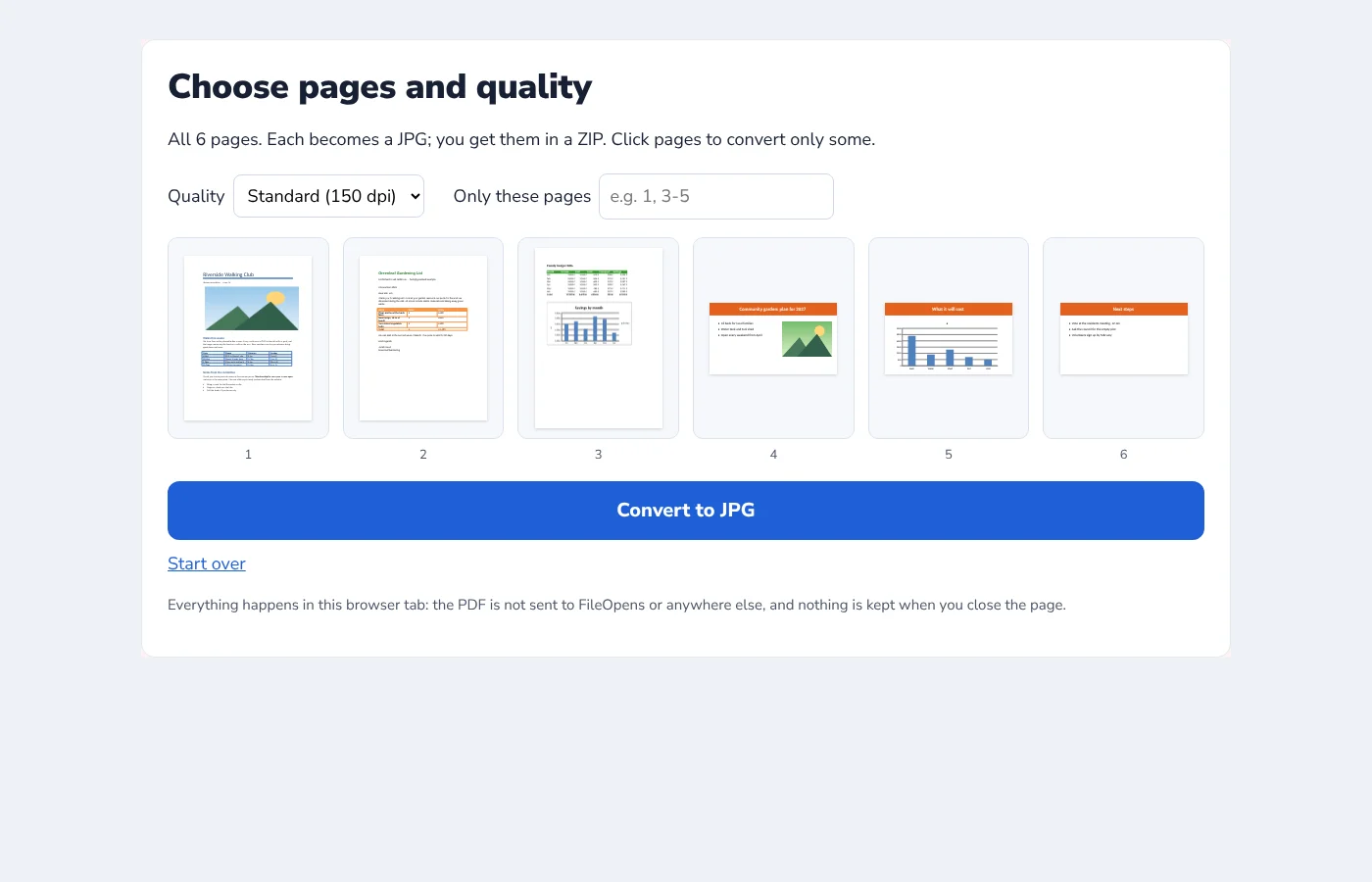
club-pack.pdf6 pictures
Choose pages and quality
- Click pages to convert only some
- Thumbnails of every page
A sample PDF we made ourselves, with made-up names and data, opened in this tool and shown as it came out. Your own files stay on your device.
How to convert PDF to JPG
-
Step 1
Choose the PDF
Pick or drop the file; all its pages are shown.
-
Step 2
Pick pages and quality
All pages or the ones you click; 100 dpi for screens up to 300 dpi for print.
-
Step 3
Download
One JPG, or a ZIP with a JPG per page.
When you need a PDF as JPG
Social networks, messaging apps, presentations and many websites take pictures but not PDFs. A flyer, a menu, a certificate or a page of a report shared as JPG shows straight away in a chat or a post, and can be cropped and edited in any photo app. PDF to JPG turns pages into pictures that go anywhere a photo goes.
PDF to JPG step by step, with every option
Choose the PDF above and its pages appear as thumbnails. By default every page is converted; click pages to convert only those (they turn green), or type numbers such as 1, 3-5. Pick the quality: Screen (100 dpi) for sharing in chats, Standard (150 dpi) for most uses, High (220 dpi) and Print (300 dpi) for printing and zooming in. Click Convert: one page downloads as a JPG, several come in a ZIP, named with their page numbers.
Image quality and file size
Pages are drawn fresh from the PDF at the resolution you choose, so text and lines come out sharp, not blurred from a low-resolution preview. At 300 dpi an A4 page becomes about 2480 × 3508 pixels; at 150 dpi half that in each direction. JPG is compressed, which keeps files small and suits photos, but can leave faint marks around small text; for pages that are mostly text, lines or screenshots, PDF to PNG gives perfectly clean edges. White pages stay white: transparent parts of the PDF are filled with white, because JPG has no transparency.
No upload
Your browser draws the pages on your own device; the PDF is never sent to FileOpens or anyone else. That is important for statements, tickets with barcodes and documents with personal details, and it means no waiting in a queue, no account and no watermark.
Limits
Long documents at 300 dpi take a little while, a second or so per page on a computer and more on a phone, and the ZIP can get large. If you only need a few pages, pick them first. Protected PDFs that cannot be opened without a password cannot be converted. To go the other way, use JPG to PDF.
More free PDF tools and converters
- Merge PDF
- Split PDF
- Compress PDF
- Compress PDF to 100 KB
- Delete PDF pages
- Rotate PDF
- Extract PDF pages
- Reorder PDF pages
- Crop PDF
- Add page numbers
- Watermark PDF
- Sign PDF
- Protect PDF
- Unlock PDF
- OCR PDF
- Flatten PDF
- PDF to grayscale
- Invert PDF colors
- Remove PDF metadata
- PDF to Word
- Word to PDF
- PDF to Excel
- Excel to PDF
- PDF to PowerPoint
- PowerPoint to PDF
- JPG to PDF
- PNG to PDF
- Image to PDF
- PDF to PNG
- PDF to text
- HTML to PDF
- PDF to EPUB
- PDF to PDF/A
- PDF to TIFF
- PDF to SVG
Questions about PDF to JPG
Is it free?
Yes. Converting PDF to JPG is free, with no account, no limit and no watermark.
Can I convert only one page?
Yes. Click that page (it turns green), or type its number, then convert.
What resolution do I get?
You choose: 100, 150, 220 or 300 dpi. 300 dpi is print quality.
JPG or PNG?
JPG is smaller and good for photos; PNG keeps text and lines perfectly sharp.
Is my PDF uploaded?
No. The pages are drawn in your browser on your device.