Free Your PDF is not uploaded
Merge PDF files into one
Merge PDF files here without uploading them anywhere: drop two or more PDFs, drag them into the order you want and download one combined PDF. Free, no account and no watermark.
or drop them here. Two or more PDFs, up to 500 MB each. They are combined on your device and never sent anywhere.
Your PDFs, in order
Everything happens in this browser tab: the PDF is not sent to FileOpens or anywhere else, and nothing is kept when you close the page.
Merge PDF in use
quote.pdf + 2 moremerged.pdf
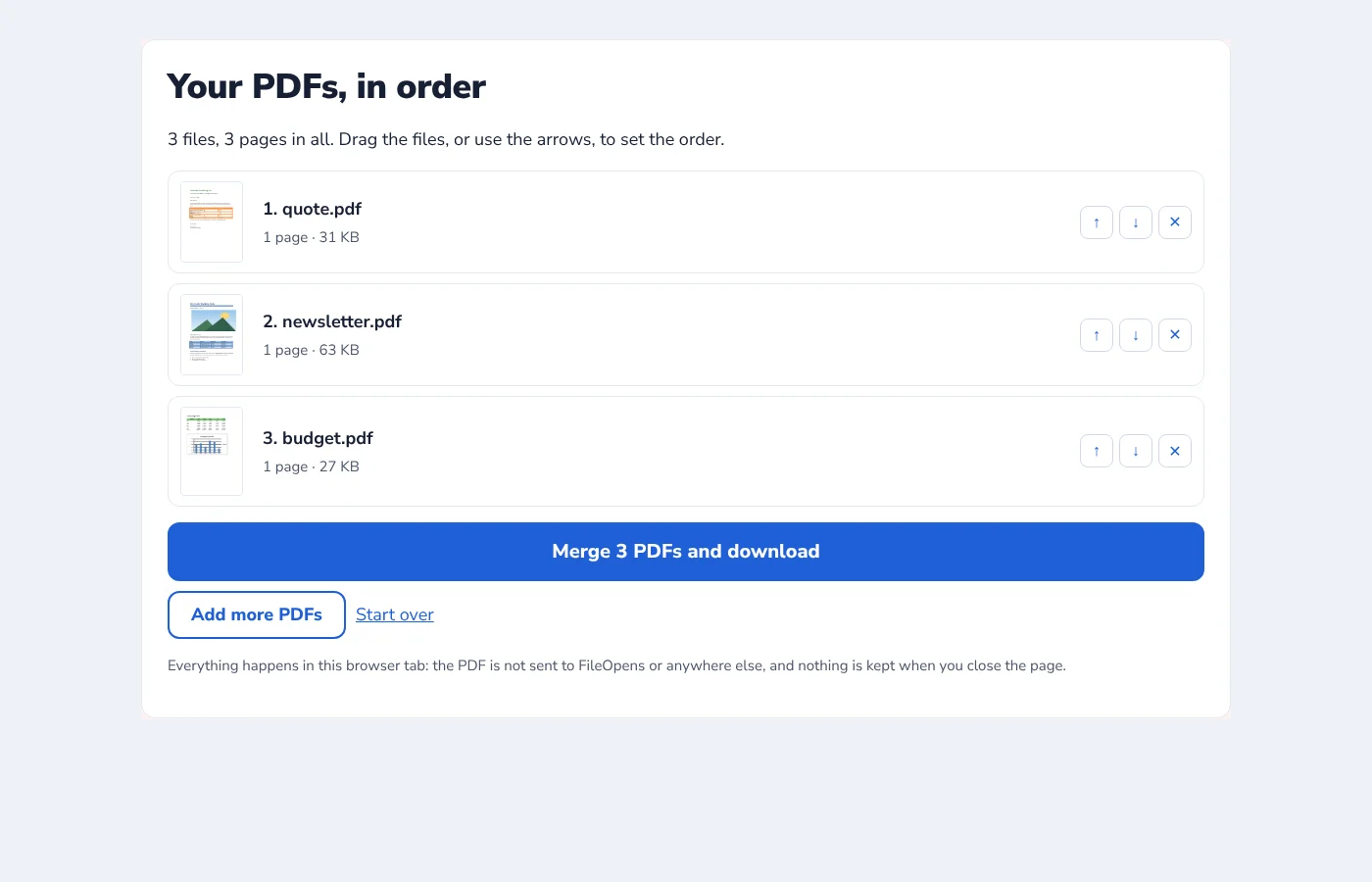
Three PDFs in the order you set
- Drag or use the arrows
- Pages counted for each file
A sample set of PDFs we made ourselves, with made-up names and data, opened in this tool and shown as it came out. Your own files stay on your device.
How to merge PDF files in three steps
-
Step 1
Add the PDFs
Choose or drop two or more PDF files. You can add more at any time.
-
Step 2
Set the order
Drag the files, or use the arrows. The first page of each is shown so you can tell them apart.
-
Step 3
Download one PDF
Click Merge. The combined PDF goes to your downloads in a second or two.
Merge PDF files without uploading them
Most PDF sites ask you to upload your files to their servers, merge them there and send the result back. That is a long way round for a contract, a tax return or medical letters. This tool works differently: the merging is done by your own browser, on your own computer or phone. The PDFs are read from your disk, combined in memory and saved straight to your downloads. Nothing travels over the internet, so it works for confidential papers, it is fast even for large files on a slow connection, and there is no queue, no daily limit and no account to create.
How to combine PDF files into one
Choose the PDFs above, or drag them from a folder onto the box. Each file appears as a card with its first page, its name, the number of pages and its size. Put them in the order you want by dragging the cards, or with the up and down arrows, and remove any you added by mistake. Click Merge and you get one PDF with all the pages, the first file first. The pages are copied as they are: the text stays text you can search and copy, pictures keep their quality, and page sizes are kept, so an A4 letter and a US Letter scan can sit in the same file. If you need to drop or rearrange single pages afterwards, use delete pages from PDF or split PDF on the merged file.
What carries over, and what does not
Every page, with its text, fonts, images, vector drawings and links to websites, comes through unchanged. Two things are worth knowing before you merge. Bookmarks (the table of contents a PDF reader shows in its side panel) are not carried over into the merged file, because each original has its own and they would clash. And fillable forms: the fields are kept on the page, but in the merged file they may no longer be fillable, so fill in and save a form first, then merge it. Files that are protected with a password or with editing restrictions cannot be merged; the tool tells you which file it is. Print such a file to a new PDF first (in Windows choose "Microsoft Print to PDF", on a Mac "Save as PDF") and merge that copy.
Merge PDF on Windows, Mac, iPhone and Android
Because it runs in the browser, this works the same in Chrome, Edge, Firefox and Safari on Windows, macOS, Linux, ChromeOS, iPhone, iPad and Android. On a phone, tap Choose PDF files and pick the PDFs from Files or Downloads; the merged PDF is saved where your browser saves downloads. On a Mac you can also merge PDFs in Preview by dragging thumbnails from one file into another, and Adobe Acrobat Reader can view but not merge files without a paid plan. On Windows there is no built-in way to merge PDFs at all, which is why most people search for a tool like this one.
Limits
Each PDF can be up to 500 MB, and there is no limit on the number of files, but very large merges need memory: on an older phone, hundreds of megabytes may be too much, while a computer handles them easily. The tool does not compress the result, so the merged PDF is about as big as the files added together. Scanned documents stay scans: merging does not make their text searchable.
More free PDF tools and converters
- Split PDF
- Compress PDF
- Compress PDF to 100 KB
- Delete PDF pages
- Rotate PDF
- Extract PDF pages
- Reorder PDF pages
- Crop PDF
- Add page numbers
- Watermark PDF
- Sign PDF
- Protect PDF
- Unlock PDF
- OCR PDF
- Flatten PDF
- PDF to grayscale
- Invert PDF colors
- Remove PDF metadata
- PDF to Word
- Word to PDF
- PDF to Excel
- Excel to PDF
- PDF to PowerPoint
- PowerPoint to PDF
- JPG to PDF
- PNG to PDF
- Image to PDF
- PDF to JPG
- PDF to PNG
- PDF to text
- HTML to PDF
- PDF to EPUB
- PDF to PDF/A
- PDF to TIFF
- PDF to SVG
Questions about merging PDFs
Is it really free?
Yes. Merging PDFs is free, with no account, no watermark and no limit on files.
Are my PDFs uploaded?
No. Your browser merges them on your device. The files are not sent to FileOpens or anywhere else, and nothing is kept when you close the page.
Can I change the order of the files?
Yes. Drag the files, or use the up and down arrows next to each one, before you click Merge.
Will bookmarks and form fields survive?
Pages, text, images and web links are kept. Bookmarks are not carried over, and form fields may stop being fillable, so fill forms in before merging.
Why does it say my PDF is protected?
The file has a password or editing restrictions, so it cannot be changed. Print it to a new PDF with "Microsoft Print to PDF" or "Save as PDF" and merge that copy.
Does it work on a phone?
Yes, in Safari on iPhone and iPad and in Chrome on Android. Very large files need more memory than older phones have.